How to require notes and tasks on time entries
Written By Lauri Eurén
Last updated About 1 month ago
When you bill from time entries, you may want every entry to carry a note explaining the work — or at least a Task so the time rolls up to a clear category. Operating lets admins enforce these requirements at the organization level, with per-Project and per-Task overrides for notes.
This article covers how to:
Require a Task on every time entry, organization-wide
Require a note on time entries, and override the rule for specific Projects or specific Tasks on a Project
Understand what people see when a note or Task is missing
Before you begin
You need an admin role with access to Settings → Time Tracking.
Decide the policy you want before changing settings. Note requirements support per-Project and per-Task exceptions; Task requirements do not.
Require a Task on every time entry
This setting is organization-wide. There is no per-Project or per-Task override — turning it on means every time entry, on every Project, must have a Task.
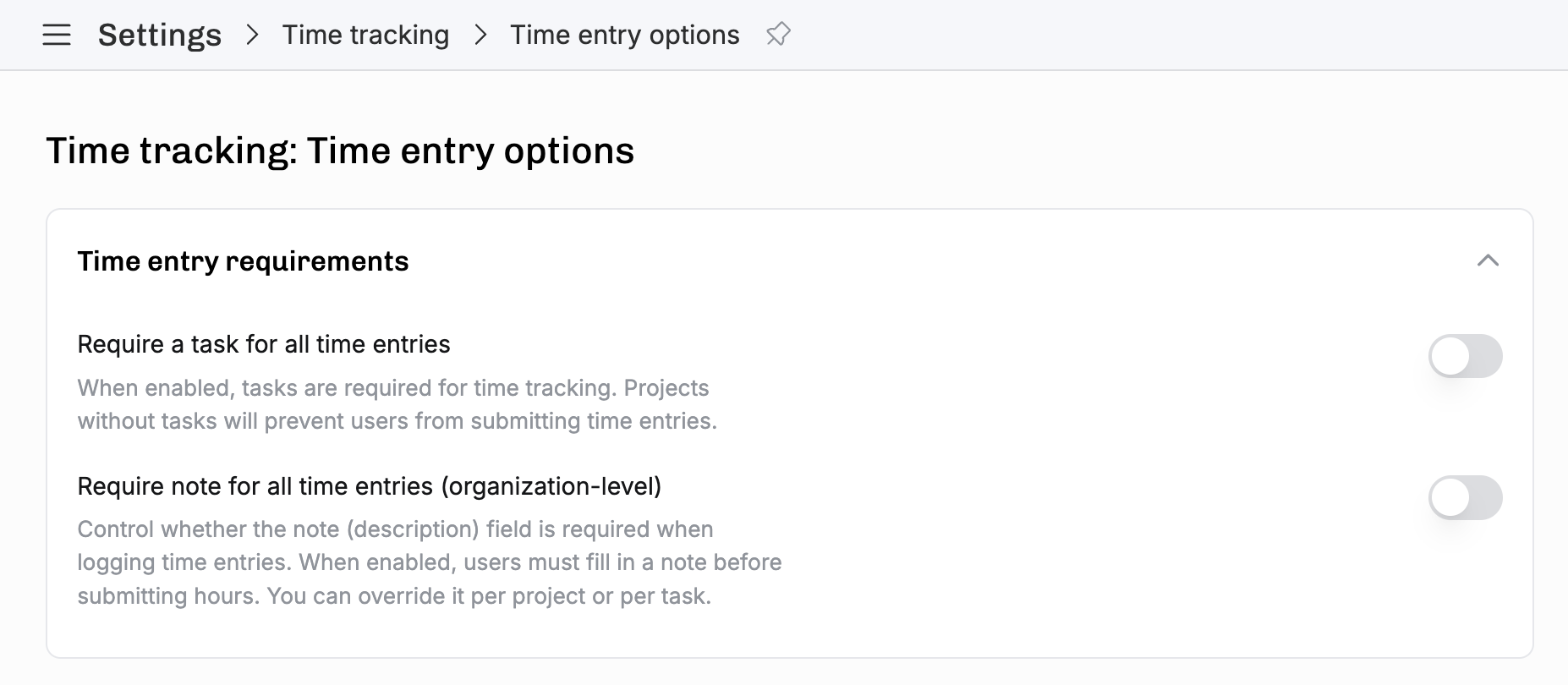
Go to Settings → Time Tracking → Time entry options.
Turn on Require a task for all time entries.
Anyone saving a Time entry without a Task now gets blocked at save time, with the message: "A task is required for time entries. This requirement can be controlled in Settings → Time tracking → Time entry options."
Require a note on time entries
Note requirements cascade through three levels: organization → Project → Task on Project. The most specific level wins. Each level has three settings: Default (inherit from the level above), Required, or Not required.
1. Set the organization-wide default
Go to Settings → Time Tracking → Time entry options.
Turn on Require note for all time entries (organization-level).
This is the baseline that every Project and every Task assignment inherits unless overridden below.
2. Override for a specific Project
Use this when one Project needs a different rule than the organization default — for example, a Project where notes are mandatory for client billing even though the org-wide setting is off.
Open the Project and go to the Project Setup section in Project Details.
Set Require note for each time entry to Required or Not required.
Leaving the dropdown on Default keeps the Project in sync with the organization-wide setting.
3. Override for a specific Task on a Project
You can also require, or exempt, notes for one Task on one Project — for example, an "Internal admin" Task that doesn't need notes on a Project where everything else does.
There are two places to set this:
When adding a Task to a Project: in the Add task dialog, set Note requirement to Required or Not required.
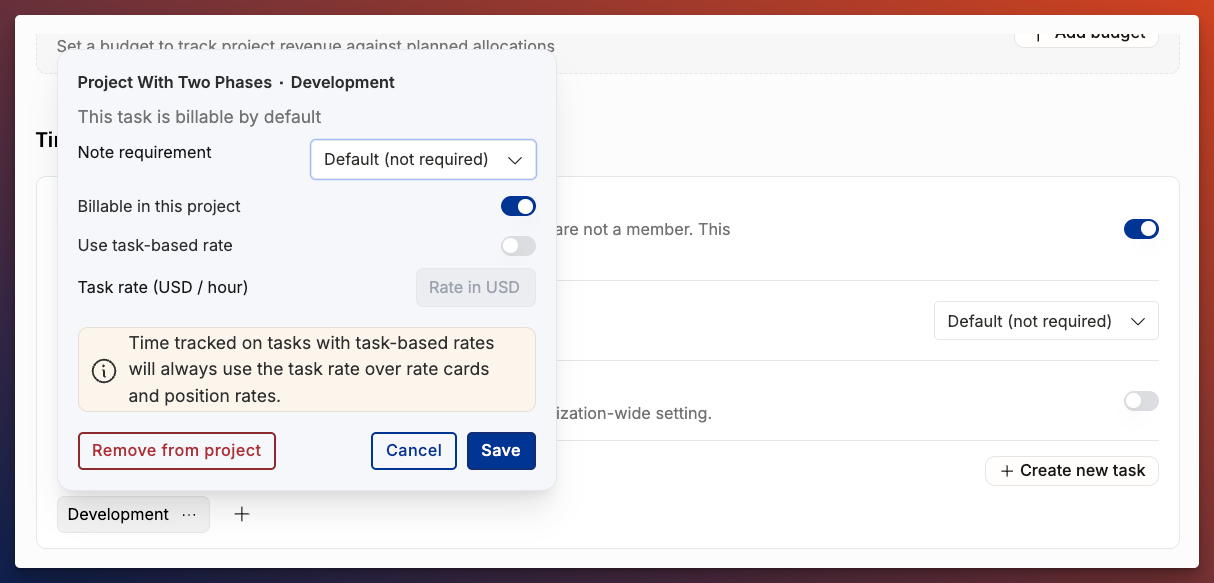
For a Task already on a Project: click the Task in the Project's task list to open its popover, then set Note requirement.
Leaving Note requirement on Default keeps that Task in sync with the Project setting (which itself may be inheriting from the organization).
How the three levels combine
When someone logs time, Operating works out whether a note is required by checking, in order:
The Task on the Project. If it's set to Required or Not required, that wins.
Otherwise, the Project. If it's set to Required or Not required, that wins.
Otherwise, the organization-wide setting.
So a single Task marked Not required beats a Project marked Required, which beats the organization-wide toggle.
What people see when something is missing
Missing Task (when the organization requires Tasks): the Time entry can't be saved. The form shows the error message above and the entry doesn't get created.
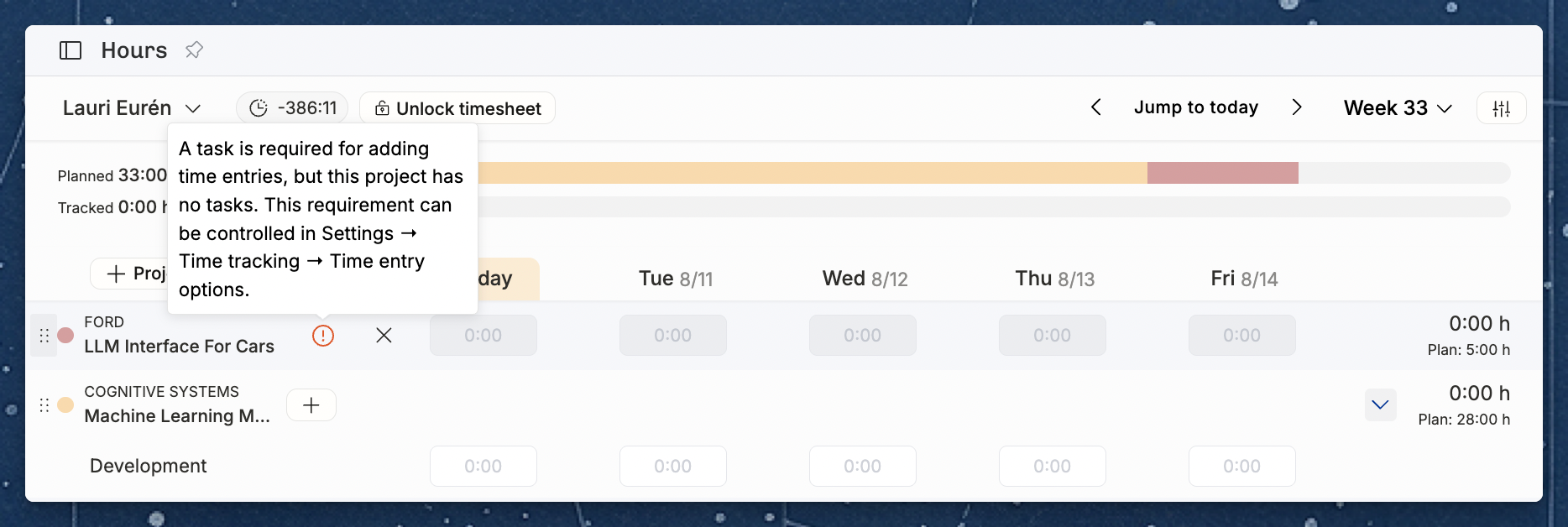
On the timesheet, Operating stops this earlier. A Project row with no Task has its day boxes grayed out. Hover over a box and you see: "A task is required for adding time entries to this project." Use the Tasks button on the Project to add a row for a specific Task, and that row accepts time as normal. Days that already have time on them stay editable, so people can still correct older entries.
Missing note: the Time entry saves normally, but submitting the timesheet is blocked. When the person locks the period, they see a count like "X time entries are missing required notes." They need to fill in the missing notes before they can lock or send for approval.
The difference matters: a required Task gates creation; a required note gates submission. People can keep working through the day with empty notes, but they'll have to fill them in before locking the week.