User Guide
Start using Operating.app
Written By Matti Parviainen
Last updated 3 months ago
How to log in
There are two ways to access https://use.operating.app the first time around
Follow the invitation in your email inbox from Operating – just set a password and you’re in
If your company is using single sign on (SSO), use it to get in
The login page asks for Company name, your admins know what this is. For example, for Acme Consulting it is something like acme-consulting
If you don’t know how to get in, drop us a line at support@operating.app and we’ll figure it out.
What can you do with Operating
Capacity planning & resource planning
Plan teams for upcoming projects, manage your project staffing, and forecast your capacity
Manage workloads and forecast utilization
Forecasting revenue, and managing project financials
Forecast your revenue for confirmed projects and projects in your sales pipeline
Monitor project profitability with project budgets, charge-out rates, and cost cards
Time tracking
Track time (timesheets) on projects and compare planned hours to actual hours spent
Invoicing and month-end close
Run your month-end close: recognize revenue, create invoices and send them to your invoicing platform (like Quickbooks or NetSuite)
The core product consists of the resource planning capabilities. These functionalities can then be extended by the time tracking and invoicing module, as well as integrations to other platforms.
The app's main areas

Profile & settings
At the top of the sidebar, click your company name to access your profile and account settings.
Non-resource planning functions
Below your profile, you'll find utility features that support day-to-day operations:
Search
Approvals
Hours for time tracking
Invoicing for billing
Dual timeline for power user view of the timelines
Reports for forecasting and analysis such as utilization, revenue, margins, capacity, and planned vs. actual comparisons.
Saved & pinned views
The Pinned section holds views you've saved and pinned to personalize your use of Operating. These can be custom-filtered views of projects, people, or other data you access frequently.
Resource Planning views
The main resource planning section contains the core views for managing work: Projects for managing your project portfolio — plan budgets, track financials, and monitor progress. People for managing your workforce — see availability, skills, roles, and workloads. Positions for tracking open roles that need to be filled across projects.
Utilities (under More)
1. Capacity planning & Resource planning
You can connect Operating to your CRM and assign placeholder teams to upcoming projects to let your team see which roles and skill sets are in demand. You can also assign people (not placeholders) directly on upcoming projects.
When you’ve added the team setup and scheduled the work, you’ve successfully staffed the projects.
Everyone in your company can see who’s working on what and who has availability now and in the future.
For every Person in Operating, you have roles, a seniority level, skills and other metadata.
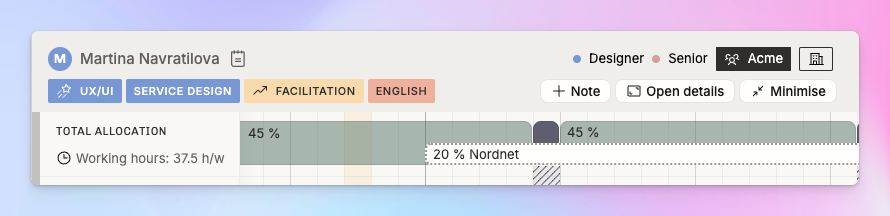
Above: Martina knows UX/UI, service design, facilitation and English. She’s a Senior Designer, currently 45% booked and has another 20% of tentative workload for a project for Nordnet.
1.1 How Operating forms a utilization forecast
The work allocations (people scheduled to projects, like Martina above) form a bottom-up forecast of all of the work that’s confirmed or tentative. Of course they’re just plans, but still, it’s often the best guess of your company’s utilization for the next months.
This information is summed up for a utilization forecast that you can filter based on all the different variables in the system.
2. Forecasting revenue, margins, and managing project financials
You can add project budgets, role- and seniority-based charge-out rates, and consultant costs into the system to have a basis for estimating the revenue and profitability of your project portfolio
Similarly to the utilization forecast, Operating will give you your company’s revenue, gross profit, and margin forecast by summing up all upcoming project revenue (shown below)

By adding budgets (fixed price projects) charge-out rates (per hours projects) and cost cards (people’s costs), you can get a real-time estimate of your projects’ gross margin. Read more here.

3. Time tracking: follow planned vs actual hours
You can track time spent in Operating Hours. If you’re using another platform to track time, you can bring the time entries into Operating with an integration or via CSV.
Time tracking in itself is quite mundane, but the real value comes from the comparison of plans and actuals.
During sales phase, you estimate the scope to your best knowledge
Resourcing (scheduling and allocating time) is often optimistic: you might not remember to factor in sick leaves and other interruptions to work
It’s common for the scope and schedule to change during the project
When you compare planned vs actuals per project or per person, you can see when things start(ed) to go over or under the estimates. You can also see these numbers as a burnup graph under the project details page.
The list view - all time entries and descriptions visible
TIP: Click the settings icon at the top right of the screen while in the timesheet view to access the List view
See all time entries in a list day by day
Duplicate time entries if you work on the same task multiple times across one day
Copy-paste your previous day’s entries by clicking copy previous day to quickly log repetitive work. This is especially useful, if your clients are not that strict on keeping notes on what was done, but you need the hours for billing.
Always have the time entry description visible for quick logging of notes

4. Month-End Close & Invoicing
Before you send out invoices and close the month, you want to make sure your numbers look correct. With Operating it’s possible to track timesheet approvals to know if the invoice is ready to be sent and if all the hours are submitted and approved. Operating also supports revenue recognition, to make sure your financials look right before moving on to the next month.
After you’ve recognized revenue, and approved timesheets, invoices will be created. You (or your finance team) can set billing cycles for projects and create invoices using Operating. Operating supports creating invoices based on time & materials, and fixed price work, as well as creating free form invoices from scratch.
We support fixed and custom invoicing schedules, as well as exporting your invoicing data to another platform via csv.
Top things to understand about Operating
Tentative resource planning: Add upcoming work with just enough detail about the team setup, run your resource planning weekly, fill open positions in projects, and skim through your available consultants. Get upcoming projects from your CRM, and create a saved view with project status = tentative to only look at projects in your sales pipeline.
See our article on how to do this.
Projects and people - timeline views: Maintain workloads, see your team’s detailed capacity, plan project budgets and monitor gross margins for projects.
Reports: Forecast your revenue, profits, and utilization. Monitor planned work vs. actual hours spent to see if your plans were realistic
Your own profile: Make sure your skills are up to date. Add a short bio about yourself. People building teams will use Operating to pick the right person for each job, and they need to know more about you.
Don’t worry about being 100.0% accurate in planning upcoming work. Start somewhere and adjust when necessary. Time tracking will reveal the truth, and that’s fine! You want to see the deviation between plans and actuals to be able to improve.
Frequently Asked Questions
Is this for managers only or should individual consultants also update Operating?
→ We don’t think anyone should spend a huge amount of time updating allocations and doing busywork. If your company works best when someone handles resourcing on others’ behalf, keep it that way. On the other hand, if it’s smoother to have everyone update their plans, do that.
What tools does Operating.app replace?
→ Operating is a professional services automation platform, and replaces multiple tools. We’ve replaced resource management apps, spreadsheets, and time tracking tools, and legacy consulting ERPs. Some companies have canceled their skill management app subscriptions and chosen to manage people’s skills in Operating instead.
Why did we build Operating?
There’s a whole story on it on our website, but we’ll give a more technical answer below.
Operating is not a CRM. It’s not an HRIS tool. You may still need finance software like QuickBooks to manage your P&L and cash flow. So what is it?
While many agency platforms take an “all-in-one” approach, at Operating we’ve built a platform that focuses on just the right mix of use cases — everything you need, without the excess.
Operating handles the core consulting workflows: resource planning, utilization and business forecasting, time tracking, and invoicing. These aren’t generic workflows; they are the specialized processes that make a professional services business unique. On top of that, we help you plan upcoming work in connection to the CRM better than other platforms, while giving you great tools for month end closing and invoice generation.
For everything outside the consulting core, such as CRM, HR, and finance, we offer integrations to best-in-class tools. This way, you use purpose-built software where it matters most. Smart, isn’t it?
You should be rightfully hesitant about relying on a full-blown agency ERP or PSA (professional services automation) to manage everything — finances, HR, sales, and operations all in one place. In reality, these platforms often force compromises. Operating doesn’t try to replicate everything an old-school ERP covers. And if your PSA no longer sparks joy, it might be time for something better.
Who is responsible for keeping work allocations up-to-date?
→ The one who knows best. In the sales phase, it’s often the salesperson. They might even use Operating Timeline to plan the shape of the work to come before sending a proposal to the client.
→ However, when the handover happens from sales to project delivery, the Project Owner is likely to change. It may be the project manager. This is not always simple, and we support adding secondary owners to projects as well.
→ In some companies individual people are given a lot of autonomy and responsibility for their own work planning. In these cases it is natural to follow a process in which each person plans their months or weeks ahead to their best knowledge.
Trivia
Keyboard shortcuts and other time-savers
Try hitting arrows up, down, left or right while punching entries in the Hours timesheet.
Hit cmd/ctrl + k to quickly navigate around Operating
Use the filters → Save a view → pin it. This view now lives in your sidebar!
Skills can have levels, feelings and notes related to them
When you’re filling your own professional profile, you’re able to add skill levels (beginner) and feelings (I want to learn) and notes (studying this on the weekends). Try it out!
Saving common filtering criteria as Views is a good idea

Filtering people and projects is a very common thing to do in Operating – you’re looking up things like “how are our developers doing” or “what tentative projects are there in the UK” → clicking the filters off and on again might get tedious. If you find yourself looking at the same things often, save it as a View. Views can also be shared with others.
Pin views to the sidebar, and create folders to organize your favorite and most used views
Pinning views is the best way to make the use of Operating smooth.
