Rate cards
In Settings > Financials > Rates you can create new Rate cards.
Written By Matti Parviainen
Last updated 11 days ago
Baseline: your global average
Set a global average rate that’s used as a fallback if no rate card is set. We recommend using your latest known rolling average rate (e.g. from the last 3 months) for that. You can revise this over time if your averages change.
Rate cards
Rate cards define your charge-out rates – the prices you bill clients for your work. They shouldn’t be confused with cost rates, which represent your internal labor costs.
Create as many rate cards as you need. Depending on your pricing strategy and the amount of freedom given to your sales team to negotiate discounted rates, you may need a few of these.
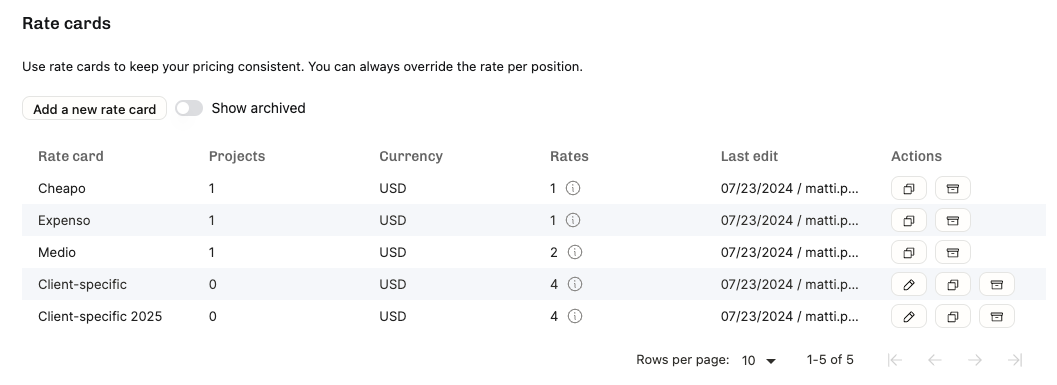
Rate cards are always assigned to projects. Assign Rate cards to projects anywhere you modify the project details: Projects list, Timeline or Directory.
Why editing rate cards may be blocked
When a rate card is assigned to a project, you may no longer edit it. The reason why rate cards should not be edited (but duplicated and edited after copying instead) is that change in rate cards will also change all historical data.
Tip: Hover over the number under The column Projects to see which projects the rate card is associated with.

What if rates change over time in a project?
You can add multiple rate cards to the same project: Create a new one, and go through the projects where the new rates should be applied, and add the new rate card starting on the date you choose. Then the past data will be untouched and the new rate card used from the chosen date onwards.


Setting up rate cards
Rates belong to a position on a project
, meaning a role or a person, that might have many project allocations over time. Essentially, on the timeline, a position = one row. If you need the same person to have more than one rate on a project, create a new position for them.
You can set rates for positions with no role, for roles, and for roles within certain sites. Additionally, you can specify the rates for all seniority levels you’ve set up.
Note: If the person has a seniority but the rate card isn't defined for that seniority then it'll default to the rate card’s base rate. To keep things clear, adding the same role rate for each seniority is the best practice – if you have seniorities set but charge the same rate for all designers, for example. See example below:

Exceptions per position (that one team member who has a special price)
You can always override the rate per position in the team. Open the position e.g. on the timeline, or project details page and click the rate shown. In the dialog that appears, toggle on Set position specific rate and enter a value.

Review where your rates are coming from

When you open Project Details and go to the Team tab, each Position shows the rate (and, if you have set costs and the billing type per hour or capped-time-and-materials, the gross margin). Hover your mouse cursor over it to reveal how the rate has been determined. Here is a team where each (named or unnamed) position is different:

Basic case: Position with no person, no seniority specified, using rate card


Rate & cost determined by the Position Seniority

Position-specific rate

Person-based rates, costs and margins

Task-based rates
Task-based rates in Operating allow you to set different billing rates based on specific tasks within a project. This means you can charge clients differently depending on the kind of work being done, rather than applying a uniform rate across all tasks.
You can create individual tasks and organize them into task lists for reuse across projects. Then, when adding tasks to a project, you can specify whether each task is billable or non-billable and apply task-based rates accordingly.

Open the project, go to the Project setup tab, scroll to the Time tracking section, and find Tasks for time tracking. Add new ones or use existing ones.
is this task billable in this project
should a Task-based rate used, if yes, what is that in project currency per hour

Project-by-project pricing
You can also create a Rate Card from the project context and use it for that project only.
Have a look at the different ways to set rates (project-specific rate card, shared rate card, task-based rates and position-specific rates) in this short video:
Archiving Rate Cards when they’re no longer in use
When the rate card is archived, it can’t be added to new projects any more. Projects with that rate card continue to use it.
Revenue in Reports
You can show most reports in either utilization-%, hours, or revenue. The global defaults may cause inaccuracies in the reporting, but at least it’s better than showing “not available” until all rates have been carefully set.

If you use multiple currencies, you may show any revenue report in any of the currencies. The conversion rate is the one you set in Settings > Financials > Rates & Currencies. Operating underlines any numbers that have been converted.
See also: Understanding revenue forecasting in Operating .
Video: work with hourly rates and revenue forecasting (Ask to join our early access users!).