How to set up SSO with Entra ID
Overview of SSO using Microsoft Entra and setup instructions.
Written By Mikko Karjalainen
Last updated 11 days ago
Overview
Operating supports SSO with Entra as the identify provider. At a high level, the integration work like this:
After setting up Operating to use Entra as SSO, access control is handled on Entra side. If a user is assigned to the Entra application, they will be able to log in to Operating.
User accounts to Operating are provisioned just-in-time when a user logs in through the SSO connection.
New users will be given the default permission set configured in
If a Person exists in Operating with the same email as the new users, we will associate the newly logged-in users to that Person.
Users lose access to Operating after their assignment to the Entra application has been removed.
Contact us at support@operating.app if you want to set up Entra SSO for your tenant.
Setup instructions
Step 1: Create an App Registration for Operating in Entra
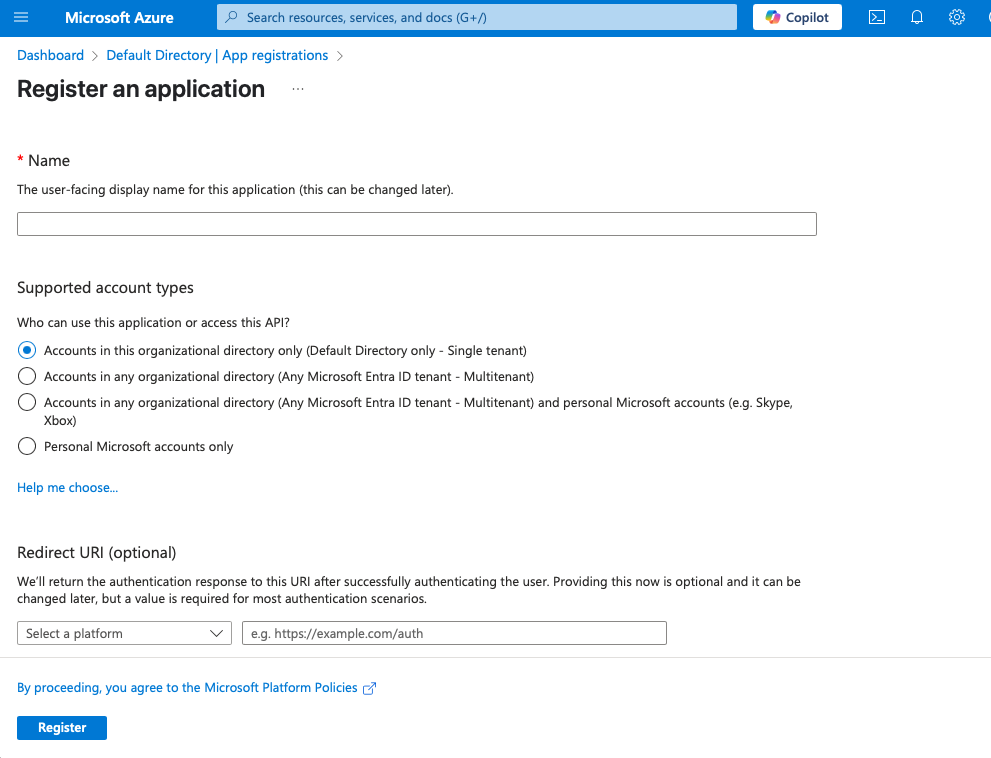
Navigate to App Registrations in Entra and create a new App Registration
Name: E.g. “Operating”
Supported account types: Accounts in this organizational directory only
Redirect URI
Platform: Web
Redirect URI: https://auth.operating.app/login/callback
Click Register
After the app registration is created, copy down the Application (client) ID from the Overview page. You will need it later.
Step 2: Create a client secret for the App Registration you created
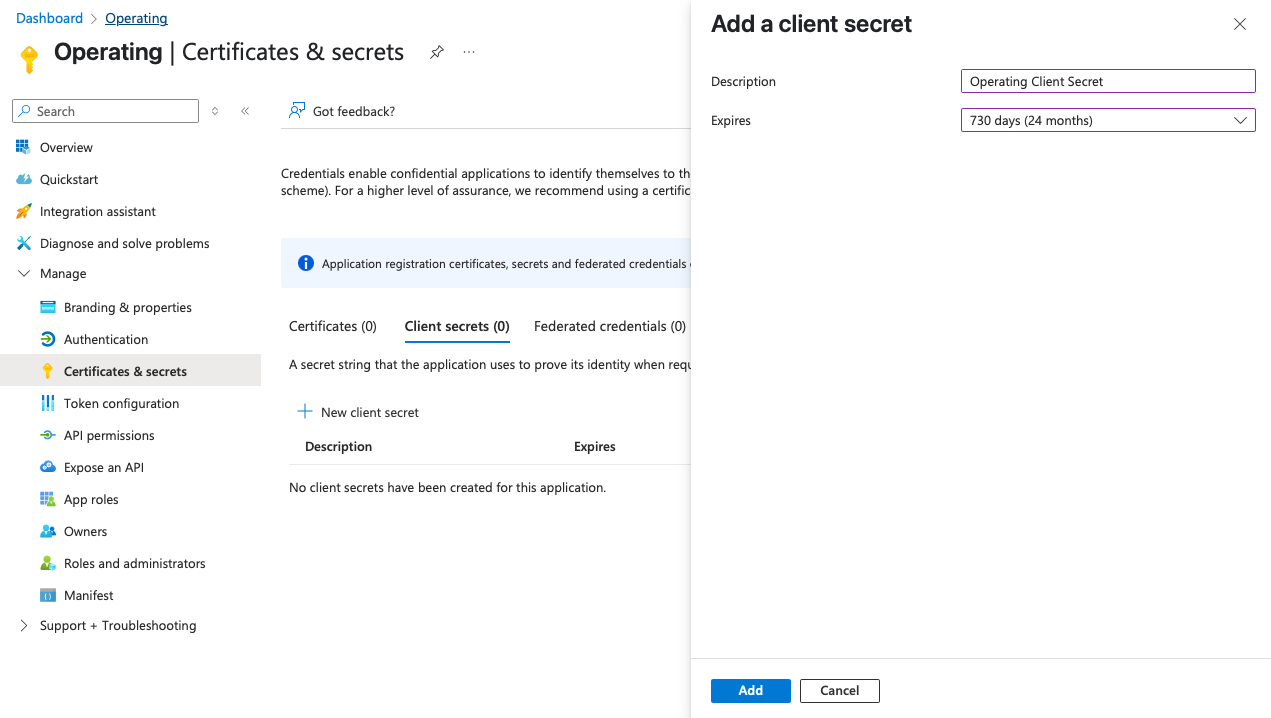
Navigate to Manage / Certificates & Secrets for the registered App
Create a new client secret
Copy down the value of the client secret. You will need it later.
Step 3: Define assignments to the Enterprise Application
By default anyone in your Entra will be able to login to Operating after the connection is activated. If you want to limit the users who are able to login Operating, you must configure the created enterprise application to require assignment.

You can do this under the Enterprise Application for Operating, not under the App Registration configuration from steps 1 and 2. This Enterprise Application is created automatically when you create an App Registration.
To set up assignments, do the following:
Under Manage / Properties, Set Assignment required to be Yes.
Under Manage / Users and groups, assign correct groups and/or users to the Enterprise Application
Step 4: Contact us at support@operating.app
After you have created the application, contact us at support@operating.app to organise a safe delivery of the client secret and other information.
You will need to provide us with the following:
Application (client) ID
Client secret
Your Entra Primary domain. This can be found on the overview page of Entra.
After you have provided this information, we will configure the SSO connection on our side.
When the SSO has been configured also on our side, an Entra admin has to log in to Operating once to accept sharing of data from Entra to Operating. After this you are good to go.