Time balance (flex)
Track balance of tracked time, going over or under the contract hours
Written By Matti Parviainen
Last updated 3 days ago
Why track time balance
Every Person in Operating has their contractual working hours – set either through their Site membership, or individually (from the Person details).
As you track time using Operating Hours, you can choose to show and follow how much over or under the tracked time is compared to the working hours. In some companies, employees have the option to take time off to “spend their plus hours” or “time off in lieu”, or to get the overtime paid in addition to their regular salary.
How does time balance work in Operating
In order to support the above mentioned use cases, Operating has implemented:
Time balance visible on timesheets and in the person detail page
Time balance for all people listed on the People List View
Adjustments to the balance:
Initial setting (transferring the situation from the previously used system)
Later adjustments (when plus hours are paid or reset, for any reason)
If your company would like to follow flex balance, do it from Time Tracking settings.
How to set it up
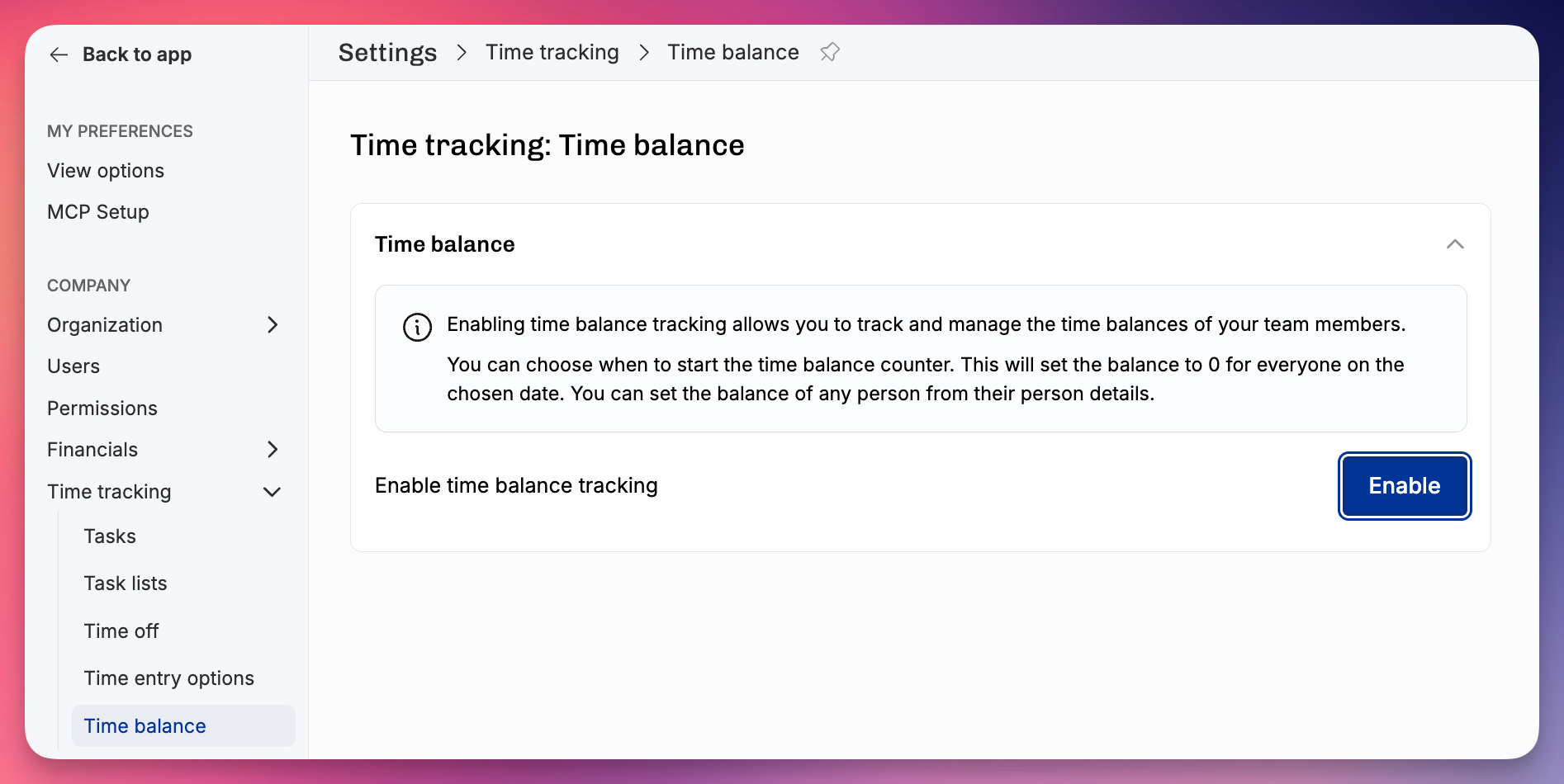
Enable the feature from Settings > Time tracking > Time balance.
When you turn on time balance, Operating adds a Time balance leave time off category, unless a category that deducts from time balance already exists. Time off tracked in that category is deducted from the person's time balance. You can turn on Deducts from time balance for other time off categories too — see What is time off?.
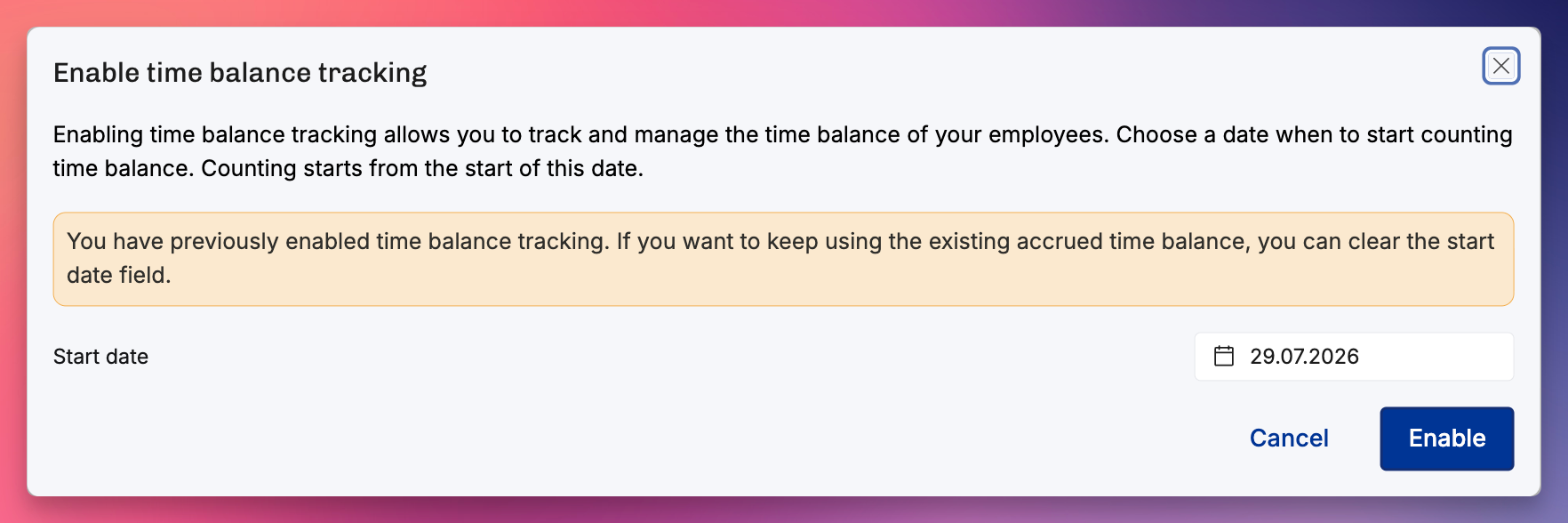
The start date you choose sets everyone’s time balance to 0. You should then adjust each person’s balance individually, in case there are pre-existing balances you’ve tracked outside of Operating. Ideally, you’re getting rid of an old spreadsheet.
How to use it
For the employee tracking time, their balance shows up at the top of the timesheet. You can see more details when hovering your mouse cursor on top of the number:
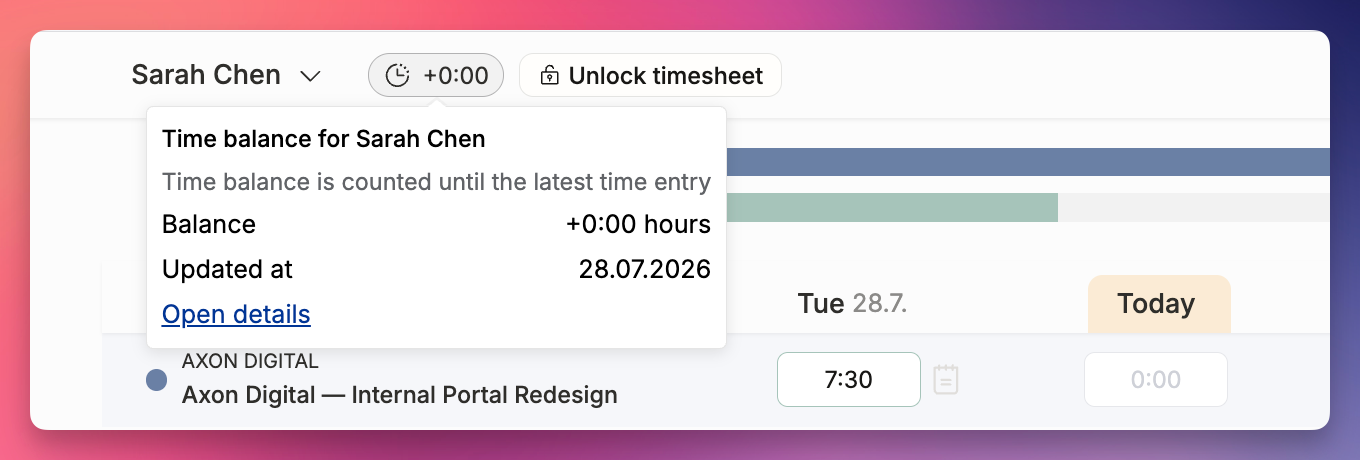
The “calculated until” date is very important: if Sarah in the above example hasn’t track any time for today, there seems to be -7:30 on today. However, the time balance is calculated until the last day when Sarah has entered time entries, and that is yesterday.
This way the balance isn’t always unrealistically negative if (and when) people are not tracking their hours each day.
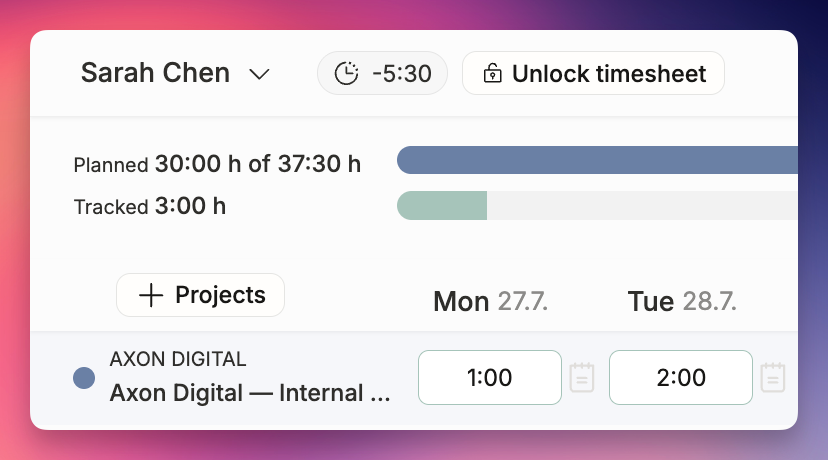
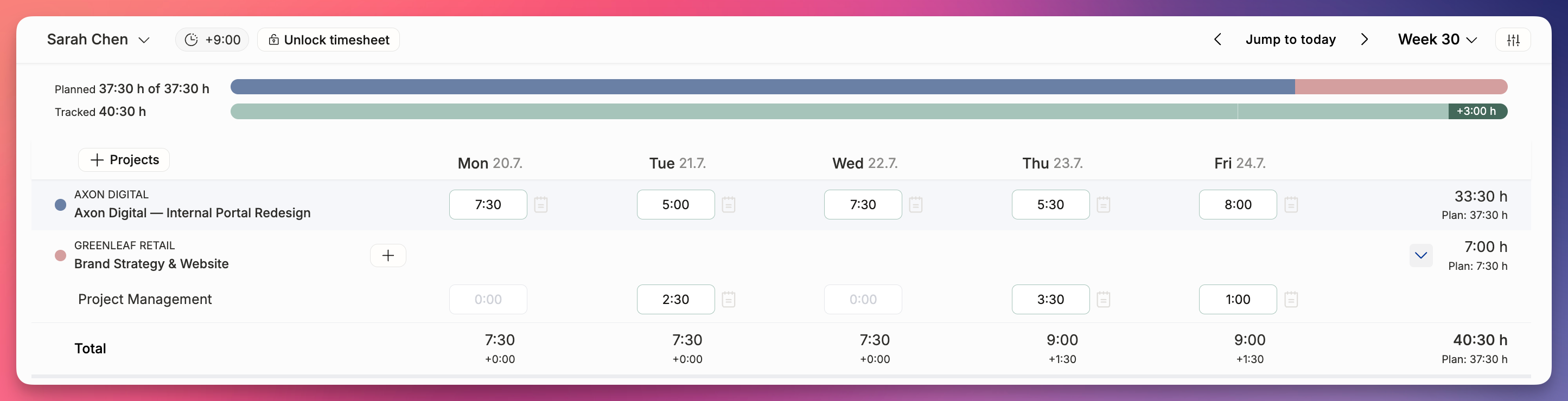
In the screenshot below, Sarah is tracking time for the 27th and 28th days, and only entering very few hours, changing the time balance rapidly from +0:00 to -5:30:
After entering the previous week in full – and working long hours on Thursday and Friday – the end result is +9:00:
There is no upper or lower limit to the time balance calculation. If your company has a policy for a maximum number of overtime hours, you must follow the balances in Operating and enforce the policy manually.
Tracking the hours when Time balance is used
Example: you’ve accumulated plenty of balance and decide to take Friday off.
Just leave Friday blank → your time balance will be reduced by your regular workday’s hour count, for example 8 hours.
The downside of this is that your manager (or yourself for that matter) might not remember that you took a day off and didn’t just forget to track time that day
Add full day of time balance leave for Friday (e.g. “Flex leave 8:00” with the note “Took some time off, everyone thought this is a good idea”)
Everyone looking at your timesheet – even someone running a report for the full year – will see that you have balanced your situation by taking a day off
In both cases, the effect on your time balance for that week will be the same. Operating UI will show that you’ve tracked 4×8 = 32 hours if you track nothing on Friday and 5×8 = 40 hours if you track 8h of Flex leave.
Even if it’s a bit of extra work, we recommend using method 2. It’s better to be explicit than having to ask around “why is that Friday blank”.
Where can I view time balance
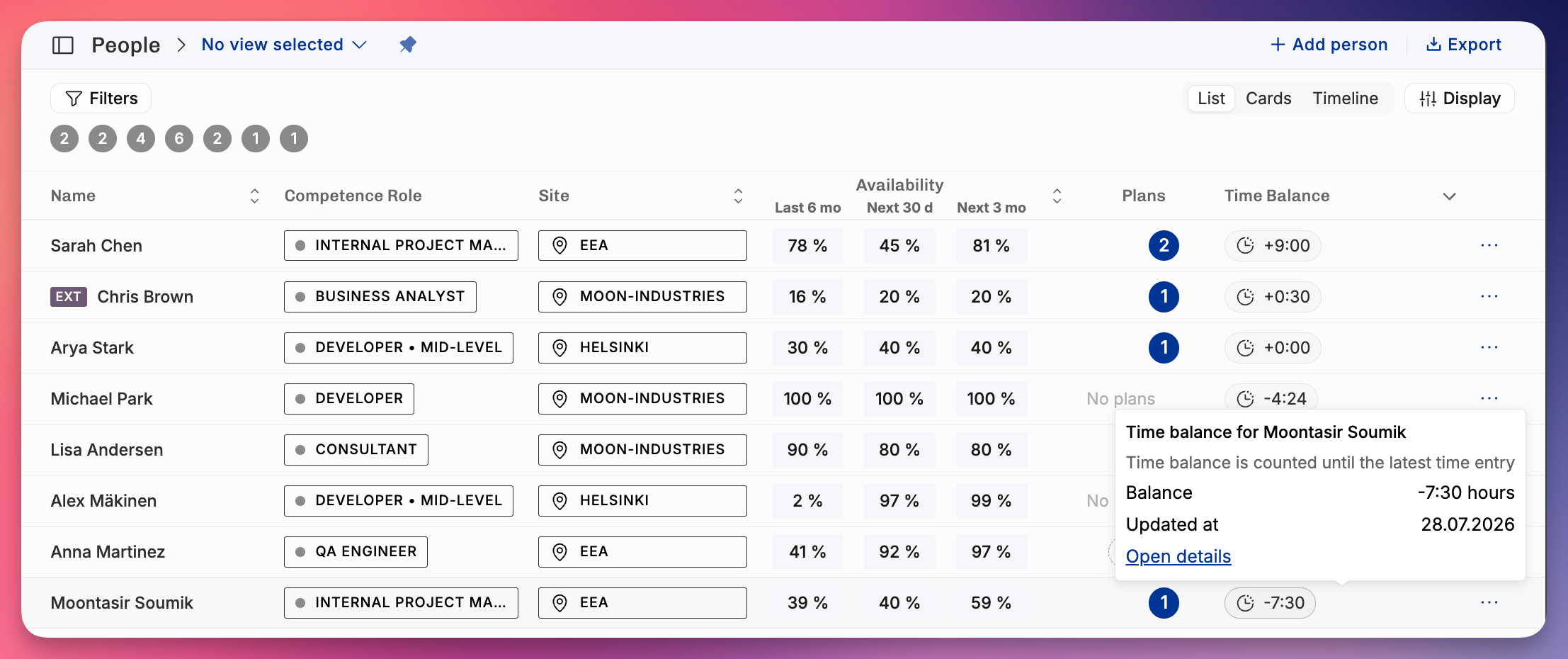
In the People view (and the list view), you can choose to see the Time Balance column – and also sort the table according to the time balance value (from the Display menu).
Was this helpful?
Still need help? Ask the team