The Big Expense Release. Plus Phases, Smarter Filtering, Tasks 2.0 and More
At a Glance
Expense management — Expense entry with categories, receipts, and markup; planned expenses for forecasting; per-category budgeting; CSV export; merchants (vendors); Cmd+K quick entry; and standalone activation without the invoicing module
Tasks 2.0 — Project-specific tasks, a new Tasks management page, require-task and require-note enforcement, and bulk task assignment
Phases 2.0 — Time entries linked to positions and phases, with phase columns and grouping on the project page
Skills overhaul — Ranked skill levels (with icons!), better profile visibility, level visible on assignment tags, wildcard skill filtering, and easier skill management
Availability filtering — Find who's available on a specific date or over a custom date range
New filters — Filter by deal probability and deal status
"Contains" filtering — Partial-match filtering for skills and other multi-value fields
Costs in the reporting API — Pull planned costs, tracked costs, and margin data from the API
Terminology alignment — PvA dropdown, burnup legends, and client-facing exports now use glossary-consistent language
Quality of life — Share links, bulk project archiving, decimal hours, fixed-price PvA visibility, budget-as-invoiced marking, and a batch of bug fixes
Expense Management
This is the headline feature of the release. Expense management goes from a minimal first version to a complete, production-ready system. As more companies are relying on Operating for their invoicing and profitability math, solid expense management is a part of that.
Expense entry with categories, receipts, and markup. You can now log expenses with one or more line items, each assigned to a category (Travel, Subcontractors, Equipment, etc.) with its own billing treatment. Each line item can carry a markup percentage, a receipt, and a billable/non-billable flag. The multi-line-item model means a single expense — say, a contractor invoice covering consulting and travel — can be split across categories with different markups, matching how real-world expenses actually work.
Expense categories and defaults. New organizations start with a curated set of defaults — Travel, Accommodation, Meals, Local Transport, Subcontractors, Software & Licenses, Equipment, Materials, and Other — each with sensible markup percentages, receipt requirements, and billing defaults already configured. You can customize everything from the Expense settings page: rename categories, adjust default markups (subcontractors default to 10%), toggle receipt requirements, or add entirely new categories.
Heads up: Existing organizations have been migrated with an "Other" default category so nothing breaks.
Planned expenses for forecasting. Create future-dated expenses with a "planned" status to pin expected costs to specific dates. Instead of spreading expense budgets evenly across a period, you can say "we expect a €5,000 subcontractor invoice on April 15th" and have it appear in the right place in your projections. Planned expenses convert to actuals as they're submitted and approved.
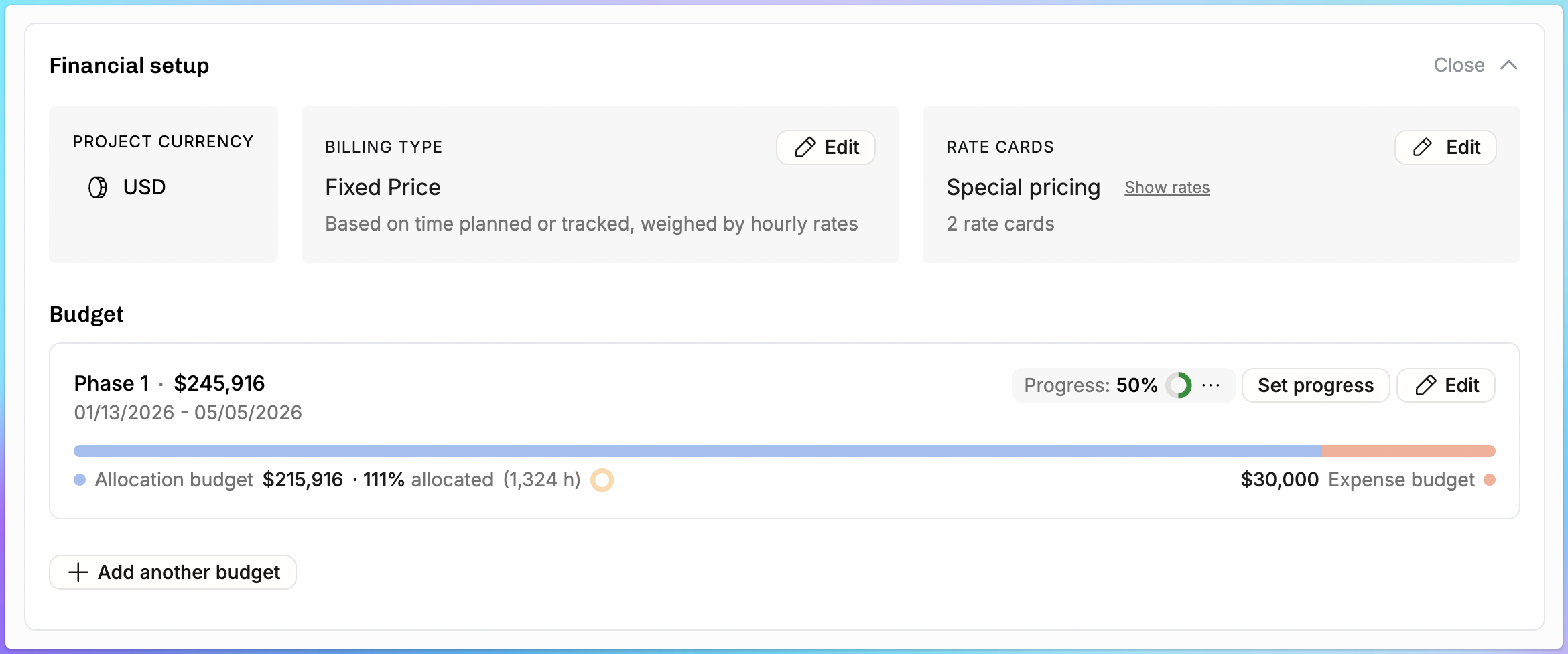
Budget tracking per expense category. Within each project budget, you can set expense budgets by category — for example, €5,000 for Travel and €15,000 for Subcontractors. The project page shows a rolled-up summary of budget vs. planned vs. actual for each category.
Expenses section on the project page. The Project Details Page now has a dedicated Expenses section showing the category budget summary, a filterable and sortable expense table, and inline expansion to see line item breakdowns. Expenses also flow into the project burnup chart — expense costs and revenue integrate with labor data so you see the full picture of project financial health.
Merchants, CSV export, and Cmd+K. Expenses can be tagged with a merchant (vendor) for cleaner reporting. You can export expenses as CSV — a selection, all expenses, or a date range. And the command palette now supports adding expenses directly.
Standalone activation. Expense tracking no longer requires the invoicing module. A new toggle in settings lets any organization turn on expenses independently.
Permissions. Expense visibility follows a clearer logic: if you can see an expense, you always see its cost. The invoiceable amount and revenue fields follow your existing revenue permission level.
Tasks 2.0
Tasks have been significantly expanded — from a simple shared list to a flexible system with project-level granularity and enforcement controls.
Project-specific tasks. You can now create tasks that belong to a specific project. These appear alongside your organization-wide tasks when tracking time, but they're scoped to the project where they were created. This keeps your global task list clean while giving project owners the granularity they need — think of a software delivery project with hundreds of change requests, or an engagement where each workstream has named deliverables.
Tasks management page. A dedicated settings page gives you a bird's-eye view of every task in your organization: how many projects use each task, whether it's billable or non-billable in those projects, and whether any task-based rates are in play. You can create, edit, and bulk-archive tasks from here. When archiving, Operating tells you how many time entries reference the task so you can make an informed decision.
Bulk task assignment. You can now add multiple tasks to a project at once, rather than one at a time.
Require tasks on time entries. A new tenant-wide toggle prevents consultants from logging time against a project that doesn't have tasks assigned. This addresses compliance-driven workflows where finance needs to set up the task structure before anyone starts tracking.
Require notes on time entries. Configurable at three levels — organization-wide, per project, or per task. When notes are required, time entries are still saved immediately (we never lose user input), but they're flagged as incomplete and can't be submitted for approval until the note is added.
Phases 2.0: Time Entries Linked to Phases
Until now, there was no definitive link between a time entry and the position (and therefore phase) it related to. Rate calculations used an automatic lookup, but users couldn't explicitly say "these hours belong to my Design Lead position on Phase 2."
Explicit position link on time entries. When a person has multiple positions on the same project with overlapping allocations, Operating now presents a position selector — making it mandatory to choose which position the time entry belongs to. This is available in both the UI and the API.
Phase column and grouping. The project time entry list now includes a Phase column, and you can group time entries by phase. Combined with the position link, this means you can finally see exactly how much time has been spent on each phase — a long-requested capability for tracking phase-level progress and budget burn.
Skills Overhaul
Skills in Operating have received a significant upgrade across several dimensions — making them more useful for staffing, more visible on profiles, and easier to manage.
Ranked skill levels. Skill levels now have a configurable rank, similar to how seniority levels work. You can define the ordering in Settings, and choose how skill levels are displayed on assignment tags: as an icon (cell signal strength bars), a number, the level name, or hidden entirely. This is a per-user display preference, so each person sees skills the way that works best for them.
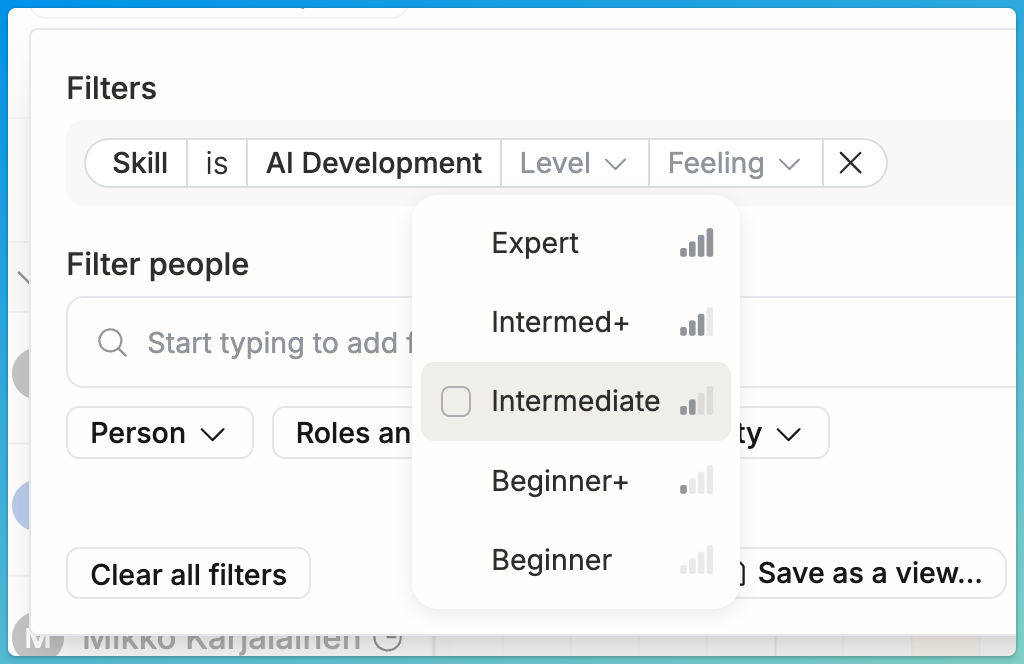
Heads up: Existing organizations may have their skill levels in the wrong order. Reorder them if that’s the case, admins → https://use.operating.app/settings/organization/skills → Levels.
Seniority and level on assignment tags. Skill assignment tags throughout the app — in people lists, profiles, and staffing views — now show the person's skill level rather than just the old "feeling" icons. This makes it immediately clear at a glance whether someone is a junior, mid, or senior practitioner of a given skill.
Better skill visibility on profiles. The person profile page now displays skill levels more prominently, giving managers and staffing teams a clearer picture of each person's capabilities without needing to click into individual skills.
Easier skill management. The skill edit popover on the profile page now includes a remove button — a small but long-overdue improvement that eliminates the friction of removing skills from a person's profile.
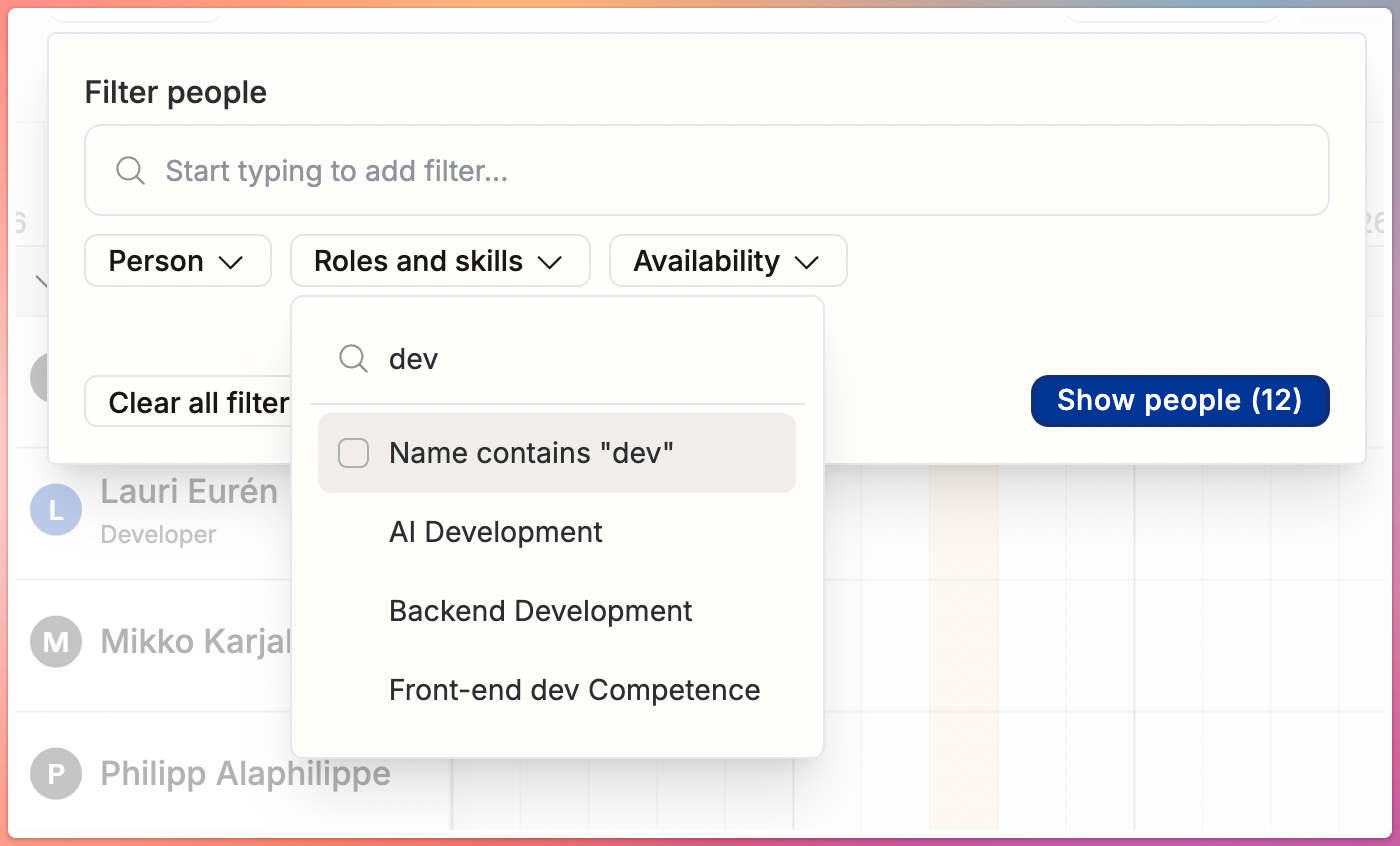
Wildcard skill filtering. In addition to the "contains" filter (covered below), you can now filter people by partial skill name matches using wildcard-style queries. Type "aws" and find everyone with any skill matching that string — AWS, AWS Lambda, AWS Certified, etc. — without needing to know the exact skill names in the system.
Availability Filtering
Staffing managers have been limited to "who's available now" — essentially the next 30 days. That's helpful for immediate needs but falls short when planning ahead.
You can now filter the People list to show who's available on a specific date, or who has a certain minimum availability over a custom date range. Planning a project that starts in August? Filter for people who are at least 50% free from April 15 through July 1. This makes proactive staffing — finding people before they're needed — much more practical.
Horizon Filters: Deal Probability and Deal Status
The Horizon view now supports two new filters.
Deal probability. Filter by the latest deal probability percentage using "more than" or "less than" operators. You can also sort by probability — letting staffing and sales teams focus on deals most likely to land, or identify long shots that don't need resource planning yet.
Deal status. Filter out irrelevant deal statuses from the Horizon. If you don't need "Lost" or "On Hold" deals cluttering your day-to-day view, you can now exclude them.
"Contains" Filtering
Filtering by skills or other multi-value fields used to require selecting exact matches from a list. Now you can use a "contains" filter — type "AWS" and find everyone whose skills contain that term, without needing to know the exact skill name. After typing, Operating offers a "search for skills containing {input}" option, making partial and exploratory searches easy. This pattern works across other multi-value fields too.
Costs in the Reporting API
If you're pulling data from Operating's reporting APIs — for a custom dashboard, a data warehouse, or an ERP integration — you now get cost data alongside revenue and hours. Planned costs, tracked costs, gross profit, and margin metrics are all available through the same endpoints. Your integrations can now pull a complete financial picture in a single API call.
Terminology Alignment
Three changes that bring the UI in line with Operating's glossary.
PvA dropdown labels. The Planned vs. Actuals unit switcher now uses consistent terminology: "Planned revenue → Earned revenue" instead of the generic "Revenue planned → actual," and "Planned cost → Tracked costs" instead of "Cost planned → actual."
Project burnup legend. The burnup chart legend now matches the same glossary terms, so the language is consistent whether you're looking at a single project or the portfolio-wide PvA view.
"Billable amount" in client-facing exports. Exports sent to clients now show "Billable amount" instead of "Revenue." Internally, "Revenue" remains the right term and is unchanged throughout the app. But from a client's perspective, "Billable amount" is clearer and more appropriate.
Quality of Life Improvements

Share links. A new share button on projects, people, and clients lets you copy the direct link with one click.
Bulk archive projects. Select multiple projects and archive them all at once.
Decimal hours display. Choose between hh:mm and decimal hours (e.g., 1.75h) across the app and in exports. Find this in Settings → View Options.
Fixed-price projects visible in PvA. Fixed-price projects with a budget but no positions or time entries now appear in Planned vs. Actuals from the moment the budget is created.
Mark budgets as invoiced. For fixed-price projects, mark portions of a budget as already invoiced — useful for migrations or when invoicing happens outside Operating.
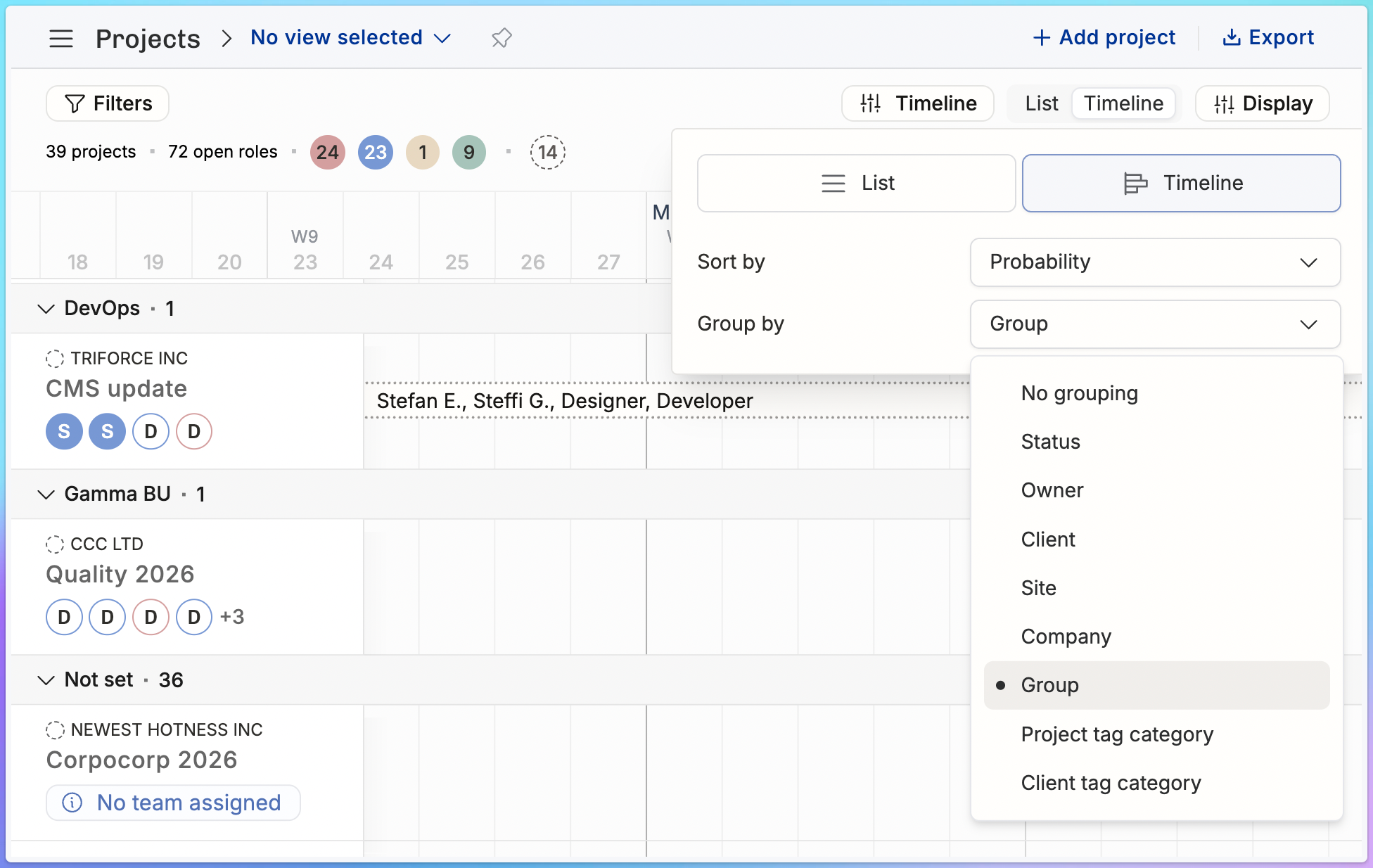
Group by Group or Project/Client Tag Category. This helps you navigate through long lists of projects (e.g. all the stuff in the pipeline: which BU, which status…)