August 12th, 2026
Hi everyone,
It's been a busy Summer for us. We've shipped a major upgrade to how Operating handles cost and currency, released a much-requested cost-capping feature, and cleared out a long list of fixes and smaller improvements. Here's what's new.
Cost capping is here
You can now cap a person's cost to the hours they're actually contracted to work. If someone logs a 12-hour day, their cost no longer balloons past what they're really paid for — Operating caps it to their working hours and attributes the cost sensibly across their projects.
You control how it works, per site:
Cap by day, week, or month — whichever matches how you think about capacity.
Choose how capped cost is attributed — spread proportionally across the day's entries, or prioritise billable work first.
When capping is on, time-entry lists show a dedicated capped-hours column so you can always see where a cost came from. Cost rates and revenue recognition both respect the cap automatically.
This is live for everyone now — but you have to enable it under Settings → Organization → Site. For the full details on how caps and attribution are calculated, see How cost capping works.
Faster, more accurate financial reporting, time-gated fx rates
We've rebuilt how Operating handles currency under the hood, and you'll feel it in your reports.
Previously, Operating converted currencies on the fly every time you opened a report, using a single exchange rate. Now, amounts are stored in both the project's currency and your organisation's default currency, using the exchange rate that applied at the time — so historical numbers stay correct even as exchange rates fluctuate, and reports load faster.
A few things this unlocks:
A currency selector on reports. If your organisation works in more than one currency, you can now switch a report between your default currency and the project's own currency.
Historically accurate figures. Change or correct an exchange rate and your past numbers reflect the rate that was actually in effect — no more retroactive drift.
Costs shown in their original currency in planned and actual expense lists, while totals still roll up cleanly into the project currency.
Export Planned vs Actuals to CSV

The Planned vs Actuals report — for both projects and people — now has a CSV export, including optional person, project, and task breakdowns. Pull the exact view you're looking at straight into a spreadsheet for your own analysis. This brings PvA in line with the portfolio and capacity reports, which already supported export.
Smarter forecasting
Forecasting in reports now calculates progress based on absolute completion — each period's completion is measured as cumulative forecasted cost against the project's total forecasted cost, relative to your chosen cutoff date. The result is a forecast that behaves more predictably as projects move through their lifecycle. Not sure which method fits your project? How to choose a fixed-price forecast method walks through the options.
Time balance (flex time) makes much more sense now
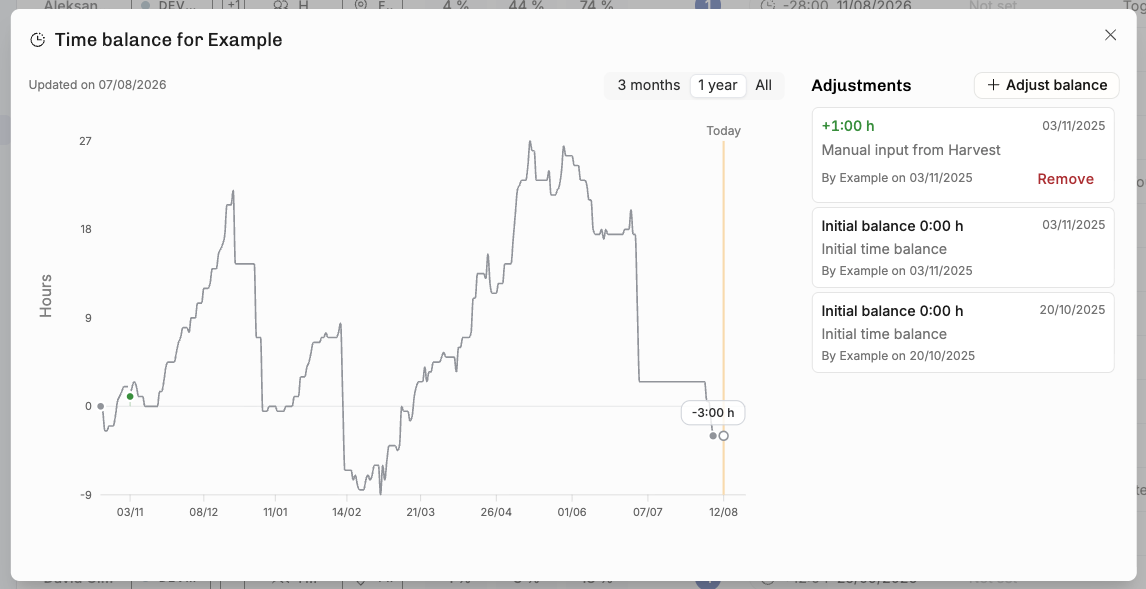
We fixed a calculation issue where the Time Balance popover's breakdown rows didn't add up to the balance shown beneath them — a cached balance stamp was being double-counted in some cases, so the figures now reconcile exactly. We’re reaching out to everyone affected by this.
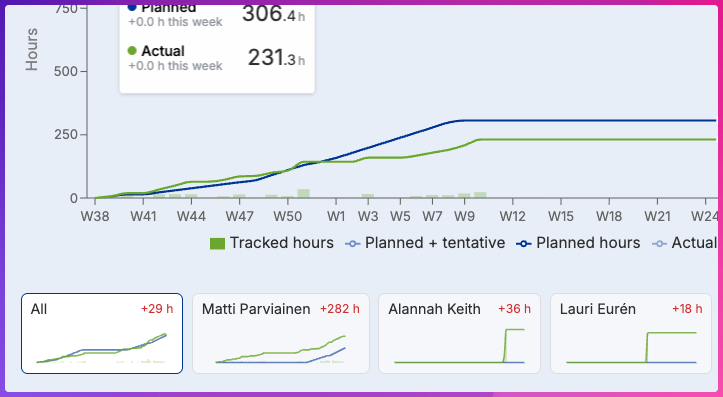
We also moved balance recalculation onto a background job, so when someone logs hours against a future date, their balance updates automatically once that date arrives rather than lagging behind. The new visualization is pretty cool way to see how much you’ve worked over time:

Find this graph by clicking on anyone’s time balance pill – for example your own, on top of the Hours UI. Please note that following Time Balance needs to be enabled for your organization in order to see it.
For teams using the API
Pagination on reporting endpoints. Reporting APIs now support pagination for more reliable, scalable data pulls.
New currency endpoints. You can now read your currencies and manage exchange rates directly over the REST API.
Historical imports made easier. You can now create time entries against archived positions via the API, so backfilling past data no longer trips over archived records.
Also fixed & improved
Part-time indicator cleaned up — the clock icon now only appears for people who are currently on individual working hours, not those who were in the past.
Un-archive project tasks directly from the project edit dialog.
Un-invoice time entries — If a time entry was manually marked as invoiced by mistake, you can now undo it. Select the entries in the multi-edit dialog and clear the invoiced status — no need to contact us to correct it for you.
Revenue recognition correctness — several fixes so tentative fixed-price projects, exchange-rate changes, and edge-case time entries all report revenue accurately. For a refresher on how revenue is earned, forecasted, and corrected (including negative corrections), see How Operating calculates earned and forecasted revenue.
Reporting fixes — Planned vs Actuals now sorts and displays planned hours correctly across all views.
UI polish — corrected off-screen selectors when reporting hours, tab layouts on projects with many positions, timeline labels, and various alignment and spacing issues across reporting screens.
Slight changes in fonts and colors ahead of our new look
Expect small changes in the way the app looks and feels this week and before September. The extent of changes for now is such that you don’t need to worry about your user instructions (or our support site, for that matter) to get outdated.
We’re rolling out a proper rebrand in September, can’t wait to show it to you!
July 2nd, 2026
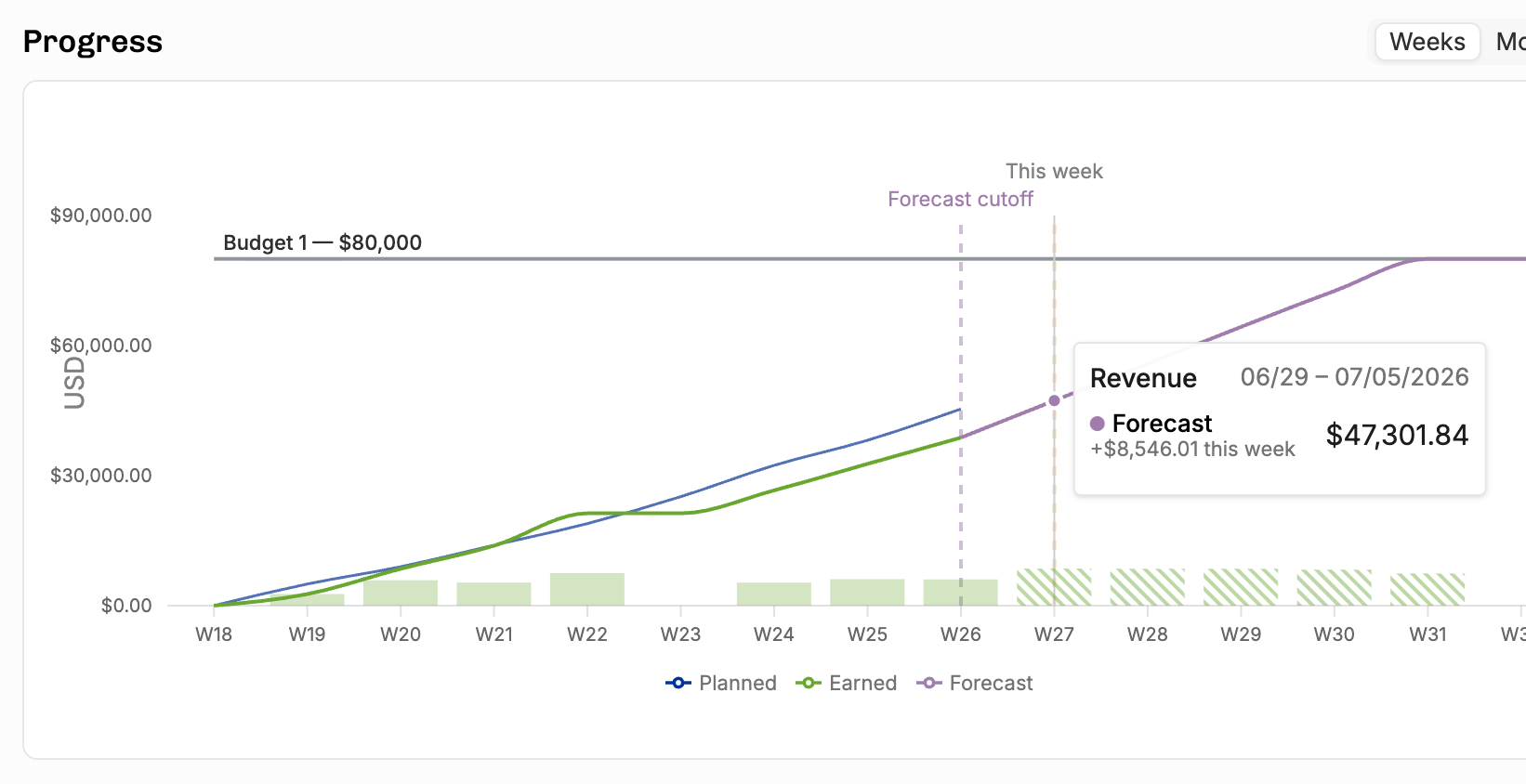
Forecasted Revenue: actuals through a cutoff date, plans after that
Maybe your team has tracked time until the end of last month or last week – choose the date you feel confident with. (Or go with the default your admins have set.) This is built in to the individual project detail pages:

All of the values in the burnup/periodic graph follow the chosen cutoff, no matter what units and display options you choose: you can forecast hours, costs, or revenue.
The Forecasted revenue/cost columns have been added to project lists and the portfolio report.

Comprehensive financial figures (expenses etc) in the Project Details

So many wrinkles ironed out:
Planned expenses: dedicated list view and CSV export
Burnup chart now splits planned and earned into expenses vs. personnel lines
Compare expenses and planned expenses by vendor and category
Create actual expense from a planned expense (one-click conversion)
Create vendor directly from the planned expense list
Sort expenses and planned expenses by category or vendor
Effective hourly rate now accounts for expense budgets

Making progress, recognizing revenue
For careful financial management of big fixed-price projects, this is crucial. Set Budget Progress modal shows all the relevant reference numbers:

It’s now possible to set 0% progress – or even record a negative change, if the project has indeed gone backwards.
New revenue recognition method: cost-to-cost
Read more about RR and the new method (comparing total planned costs to costs tracked to date). What’s great about the cost-to-cost method is that it updates real-time, unlike the “based on planned or tracked, weighed by rates” method that requires you to set budget progress manually.
What is RR and have I been doing it wrong the whole time?!
If you’re having a hard time wrapping your head around Revenue Recognition and would like Operating to help, drop us a line at support@operating.app. We’ve added a ton of tooling around this topic and can show you much more if you’re interested. Your finance team might love you afterwards.
New billing type: capped time and materials
Sometimes you end up in an agreement where you bill based on time & materials tracked, but still have to set a maximum amount. This kind of “ceiling” or “cap” is unfortunate for you as a consulting business, but understandable from the client point of view: when their budget is spent, it’s gone.

As the one absorbing the overage, you most definitely want to see the project turn red if the plans exceed the maximum. The screenshot above shows what that unwanted scenario would look like. More on capped T&M on our support site.
To keep the billing type naming consistent, “Per hour” is now called “Time and Materials”
We hope the new label feels intuitive. In the API, the billing type has been time-and-materials all along.
MCP goodness (use Operating from your AI chat)
The MCP server is now a near-complete interface to Operating. We now have the base toolset in place and we have introduced broader tools to manage context better. Mikko wrote about what it can do – check out his blog post. Lauri put together this nice example of how it can turn your Statement of Work docs into Operating projects. Bleeding edge, we love it.
We will start deprecating some of the more granular tools in the coming weeks. No functionality will be lost, but some tools are going to be removed with their functionality moved to others.
Sorry (not sorry) for moving fast with the MCP alpha development, let’s call this a beta and keep it as is for a while. Attentively listening to your user feedback!
list_reference_data is the approach to find metadata for things like tasks, rate cards, sites etc.manage_project replaces: create_project, update_project, delete_project, create_phase, update_phase, delete_phase. manage_positions replaces: create_position, update_position. manage_allocations replaces: create_allocation, update_allocation, delete_allocation. manage_project_financial_plan is broader and replaces: create_budget, update_budget, delete_budget. manage_project_expenses replaces: create_expense, update_expense, delete_expense.
Read/report tools and other improvements:
list_clients,list_reference_data,list_invoicesreport_planned— planned work and revenue over a date rangereport_actual— actual work and earned revenue over a date rangeTime balance included in
get_person/list_peopleBetter date-range querying for all reporting tools
MCP now validates time entries correctly on create (was bypassing some checks)
Alpha feedback from early MCP users incorporated
Time Tracking fixes (a couple of dozen bugs crushed)
Manual time entry rate override — set a custom rate on any time entry, even invoiced ones (with confirmation)
Admin timesheet unlock — admins can now unlock a timesheet after a user locks it erroneously
Edit time entries directly from the project time entry list
Date range filter in the approvals tab
Import rates from time entry CSV: get your historicals without retroactive rate card busywork
Link from timesheet display menu to "all my time entries" filtered in the Time Entries
Time entry CSV import handles large files properly
Time entry CSV import validates time-off tasks and handles archived employees
Prevent creating new time entries for archived positions
Time entry decimal/minutes display fix in list views
People list: new columns for "timesheet locked at" and "last time entry date"
External project name column in time entry list (for Harvest-imported entries)
Timeline fixes (more bugs crushed)
Moving whole project on timeline now updates estimated end date
Budget-only (no work) projects shown in collapsed timeline rows
Total bar shows correct totals vs. individual allocations
Tooltip shows correct hours/days in daily view
Person detail page timeline opens to correct date
Sidebar close button moved inside sidebar
Restore tentative line behavior in burnup chart
Even more fixes (I am not kidding, the list goes on)
Time balance stamp can now be set before person.createdAt
Person with future employment start now shows up in suggestion panel
User can now see their own time-off position with "see only my projects" permission
"Do not use rounded currency" now shows 2 decimal points
Multiple deadlock fixes (time entry create/update, position delete, working hours delete)
PDP planned vs. tracked shows correct plan numbers
CRM can't update billing type if project has invoices — properly blocked
Prevent archiving the "Public Holidays" time-off category when automation is enabled
Same-named tasks no longer merge in time entry list grouping
Invoice creation no longer crashes on "." or "-" input
CRM project create/update no longer sets invalid start/end date configurations
CRM deals no longer create projects with currencies that don't exist on the tenant
Duplicate collection mapping memberships fixed
Double public holiday on same day no longer creates two time entries
Export People now includes archived persons
Availability sort duplication fixed
Refresh no longer required for budget insights after update
Timesheet list view: editing entry to 0:00 now saves correctly
API: list allocations no longer validates outgoing percentage
API: company get/list returns defaultCurrencyCode
API: 400 instead of 500 for malformed ID filters
Various CRM import edge cases (budgets for archived projects, etc.)
and, believe it or not, much more.
What’s next?
It’s July, and the Summer holiday season is on – you will always get quick support from the in-app chat or from support@operating.app. We’ve planned the Time Off using a really cool SaaS that makes it very easy. 😎
We’re working on our brand and expect to present a new look later this year.
System of Record work is well underway, eager to tell you more in the next changelog.
If you read this far, please leave us a review on G2. It truly helps others find the product. Thanks!
May 27th, 2026
At a Glance
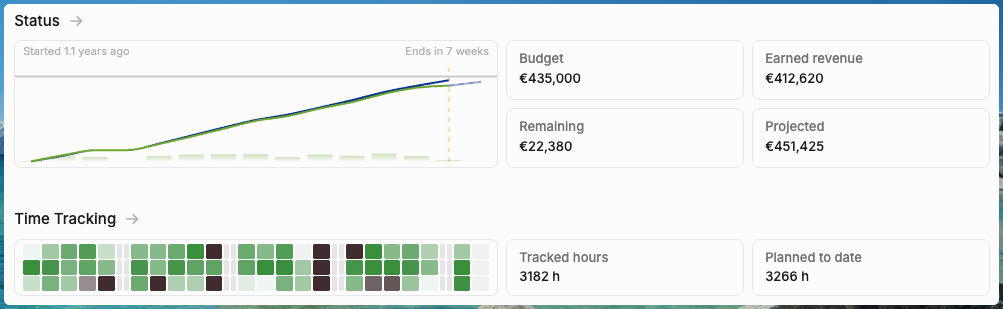
Redesigned project detail page — Tab-based layout with an embedded timeline, inline financial summary on the planning tab, rate visibility, cost card details, and more
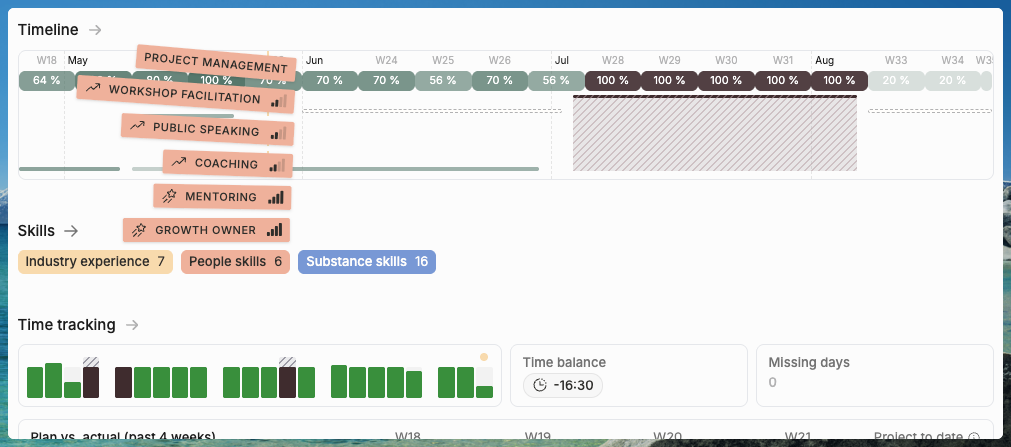
Redesigned person & client detail pages — My own Timeline, time tracking visuals and planned vs actuals comparison, skills, project history…
Expense improvements — CSV import for expenses, expense filtering in burnup charts, "cost in project currency" export option
Archival overhaul — Properly hide archived entities across all views, selectors, filters, groupings, and timelines — with a "show archived" toggle when you need them
HubSpot field mapping — Deal amount as default budget, manually set the latest deal, multi-deal handling, and fewer accidental tag creations
Pipedrive v2 — New public Pipedrive integration app
BETA: Salesforce app — Already usable, pending AppExchange publish. Reply to this email if you’d like to set it up!
Project-specific task polish — Archive tasks, convert shared tasks to project-specific, clearer UI for task management
Timesheet fixes — Mobile duplicate entry fix, small improvements here & there
MCP server reliability — Auth fixes for MS Copilot and other clients, pagination fix for time entries, scaled-up infrastructure due to high demand
Quality of life — Utilization excludes pre/post-employment periods, portfolio CSV export in tenant currency, invoicing pre-checks, and a long list of bug fixes
BETA: Forecasted revenue in portfolio reports — Blend actuals-to-date with adjusted future plans, with a configurable cutoff date, across all billing types
Redesigned Project Detail Page
The project detail page has been completely rebuilt using a tabbed layout. The goal: get to the information you need without scrolling past everything else.
For example, the Team tab shows the info you need:

New person suggestion UI. Just try it, it’s super neat.

Embedded timeline. The planning tab now includes a full interactive timeline — the same one you'd see on the staffing views, but scoped to this project. Add positions, drag allocations, manage phases — all without leaving the project page. The “Fit to screen” zoom option is delightful.

Financial summary on the planning tab. Rate and revenue data is now visible directly in the planning section. You can see billing rates, planned vs. actual revenue, and project financials without switching to a separate tab. This is especially useful during staffing decisions where financial impact matters.
Cost card visibility. The person detail page now shows which cost card applies to each person and the effective hourly rate — calculated from their monthly or weekly cost rate, accounting for the actual number of working days in each month.
Setup completeness indicators. The overview tab flags when something hasn't been configured — missing billing type, no budget, no positions. This helps catch setup gaps before they become reporting gaps.
UI polish. Long project and client names no longer break the top bar layout. Allocation descriptions that were getting clipped now display properly. The timeline no longer accidentally expands beyond two years in edge cases.
Thank you all who opted in for this feature early on, your feedback has helped us so much!
Person & Client Detail Pages are new, too
These pages have also been rebuilt with a tabbed layout.
The person details has a powerful overview that actually tells you what they’re up to, more about the status of their time tracking and project history:

Take a look at your own profile or some of your colleagues! I bet you’ll find something surprising in there: things that were in Operating all along but hidden behind one click too many.
Client details is still a stub (Matti hopes to grow it to a sweet account management app).
BETA: Forecasted Revenue in Portfolio Reports
The portfolio report can now show forecasted numbers — a blend of what has actually happened with what's still planned.
Four new report units. Forecasted revenue, forecasted costs, forecasted gross profit, and forecasted margin %. These sit alongside the existing planned and earned units.
Configurable cutoff date. Choose where actuals end and plans begin — start of the current month, start of the week, or a custom date. Changing the cutoff triggers a re-fetch so numbers update immediately.
Works across all billing types. T&M projects sum actuals and plans directly. Capped T&M respects the budget ceiling. Fixed-price projects scale remaining planned periods so the total always equals the contract budget exactly — no rounding drift. The calculation handles mid-month cutoffs precisely by splitting periods at the boundary rather than approximating.
This is the foundation for Estimate at Completion (EAC) reporting across Operating. Let us know if you’d like to use this already today. We’re still ironing out the details and making sure it handles all expenses and corner-cases reliably.
Expense-related Improvements

Building on the expense management system from the previous release. Again, if you find yourself continuously importing or manually entering expense data, let us know. The “importer V3” effort lays the foundation for many great uploading features.
BETA: Expense CSV import. Import expenses from external systems via CSV — useful for migrations and for organizations managing expenses in other tools. Multi-line-item expenses are supported, with expense-level fields repeated per row.
Expense filtering in burnup charts. The burnup chart's person filter now includes an "Expenses" card. Click it to isolate expense actuals vs. plans in the burnup, with the same +/- comparison that person cards show. This makes it possible to track expense budget burn visually.
"Cost in project currency" in expense exports. Previously only a display option — now available as a column in CSV exports.
Archival Overhaul
Archived entities have been comprehensively cleaned up across the entire app. This was one of the most-reported sources of confusion — archived people, projects, groups, and roles showing up in places where they shouldn't.

Archived items hidden from selectors. Person selectors, project selectors, group dropdowns, role dropdowns, and filter lists no longer show archived items by default. When an archived item is the current selection, it still appears (with greyed-out italic styling) so you can see what's set without losing context.
"Show archived" toggle on lists. People, projects, and client lists now have explicit controls for including archived items. Search results indicate when archived matches exist and offer to show them.
Archived items hidden from groupings. When you group lists by role, group, seniority, or tags, archived categories no longer appear as grouping headers — even if some items still reference them.
Timeline cleanup. Archived projects no longer appear on the people timeline in collapsed view. Time-off shadows now display correctly for people whose employment started or ended outside the visible timeline range.
Filter fixes. Filtering by "Role: none" no longer incorrectly returns people with roles. The "Team member: Me" filter no longer includes projects where your position has been archived.
Consistent archived styling. Archived items across all views — reports, rate cards, currencies, expense categories, tags — now use consistent italic + grey + "(archived)" suffix styling.
HubSpot & HiBob Field Mapping
HubSpot / Pipedrive deal amount as default budget. When a deal syncs from the CRM and creates a project, the deal amount is now used as the default project budget. Project start and end dates also map from the deal.

Manually set the latest deal. When a project has multiple linked deals, you can now explicitly set which one is the "latest" — the one that defines the project's probability. Previously this was automatic and sometimes wrong.
Project-Specific Task Polish
Following up on the Tasks 2.0 launch.
Archive vs. delete. Project-specific tasks can now be properly archived (if they have time entries) or deleted (if they don't). Previously, deleting was the only option, which left "No Task" entries in reporting.
Convert shared to project-specific. Transform a shared task into a project-specific one. Also: clear the "reported as" field when it's no longer relevant.
Cleaner task UI. The task assignment popover clearly marks project-specific tasks. "Billable in this project" has been simplified to "Billable." The archived tasks list is hidden by default with a "Show archived" button. Task rate inputs only appear when task-based rates are enabled.
Unset tasks in bulk edit. When a project no longer has active task assignments, you can now bulk-clear the task field from time entries — removing references to archived tasks.
Timesheet Fixes
Mobile duplicate entry fix. On mobile browsers (iOS Safari and Firefox), adding a time entry would create two entries instead of one. This long-standing bug has been fixed with a comprehensive rewrite of how the timesheet handles position and task combinations across all scenarios.
Correct planned hours with time off. The weekly planned hours bar and summary now correctly deduct time off from project allocations. Previously, if you had vacation overlapping a project allocation, the planned hours showed the sum of both — inflating the number beyond your actual working hours.
Consistent time-off display across timelines. The people timeline and project timeline now show the same capacity percentage when allocations overlap with time off. Previously, one view would stack them (showing >100%) while the other correctly subtracted.
Time-off day count consistency. The allocation popover now shows consistent time-off day counts regardless of which timeline you're on. Holiday calendar days and individual time off are now counted the same way everywhere.
Shift+click multi-select. Hold shift and click a checkbox to select everything between it and the last checked box. Works in time entry approval lists and other list views.
MCP Server Reliability

Auth fixes for third-party clients. The OAuth discovery document now includes grant_types_supported with authorization_code and refresh_token, fixing "Invalid Compact JWS" errors that prevented MS Copilot and other MCP clients from connecting. Microsoft doesn’t seem to play nice with the MCP standard, but let’s keep hope alive.
Scaled-up infrastructure. MCP server CPU, memory, and task count have been increased. The network architecture has been simplified, reducing costs while improving reliability.
Pipedrive v2
The rebuilt Pipedrive integration is now available as a public app. The new version brings real-time sync, better field mapping, and direct deal-to-project linking. Existing Pipedrive users will need to disconnect and reconnect — see the migration email for details.
Salesforce v0.99
Not published in AppExchange yet – if you’re sitting on the blue ☁️ and Operating, reply to this email and we’ll get you connected out-of-the-box.
Quality of Life & Bug Fixes
Utilization excludes pre/post-employment. Utilization averages now exclude periods before a person's start date and after their end date — so someone who joined mid-quarter isn't penalized with months of zero utilization dragging down their average.
Portfolio CSV export in tenant currency. Export the project portfolio CSV in your organization's default currency instead of per-project currencies. A currency column is included in each row when exporting in money units.
Additional bug fixes: Name whitespace showing "undefined," projected cost tooltip showing total instead of delta, duplicate archived tasks appearing in timesheets, API schema incorrectly exposing externalId on project create/update, client bulk-delete returning 500 when invoices exist, and HubSpot webhook signature validation fixes.
We’re extremely happy to have Matias on board. He’s been crushing bugs 360°.
That’s enough for today. Eid Mubarak to those who celebrate.
May 12th, 2026
At a Glance
New Project Details page going live for everyone next week –– tabbed instead of the log accordion. Opt-in to see it today at Settings → Beta features. Lots of improvements in this one, such as the new “Choose person” suggestions:

Cost-to-cost revenue recognition — Fixed-price projects can now recognize revenue based on cost completion percentage
Time entry rounding — Round time entries up to the nearest increment, configurable org-wide with per-project exceptions
Invoice currency override — Set a different invoicing currency per project, independent of the project's operating currency
Cost visibility — Cost values on time entries, cost rates in exports, and employment date-aware utilization calculations
MCP server expansion — 17 new tools covering projects, budgets, expenses, positions, and reference data
Planning improvements — Move positions between projects, task permissions for project managers, phase grouping in time entry lists
Exports & filtering — All project list columns now exportable to CSV; deal probability filtering on the Horizon
Our HiBob integration now imports employee IDs, skills, groups, and more
Coming soon: tabbed detail pages! Capped T&M billing type!
Cost-to-Cost Revenue Recognition
For fixed-price projects, Operating now supports the cost-to-cost method — revenue is recognized in proportion to costs incurred vs. total budgeted cost. If you've spent 60% of the planned costs, 60% of revenue is recognized.

This is a standard method under IFRS 15 and ASC 606, and it's particularly useful for projects where effort doesn't map linearly to milestones. Revenue recognition updates automatically as time entries and expenses are logged.
This one is still behind a feature flag, so if you’d like to use it, reply to this email. Thanks!
Time Entry Rounding
Round time entries up to the nearest increment — 5 minutes, 10, 15, or 30 minutes.

Organization-wide default. Set a rounding rule that applies to all projects. Consultants log their actual time; rounding is applied for billing and reporting purposes.
Per-project exceptions. Override the org default on any project. Some clients negotiate exact-minute billing; others expect quarter-hour increments. Both are now supported without workarounds.
Settings UI. A clean interface in Settings → Time Tracking to configure rounding, with the project-level override accessible from the project settings page.
Invoice Currency Override
Change the currency of an invoice at creation time. Sometimes the project runs in one currency (e.g. DKK for a Nordic engagement) but the client wants to be invoiced in another (e.g. EUR). You can now set an invoicing currency per project. All operational work — rates, costs, budgets — stays in the project currency. The invoicing currency is remembered per project so you only set it once.
Cost Visibility
Three improvements that make cost data more accessible across the platform.
Cost value column in time entry lists. The time entry list now shows the total cost of each entry (hours × cost rate), not just the cost rate. When grouping time entries, costs aggregate — giving you a quick read on how much a sprint, a past month, or person actually cost.
Cost rates in time entry exports. CSV exports of time entries now include the position-specific cost rate. If you're reconciling in Excel or feeding data to an ERP, the cost dimension is now included without a separate lookup.
Employment dates in utilization calculations. Utilization percentages now respect employment start and end dates. Someone who joined mid-month is no longer penalized with a denominator that assumes they were available the entire period.
Credit Notes
Free-form credit notes for a project. You can now issue credit notes against a project — useful for corrections, goodwill adjustments, or partial refunds. Credit notes are tracked alongside invoices in the project's financial history.
MCP Server Expansion
The Operating MCP Server — the AI integration layer that lets Claude and other LLM tools read and write Operating data — gets 17 new tools in this release. The server is now comprehensive enough to handle most day-to-day resource planning and financial management tasks through natural language.

New read tools: Get project (with all positions, budgets, expenses, and phases), List companies, List project tags, List task lists, List rate cards, List expense categories, List expenses, List vendors.
New write tools: Create project, Update project, Archive position, Create/Update/Delete budget, Add/Update/Delete expense.
These join the existing tools for people, positions, allocations, time entries, and skills — making the MCP server a near-complete interface to Operating.
Planning & Project Management
Move positions between projects. Select one or more positions on the planning page and move them — with all their allocations — to a different project. Useful for project restructuring, splitting engagements, or correcting misassigned positions.
Task permissions for project managers. Users with "manage project" rights can now create project-specific tasks and adjust which tasks are used on their projects — without needing access to the global Settings page.
Phase grouping in project time entry list. Time entries on the project page can now be grouped by phase, making it easier to see effort distribution across project stages.
Exports & Filtering
All project list columns exportable to CSV. Every column available in the Projects list view is now available in the CSV export dialog. The dialog is more comprehensive, but you can simply ignore columns you don't need.
Deal probability filtering on the Horizon. Filter the Horizon view by the latest deal probability percentage — "more than 50%," "less than 20%," etc. You can also sort by probability. This lets staffing teams focus on the pipeline that's most likely to convert.
HiBob Integration got a lot Better
Sync more of your essential information. Handle names, IDs, roles and all that. If you’ve used custom list fields to manage skill information, you can bring those to your people in Operating as well.

Quality of Life
Internal roles documentation. Clearer in-app guidance on managing non-billable, internal-only people — using the non-billable role checkbox and keeping them in Operating for accurate overhead and utilization calculations.
Multi-archive projects. Select multiple projects and archive them in one action.
Coming soon
Capped T&M — for those per-hour projects that have a strict budget ceiling

Project detail page (and person, and client detail pages) is going live for all users next Monday. Opt in today!
Month-end closing features for your colleagues in the finance team…
March 18th, 2026
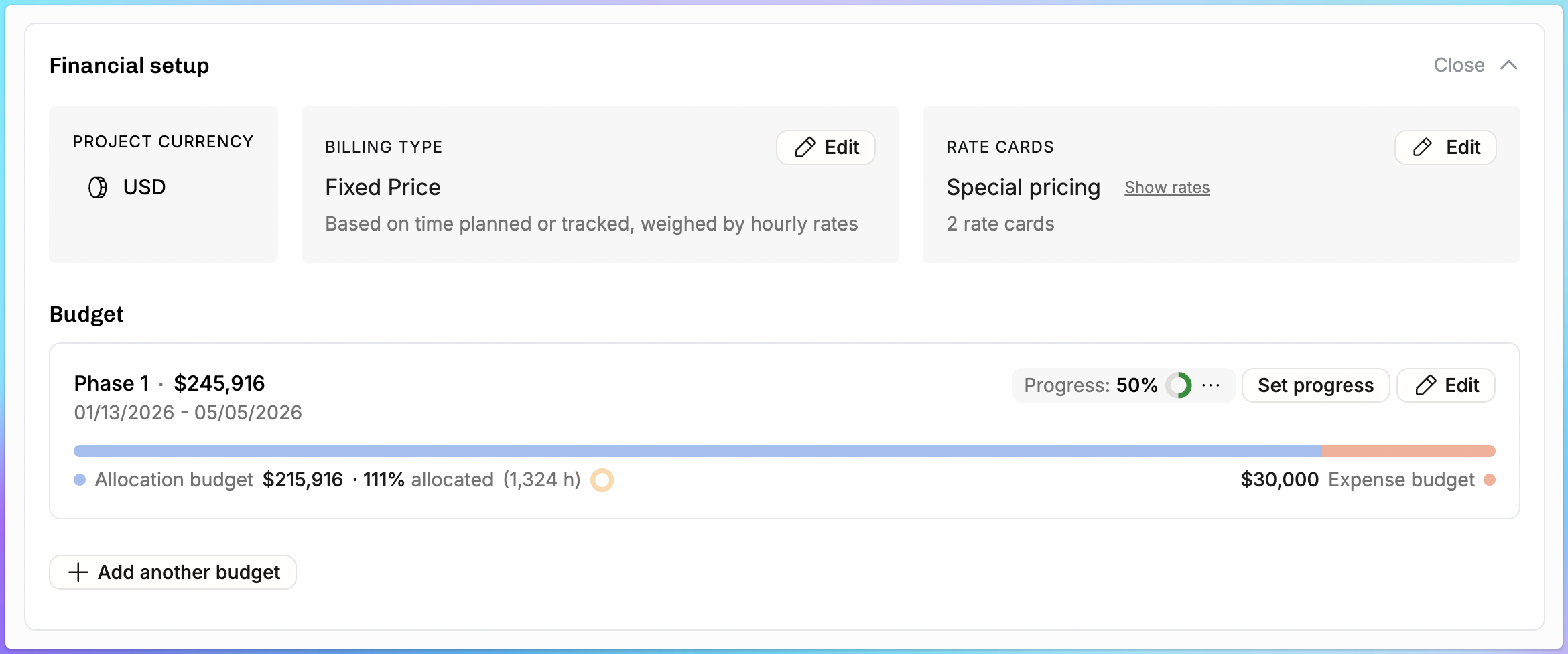
At a Glance
Expense management — Expense entry with categories, receipts, and markup; planned expenses for forecasting; per-category budgeting; CSV export; merchants (vendors); Cmd+K quick entry; and standalone activation without the invoicing module
Tasks 2.0 — Project-specific tasks, a new Tasks management page, require-task and require-note enforcement, and bulk task assignment
Phases 2.0 — Time entries linked to positions and phases, with phase columns and grouping on the project page
Skills overhaul — Ranked skill levels (with icons!), better profile visibility, level visible on assignment tags, wildcard skill filtering, and easier skill management
Availability filtering — Find who's available on a specific date or over a custom date range
New filters — Filter by deal probability and deal status
"Contains" filtering — Partial-match filtering for skills and other multi-value fields
Costs in the reporting API — Pull planned costs, tracked costs, and margin data from the API
Terminology alignment — PvA dropdown, burnup legends, and client-facing exports now use glossary-consistent language
Quality of life — Share links, bulk project archiving, decimal hours, fixed-price PvA visibility, budget-as-invoiced marking, and a batch of bug fixes
Expense Management
This is the headline feature of the release. Expense management goes from a minimal first version to a complete, production-ready system. As more companies are relying on Operating for their invoicing and profitability math, solid expense management is a part of that.
Expense entry with categories, receipts, and markup. You can now log expenses with one or more line items, each assigned to a category (Travel, Subcontractors, Equipment, etc.) with its own billing treatment. Each line item can carry a markup percentage, a receipt, and a billable/non-billable flag. The multi-line-item model means a single expense — say, a contractor invoice covering consulting and travel — can be split across categories with different markups, matching how real-world expenses actually work.
Expense categories and defaults. New organizations start with a curated set of defaults — Travel, Accommodation, Meals, Local Transport, Subcontractors, Software & Licenses, Equipment, Materials, and Other — each with sensible markup percentages, receipt requirements, and billing defaults already configured. You can customize everything from the Expense settings page: rename categories, adjust default markups (subcontractors default to 10%), toggle receipt requirements, or add entirely new categories.
Heads up: Existing organizations have been migrated with an "Other" default category so nothing breaks.
Planned expenses for forecasting. Create future-dated expenses with a "planned" status to pin expected costs to specific dates. Instead of spreading expense budgets evenly across a period, you can say "we expect a €5,000 subcontractor invoice on April 15th" and have it appear in the right place in your projections. Planned expenses convert to actuals as they're submitted and approved.
Budget tracking per expense category. Within each project budget, you can set expense budgets by category — for example, €5,000 for Travel and €15,000 for Subcontractors. The project page shows a rolled-up summary of budget vs. planned vs. actual for each category.
Expenses section on the project page. The Project Details Page now has a dedicated Expenses section showing the category budget summary, a filterable and sortable expense table, and inline expansion to see line item breakdowns. Expenses also flow into the project burnup chart — expense costs and revenue integrate with labor data so you see the full picture of project financial health.
Merchants, CSV export, and Cmd+K. Expenses can be tagged with a merchant (vendor) for cleaner reporting. You can export expenses as CSV — a selection, all expenses, or a date range. And the command palette now supports adding expenses directly.
Standalone activation. Expense tracking no longer requires the invoicing module. A new toggle in settings lets any organization turn on expenses independently.
Permissions. Expense visibility follows a clearer logic: if you can see an expense, you always see its cost. The invoiceable amount and revenue fields follow your existing revenue permission level.
Tasks 2.0
Tasks have been significantly expanded — from a simple shared list to a flexible system with project-level granularity and enforcement controls.
Project-specific tasks. You can now create tasks that belong to a specific project. These appear alongside your organization-wide tasks when tracking time, but they're scoped to the project where they were created. This keeps your global task list clean while giving project owners the granularity they need — think of a software delivery project with hundreds of change requests, or an engagement where each workstream has named deliverables.
Tasks management page. A dedicated settings page gives you a bird's-eye view of every task in your organization: how many projects use each task, whether it's billable or non-billable in those projects, and whether any task-based rates are in play. You can create, edit, and bulk-archive tasks from here. When archiving, Operating tells you how many time entries reference the task so you can make an informed decision.
Bulk task assignment. You can now add multiple tasks to a project at once, rather than one at a time.
Require tasks on time entries. A new tenant-wide toggle prevents consultants from logging time against a project that doesn't have tasks assigned. This addresses compliance-driven workflows where finance needs to set up the task structure before anyone starts tracking.
Require notes on time entries. Configurable at three levels — organization-wide, per project, or per task. When notes are required, time entries are still saved immediately (we never lose user input), but they're flagged as incomplete and can't be submitted for approval until the note is added.
Phases 2.0: Time Entries Linked to Phases
Until now, there was no definitive link between a time entry and the position (and therefore phase) it related to. Rate calculations used an automatic lookup, but users couldn't explicitly say "these hours belong to my Design Lead position on Phase 2."
Explicit position link on time entries. When a person has multiple positions on the same project with overlapping allocations, Operating now presents a position selector — making it mandatory to choose which position the time entry belongs to. This is available in both the UI and the API.
Phase column and grouping. The project time entry list now includes a Phase column, and you can group time entries by phase. Combined with the position link, this means you can finally see exactly how much time has been spent on each phase — a long-requested capability for tracking phase-level progress and budget burn.
Skills Overhaul
Skills in Operating have received a significant upgrade across several dimensions — making them more useful for staffing, more visible on profiles, and easier to manage.
Ranked skill levels. Skill levels now have a configurable rank, similar to how seniority levels work. You can define the ordering in Settings, and choose how skill levels are displayed on assignment tags: as an icon (cell signal strength bars), a number, the level name, or hidden entirely. This is a per-user display preference, so each person sees skills the way that works best for them.

Heads up: Existing organizations may have their skill levels in the wrong order. Reorder them if that’s the case, admins → https://use.operating.app/settings/organization/skills → Levels.
Seniority and level on assignment tags. Skill assignment tags throughout the app — in people lists, profiles, and staffing views — now show the person's skill level rather than just the old "feeling" icons. This makes it immediately clear at a glance whether someone is a junior, mid, or senior practitioner of a given skill.
Better skill visibility on profiles. The person profile page now displays skill levels more prominently, giving managers and staffing teams a clearer picture of each person's capabilities without needing to click into individual skills.
Easier skill management. The skill edit popover on the profile page now includes a remove button — a small but long-overdue improvement that eliminates the friction of removing skills from a person's profile.

Wildcard skill filtering. In addition to the "contains" filter (covered below), you can now filter people by partial skill name matches using wildcard-style queries. Type "aws" and find everyone with any skill matching that string — AWS, AWS Lambda, AWS Certified, etc. — without needing to know the exact skill names in the system.
Availability Filtering
Staffing managers have been limited to "who's available now" — essentially the next 30 days. That's helpful for immediate needs but falls short when planning ahead.
You can now filter the People list to show who's available on a specific date, or who has a certain minimum availability over a custom date range. Planning a project that starts in August? Filter for people who are at least 50% free from April 15 through July 1. This makes proactive staffing — finding people before they're needed — much more practical.
Horizon Filters: Deal Probability and Deal Status
The Horizon view now supports two new filters.
Deal probability. Filter by the latest deal probability percentage using "more than" or "less than" operators. You can also sort by probability — letting staffing and sales teams focus on deals most likely to land, or identify long shots that don't need resource planning yet.
Deal status. Filter out irrelevant deal statuses from the Horizon. If you don't need "Lost" or "On Hold" deals cluttering your day-to-day view, you can now exclude them.
"Contains" Filtering
Filtering by skills or other multi-value fields used to require selecting exact matches from a list. Now you can use a "contains" filter — type "AWS" and find everyone whose skills contain that term, without needing to know the exact skill name. After typing, Operating offers a "search for skills containing {input}" option, making partial and exploratory searches easy. This pattern works across other multi-value fields too.
Costs in the Reporting API
If you're pulling data from Operating's reporting APIs — for a custom dashboard, a data warehouse, or an ERP integration — you now get cost data alongside revenue and hours. Planned costs, tracked costs, gross profit, and margin metrics are all available through the same endpoints. Your integrations can now pull a complete financial picture in a single API call.
Terminology Alignment
Three changes that bring the UI in line with Operating's glossary.
PvA dropdown labels. The Planned vs. Actuals unit switcher now uses consistent terminology: "Planned revenue → Earned revenue" instead of the generic "Revenue planned → actual," and "Planned cost → Tracked costs" instead of "Cost planned → actual."
Project burnup legend. The burnup chart legend now matches the same glossary terms, so the language is consistent whether you're looking at a single project or the portfolio-wide PvA view.
"Billable amount" in client-facing exports. Exports sent to clients now show "Billable amount" instead of "Revenue." Internally, "Revenue" remains the right term and is unchanged throughout the app. But from a client's perspective, "Billable amount" is clearer and more appropriate.
Quality of Life Improvements

Share links. A new share button on projects, people, and clients lets you copy the direct link with one click.
Bulk archive projects. Select multiple projects and archive them all at once.
Decimal hours display. Choose between hh:mm and decimal hours (e.g., 1.75h) across the app and in exports. Find this in Settings → View Options.
Fixed-price projects visible in PvA. Fixed-price projects with a budget but no positions or time entries now appear in Planned vs. Actuals from the moment the budget is created.
Mark budgets as invoiced. For fixed-price projects, mark portions of a budget as already invoiced — useful for migrations or when invoicing happens outside Operating.

Group by Group or Project/Client Tag Category. This helps you navigate through long lists of projects (e.g. all the stuff in the pipeline: which BU, which status…)
February 23rd, 2026
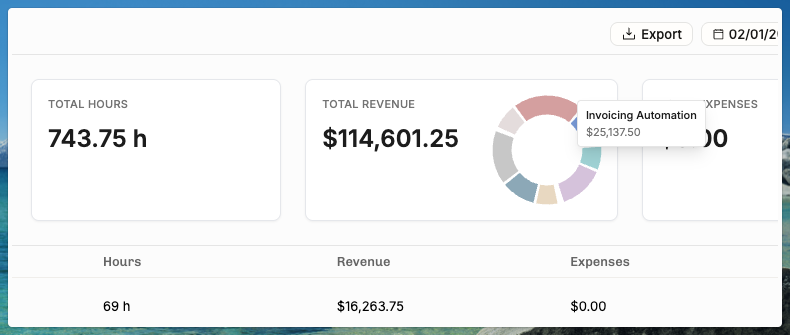
Profitability reporting
The Project Portfolio now includes a dedicated Gross Margin report, giving you a portfolio-level view of profitability across all your projects. Previously, understanding gross margin required digging into individual project details — now you can see it at a glance in the Portfolio view, grouped and filtered the same way you already analyze revenue and utilization.
This is especially useful for leadership and finance teams who need to monitor which clients, business units, or project types are delivering healthy margins and which ones need attention.
A new "Revenue per Hour" metric is now available in the Project Portfolio reports. This gives you a single, comparable performance indicator across projects, clients, and business units — regardless of whether they're time-and-materials or fixed-price. The metric works both as a backward-looking measure (using actual tracked hours and recognized revenue) and as a forward-looking one (using planned allocations and expected revenue).
You can also display "Planned Revenue per Hour" and "Earned Revenue per Hour" as columns directly in the Projects list.
We've added a range of profitability-related columns to list views across the app. In the Projects list, you can now display columns for actual revenue, actual costs, actual margin %, actual gross margin, total tracked hours, total planned hours, to-date planned hours, invoiced amount, and budget-spent percentage for T&M projects.

The Positions list now has many more columns to choose from: these make it possible to do quick financial health checks directly from list views without opening individual project or position detail pages.
You can now enable a view option on the Timeline that displays the gross margin percentage directly on each allocation bar. When turned on, every allocation shows its financial performance right alongside the allocation percentage — for example, "100% – GM 25.4%". This lets project managers who primarily work in the Timeline view keep profitability front and center without having to switch to the project detail page.
Grouping by Tag Category
You can now group projects and positions by an entire tag category — for example, "Staffing Process", or “Offering Area”. This means a staffing manager or director can open the Projects or Positions list, choose "Group by [Tag Category]" from the Display menu, and instantly see all items organized by their current status within that workflow.
Cmd+K launcher improved

The Cmd+K quick launcher has been significantly upgraded to make navigation faster and more discoverable. Bottom-of-list options like "Go to Settings" are now more prominently displayed so users actually notice them. You can now type "Add" or "New" to quickly create a project, person, or position; type "Permissions" to jump to permission settings; type "HiBob" to go straight to that integration; or type "help" to open the support site. When no results are found, a link to the help widget is shown. We've also added @me as a search option and you can now search projects by their unique ID.
Progress Determination for Revenue Recognition
Project managers can now formally set a project's completion % at any point in time using a new "Set Progress" dialog. You choose a date, see the current revenue and progress percentage, then specify the project's actual completion in currency or percentage. The system recognizes the budget accordingly over time and shows the recognized revenue.
This is critical for fixed-price projects where revenue recognition needs to reflect actual project progress rather than just the passage of time.
Lightweight invoicing workflow with Active Projects report
A new Active Projects report provides a simple, filterable table showing all projects with tracked hours during a selected time period — grouped by client with hours and revenue columns that distinguish between invoiced and uninvoiced amounts. You can filter by billability (billable, non-billable, or both), apply standard project filters, and choose your grouping. An export button lets you download time entries as CSV or generate a work breakdown PDF with configurable grouping and optional expense inclusion.

This is designed for teams that need a quick monthly overview of what's been worked and what needs to be billed, without going through the full invoice creation workflow.
Things that feel small but are still worthy of a mention
User-Selected Date Locale: In "View Options," each user can now choose their preferred locale for how dates are displayed throughout the app, independent of their browser settings.
The margin KPI displayed on project cards and the timeline now shows the "projected" margin by default — a blended figure that uses actuals up to today and planned figures from today forward — instead of showing "Actual margin: N/A" for projects that haven't completed yet.
"Project Completion %" column is now available in the Projects list for fixed-price projects. When enabled from the Display menu, it shows how far along each project is based on the progress determination / revenue recognition data.
Revenue Added to Reporting APIs, e.g.
https://operating.readme.io/reference/reports-projects-actual
Several calculation and display issues in the project detail page's financial status section have been resolved.
Every tracked time entry now has an associated cost calculated automatically based on the person's cost card, site, role, seniority, and external/internal status. Costs are computed in the actual currency, the project currency, and the tenant's default currency.
You can now select and delete multiple time entries at once from the Time Entries list view. Previously, deleting time entries in bulk required reaching out to support — a common request, especially from trial customers cleaning up test data.
We’re building a MCP server for LLM-powered use of Operating. Would you like to test it out?
Drop us a line at support@operating.app and we’ll add you to the waitlist. It’s pretty cool to prompt for custom reports, ask who could help with a particular topic, and so on.
January 22nd, 2026
Hi Operating admins, we’re happy to report progress again. Lots of money in the letter today.
Project detail page shows status

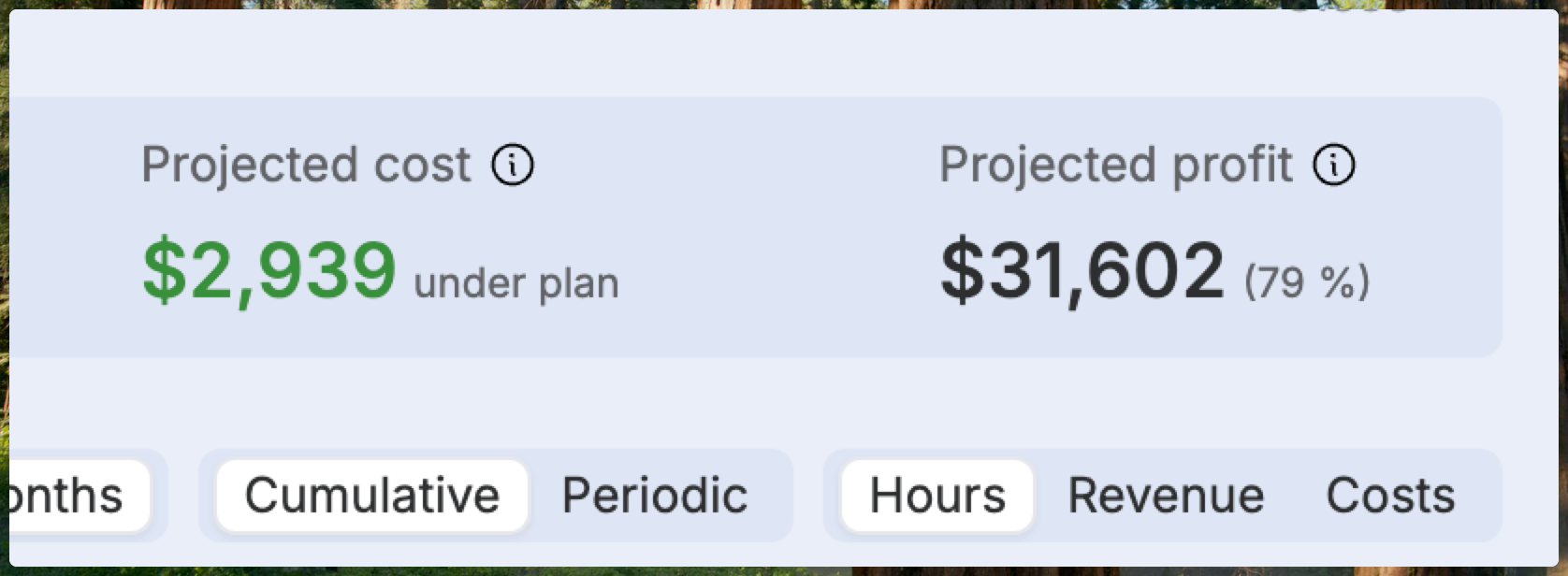
When you look at any project’s details, you can now see profitability and projected outcomes at a glance. We moved the sections around a bit to make this clear. Status is a new section, and some of the Financials stuff is now there. The Financial setup section now holds the billing type, budgets and all that. Let’s have a look at both.

The KPIs on top show the crucial facts about per-hour project’s situation: how much you’re earning (based on time tracked) will you reach the budget, and how much gross profit you will make.
The burnup is powerful: you can look at it through many different lenses.
You can now toggle between the plan vs. actuals for the entire project or from the beginning until today. By default, tentative plans are excluded, but only a click away.
It’s amazing to also see invoicing and expenses right here.
Then, on to the next section: Financial setup – much cleaner now, stating the facts:

Money & profitability columns in Projects list
We have so many things to show for each project in the project list, we had to put them in these different sections in the Display menu. For a PM or a head of PMO, seeing this information for all the listed projects will surface issues with profitability or if some rows are missing relevant inputs. This is a huge win for data quality in Operating. We also hope that this motivates you to set up cost cards for your company – in our opinion, it’s vital to understand the gross profit of each gig at each stage of its lifecycle.

How much of the Fixed Price work has been done? Set the % to recognize revenue
Still with me? Great! Let’s go have a look at the Financial setup for a Fixed Price project:

The setup is a bit more complicated, but for a good reason: when you’re selling your services with a true fixed price contract, you know that you will end up invoicing the predetermined revenue. However, in cases that span over many months, you want to know how much revenue have you already earned.
For this, we built the revenue recognition method called “Based on time planned or tracked, weighed by hourly rates”. In our day-to-day, we call it the best RR method. In essence, it looks at the amount of allocations planned in the future (and past) – and time entries tracked in the past, and is able to attribute the revenue to the people who did the work. In the example above, everyone’s time is valued equally (at the global default rate). However, you may have your most experienced specialist whose hour might have the alternative cost of $400. In the same team, you may have juniors working at roughly $80/h. The comparative difference is used when weighing the value of their work.
Now, if you’re halfway through the project, how can you know how much of the revenue has been earned? You must indicate the progress manually. In the above screenshot you see the Budget progress UI. Setting the progress can be done as frequently as you like – some companies do this routinely at the end of each month. Here’s what setting the progress looks like:

Naturally, not all FP projects require this kind of attention. But especially work spanning over more than one financial reporting period can be managed correctly with this!
In the Projects list, those setting the FP progress manually will enjoy using columns such as these – showing at a glance what the progress is and when was it last set:

Our other rev-rec methods are Evenly by week and Evenly by month. We let you keep things simple if you don’t require absolute control.
Final heads-up: new navigation going live next week
As we wrote in the previous newsletter, it’s time to get ready for the sidebar navigation launch next week. Most likely on Monday 26th of January. If you want to get ready and have your familiar Horizon in place, get your Pinned Views in order before that.
January 13th, 2026
It’s a good sign when coming up with a succinct title for a changelog is hard. Many things here, eager to share it all. Let’s go!
Permissions preparing for the new navigation release
In Settings → Permissions, you now see more options for showing / hiding Features in Operating. New navigation has different tabs – here you control who sees them:

The new navigation is due to be launched for everyone later this month, so it’s a good idea to get familiar with it already today and as the Admin that you are, make sure your different users have access to the right places. If you leave everything as is, no one will get access to information they hadn’t seen before, so this is not a serious security concern.
We also wrote a help article about the new navigation and how the Horizon tab can be re-created using Pinned Views. The article highlights many benefits of the renewal, including the global search (with cmd/ctrl+K) and the ability to pin almost any page for easy access:

Powerful bulk editing for Time Entries

Editing – or deleting – multiple time entries at once. Shown above with the new sidebar navigation.
More clarity to the Invoicing flow: invoice preview, work breakdown…

As you're modifying the invoice, you can see a preview of what it looks like.
We’ve been blessed with great user feedback from our early adopters and the invoicing flow keeps getting better. If you’d like to learn more about how your time tracking & invoice creation could happen in Operating, reply to this email or support@operating.app and we’ll give you a tour!
Coming soon: Status summary for projects & Burnup per person

Other news
Added revenue to reporting APIs – get the money from the Reports endpoints
Manual progress % setting for Fixed Price projects (relevant when using the best revenue recognition method out there: Based on time planned or tracked, weighed by hourly rates)
Coming very soon: more columns for financials (profitability, among other things…)
Happy 2026 everyone!
November 27th, 2025
We've been busy shipping improvements to make Operating.app work even better for you. Here's what's new:
New sidebar navigation – still in beta, going to be the default soon
Pin Any Page
You can now pin any page to your sidebar—whether it's a person page, project detail page, or client page. Customize your shortcuts to match the way you work.
Saved Views & Pinning

Pinning a page with filters enabled now automatically creates a new saved view and adds it to your sidebar navigation. Creating and accessing your custom views has never been easier.
We heard your comments about the new navigation not making sense at first, but once people understand how powerful the pinned items are, they see why it is so powerful.
Invoicing
Custom Invoice Schedules
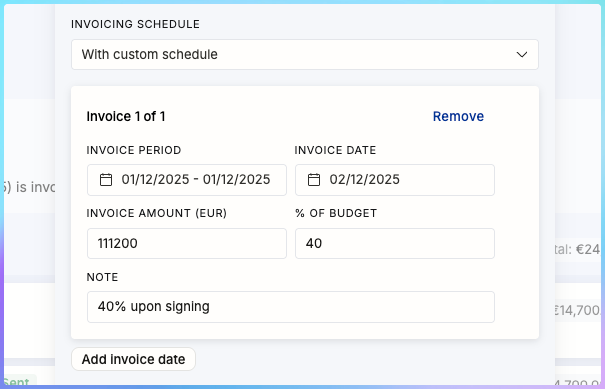
You can now create custom invoice schedules for fixed-price projects. Set any number of invoices with custom amounts and dates—perfect for projects with upfront payments or non-standard billing arrangements.
Credit Note Management

Credit notes now clearly show which invoice they're related to, making the whole invoicing experience much more transparent and easier to navigate.
HubSpot integration, version… 3? 4? (It keeps getting better)
Three important additions to the automatic import.
1 – Client (the client company in Operating) from any Company field in HubSpot

This is a long-awaited improvement to our HubSpot integration: you can now bring the company Record ID or any other field to Operating.
2 – Company (one of the companies you run) from any field in HubSpot
If you happen to have multiple companies, i.e. your business in the Netherlands and Denmark separated in Operating, you can now bring that piece of information with the Deal to Operating.
3 – Project’s unique ID from any field in HubSpot
Last but not least – you may now import the unique identifier you use across systems from the CRM into Operating.
Other quality-of-life improvements
Employee ID Field
Every person in your workspace now has an Employee ID field. You can edit it on the Person detail page, access it via the API, and it's automatically included in all people-related CSV exports. Operating is not a full-blown HRIS, but for smaller companies, it’s not that bad:

Gross Margin Visibility

Current gross margin is now visible for each position on the project detail page, making it easy to see profitability at a glance. Hover over the gm% number to see how it’s calculated.
Enhanced CSV Exports
Both position and project exports now include more columns. Position exports include work start/end dates, project groups, and allocation details. Project exports now include unique identifiers, project numbers, deal IDs, and budgets. Time entry exports contain employee, project, and client IDs as well as the external IDs you likely use to match things in payroll, etc.
Project Burnup: how old is this data?
The project burnup graph now displays the last refresh timestamp when you're using time tracking data from Harvest or other third-party services.
Pagination (infinite scroll) for very long lists
We’re embarrassed to admit that until today, some long lists got capped at 400 items. That’s no longer the case and if you have a pile of people, projects, or positions, you can see the numbers for the entirety and as you scroll down, we dynamically load more items.
Mark time entries invoiced – even if you don’t invoice in Operating
With the Time Entries directory, you’re able to edit multiple time entries in bulk, including the option to set them as “invoiced”. Super useful if you just track time in Operating but handle the invoice creation in another system. Note: there’s no undo. Once they’re invoiced, they’re set in stone.
Approval Flow Controls
Approval flows now include an option to disable self-approvals, ensuring proper oversight when project managers need their time tracking entries approved by someone else.
That’s it for today! You’re a legend for reading until the end.
November 13th, 2025
Utilization is a hot topic. What to include, what’s a realistic target, and so on.
If you’re used to looking at the utz% numbers in the past and they look different starting today, make sure to read until the end.
Operating has been very opinionated in the past about how the utz should be calculated, but as we’ve grown our customer base, we’ve learned that there are very different calculations that make sense in different companies.
Especially, if the utz% is somehow tied to manager or consultant compensation, you really want to see the correct numbers in the app you use every day.
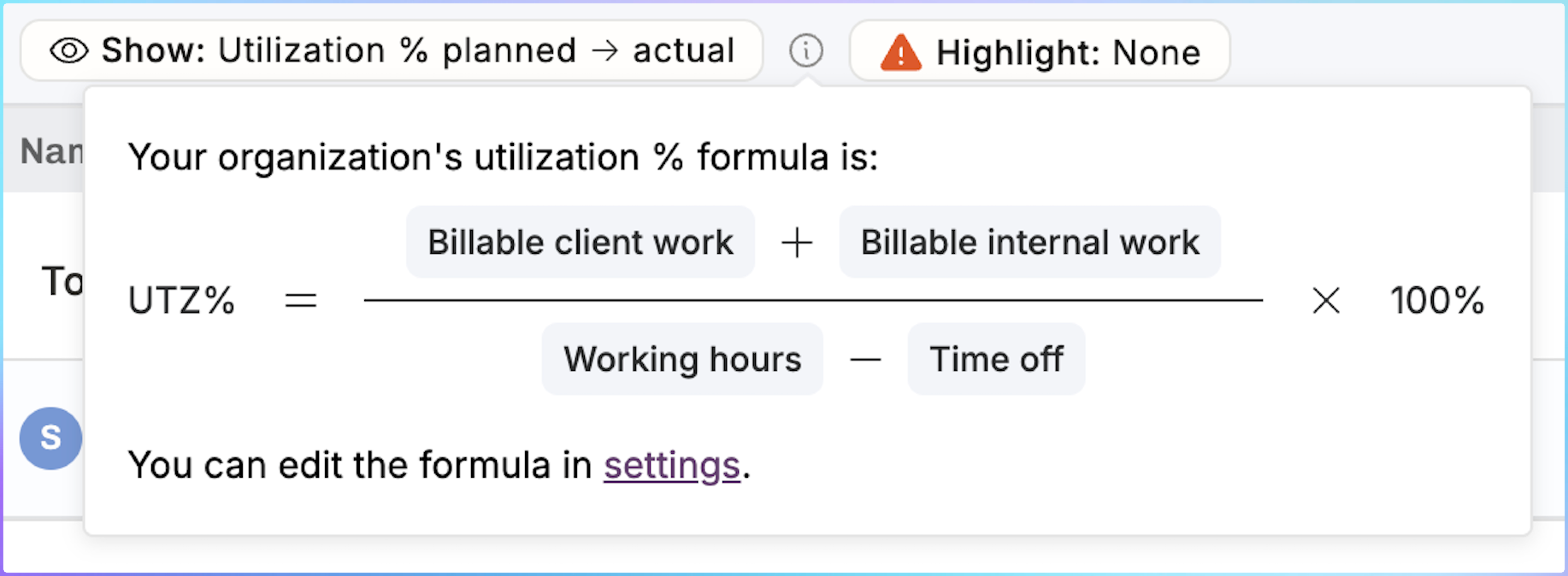
Starting today, you can see what the exact formula in use is:

If you prefer, you can watch a short video on the topic →
https://www.loom.com/share/f84096b757d947f191fd0c0953dc5c64
Editing the formula in Settings changes the equation for everyone in your company. This should reduce the amount of miscommunication and confusion, when everyone is looking at the same percentages.
Try out the formula builder here. Configure it to show the figures that make most sense for your company. Let us know what you think!
PS – remember to try out the new navigation – we’re actively listening to feedback. Find the CTA right next to the Operating logo in the top bar.