Filtering
Filtering means narrowing down a set of results – projects, positions, or people
Written By Matti Parviainen
Last updated About 2 months ago
Filtering everywhere
In order to understand how different parts of your business work, you need to be able to zoom in & out of the people, projects, clients and work allocations. The filtering features we’ve built may appear simple on the surface, but there’s a lot you can do once you understand it well.
Jump ahead:
All of the lists have a filtering button at the top
Inside the filtering panel, you have many ways of entering your criteria
type whatever, see what matches you find
choose from the pull-down menus
clear all filters to see everything
Inside the dialog, you can find a Save as a view button – that’s where you can save the filtering criteria and display options you frequently use.
Depending on the page you’re on, you might also see a Display menu. You can find sorting, grouping and other display-related options there. Display settings are saved as part of the View.
People
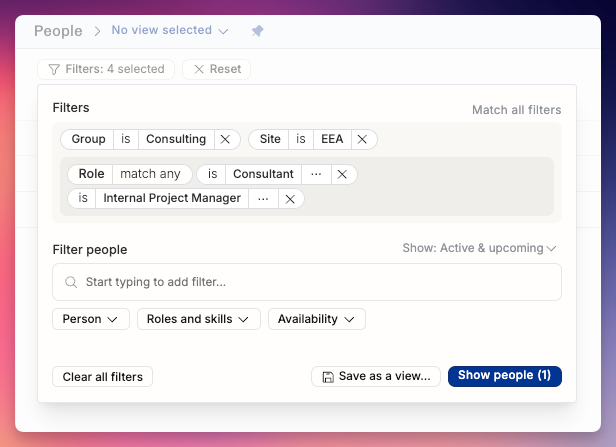
When looking for smaller groups of your entire team, the People filter gives you the way to narrow that set down. The people filters are available on the People view and all the people-related reporting like Capacity, and People report.
If you add multiple different criteria, you can see the “Match all filters” at top right. Click this to toggle match all/any.
If you add multiple values that could match, like the “Role: Consultant or Internal Project Manager”, you can choose to “match any” (like above) or click that pill again to match all. If you match all with two roles selected, the results will include only the people who have both the AD and Copywriter role.
You can click on any of the “is” pills to switch to “is not” instead:
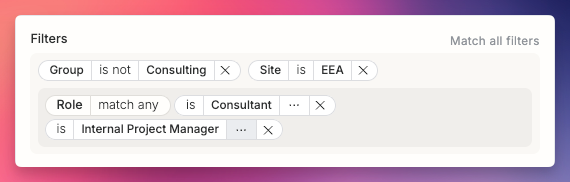
Whenever you update the filtering criteria, you can see the Show results (1) number change.
Skill levels and feelings
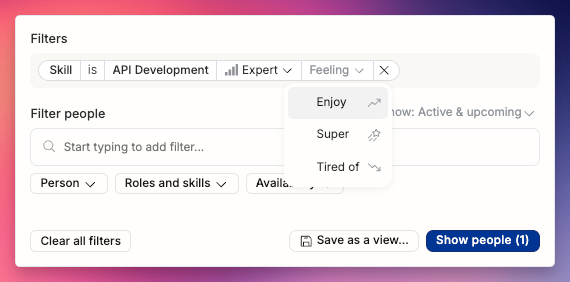
Operating skill management is very nice when you’re eager to find someone with a specific skill expertise. their level of the skill, and feeling related to that. This allows you to find the right person, even if you’re looking for something highly specific:
Projects
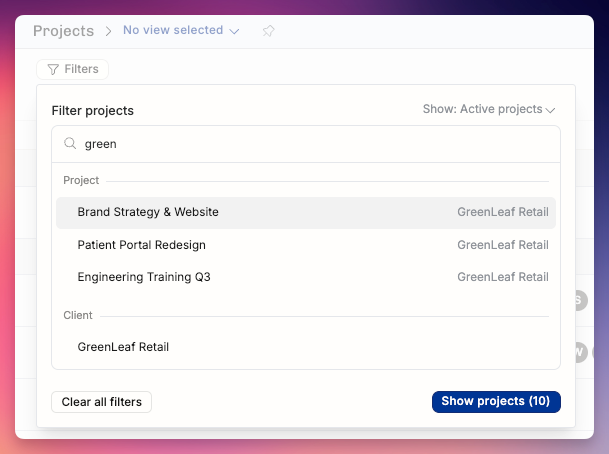
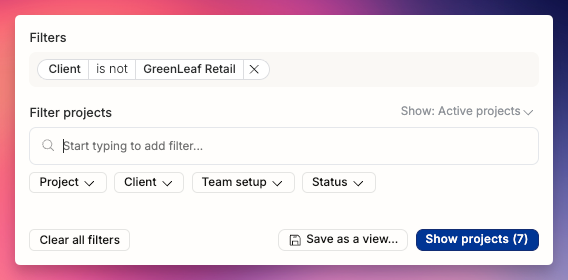
Typing with the beginning of the client name reveals that you can filter with everything related to GreenLeaf Retail as well as pick individual projects.
The “is not” option can be interesting here as well:
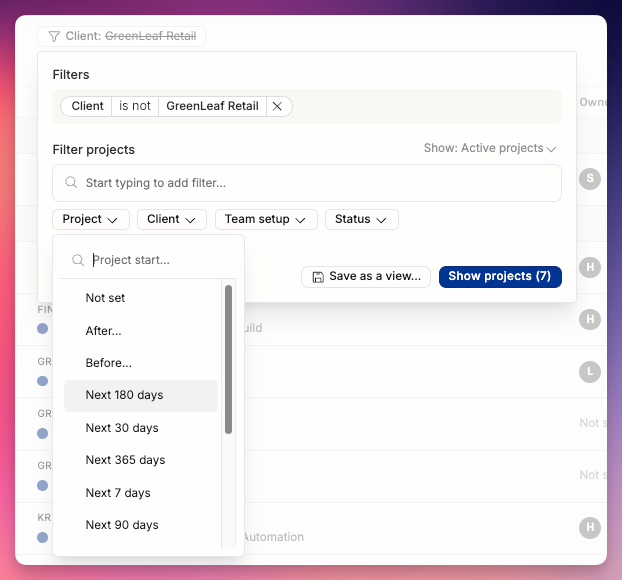
Sometimes it’s interesting to look at projects based on their start or end dates:
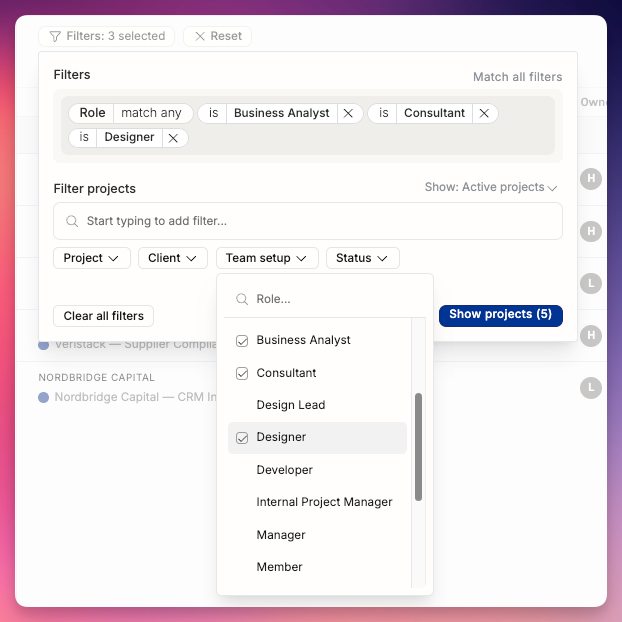
See all of the projects where we have either Business Analyst, Consultant, or Designer as part of the team:
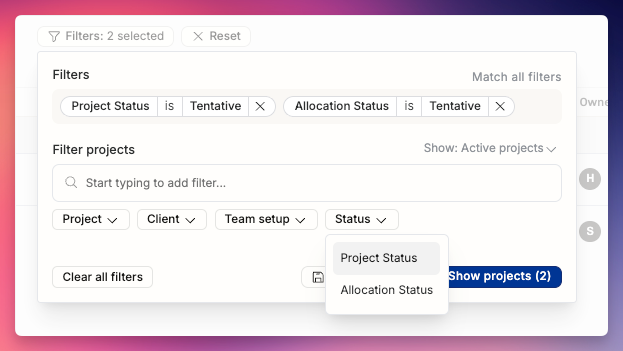
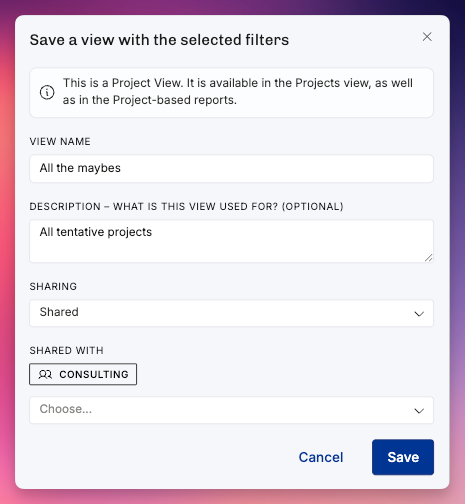
With these two filters and “matching any filters”, I get a listing of all of the projects that have something not-yet-confirmed in them. I think I’m going to save this Views as “all the maybes”.
This View will be useful for all the people in our C team, so I’m going to share it with them. Now, everyone in that Group will find it from their Project Views menu.
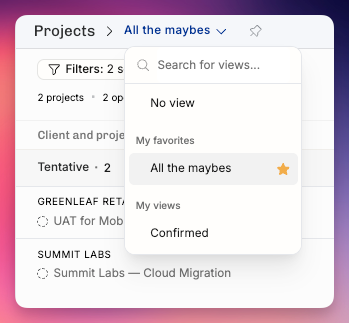
I use that View so much that I added it to my favorites:
Positions
When you add a role to a project, it creates a Position. That’s one of the rows on the project Timeline. Each Position can have any number of allocations blocks (sometimes called “work efforts”). Each allocation has a status – it’s either Tentative or Confirmed. The Position itself does not have any status.
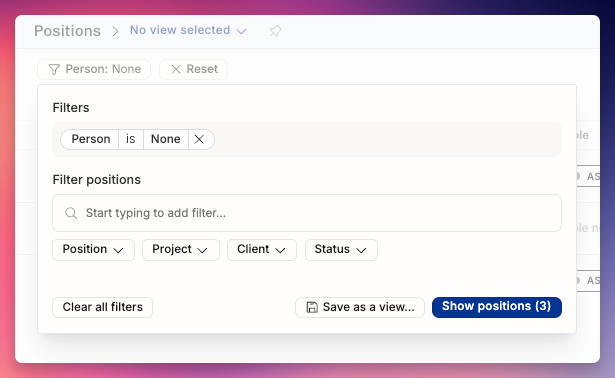
TIP: We highly recommend implementing a saved filter and pinning it for the positions view which has filter "Person is None" on. This will create a list of positions which are open for staffing that will help your resource planning team know what all the open positions are across your project portfolio
Each open position should be matched to a Person sooner or later – or if the project is lost, then the project should be archived, which will also remove that projects’ positions from the list.
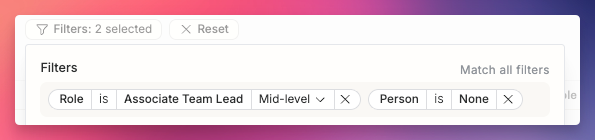
The Position can be set up in a handful of ways – all of these are optional:
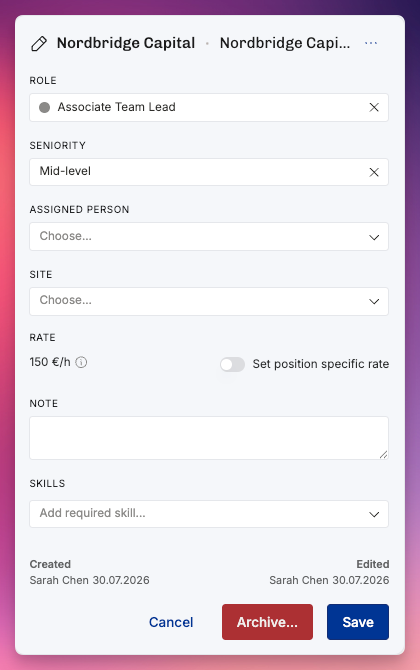
naming the Role
naming the expected Seniority (in relation to the Role)
naming the Person
naming required Skills