How to add and manage allocations in the People Timeline
The Timeline is an overview of who’s working on what and when.
Written By Lauri Eurén
Last updated About 2 months ago
The Timeline view in Operating gives a clear, interactive overview of the allocation plans in the system. It’s the main workspace for adding, adjusting, and reviewing resource allocations across your team.
In Operating, work is organized into positions and allocations:
A position is a role someone holds in a project. A position has attributes like rate and (optionally) role or seniority.
An allocation is a specific amount of work assigned to that position for a given time period.
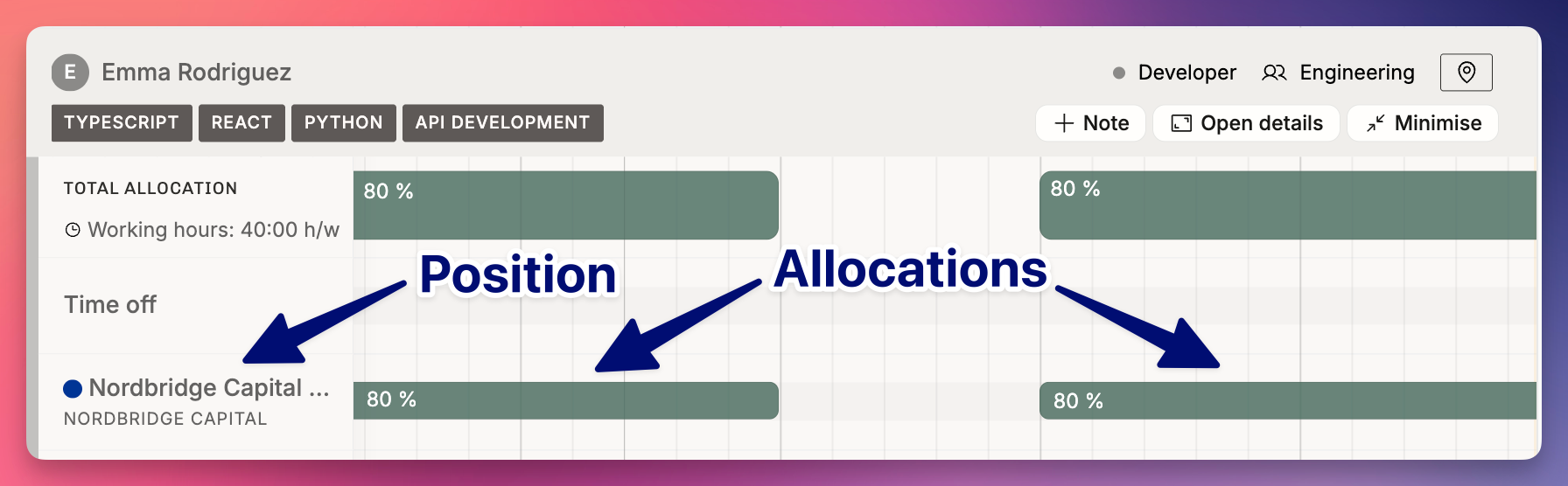
One position can have many allocations. For example: Lauri is a Project Manager on Project X (position). His allocations might be:
100% for the first two weeks
50% for the next week
A break (no allocation) for two days
4 hours on one day the following week
What You See on the Timeline
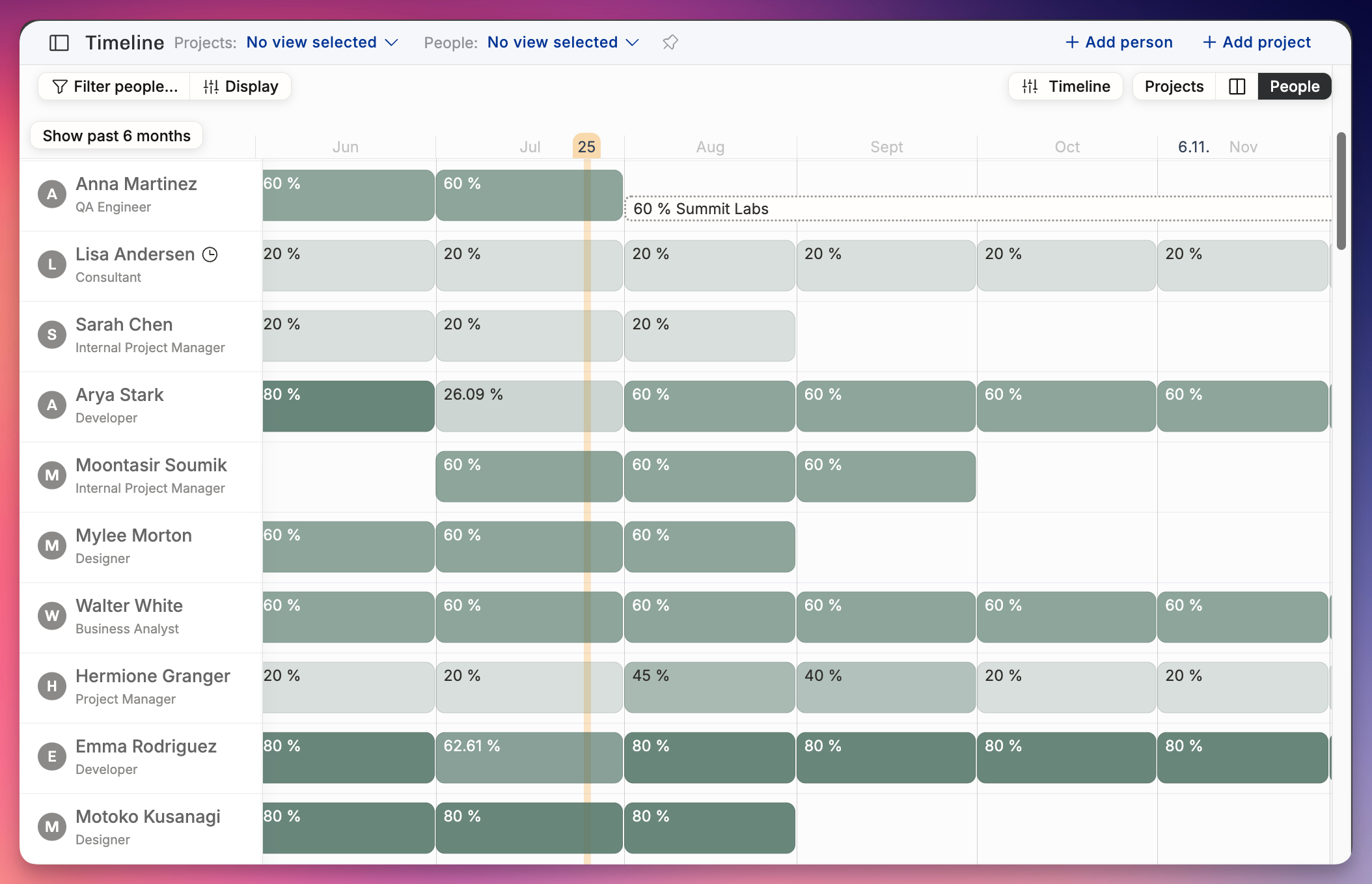
Each person has a summary row showing a high-level view of their positions and allocations.
Confirmed allocations – solid green bars
Tentative allocations – outlined with grey diagonal lines
Overallocations – red underline (more than 100%)
Time off – dark brown blocks
Public holidays – shown as light vertical lines
Click on a person’s name to expand their detailed schedule. Their allocations appear underneath the summary row, which stays visible at the top.
How to Add Allocations
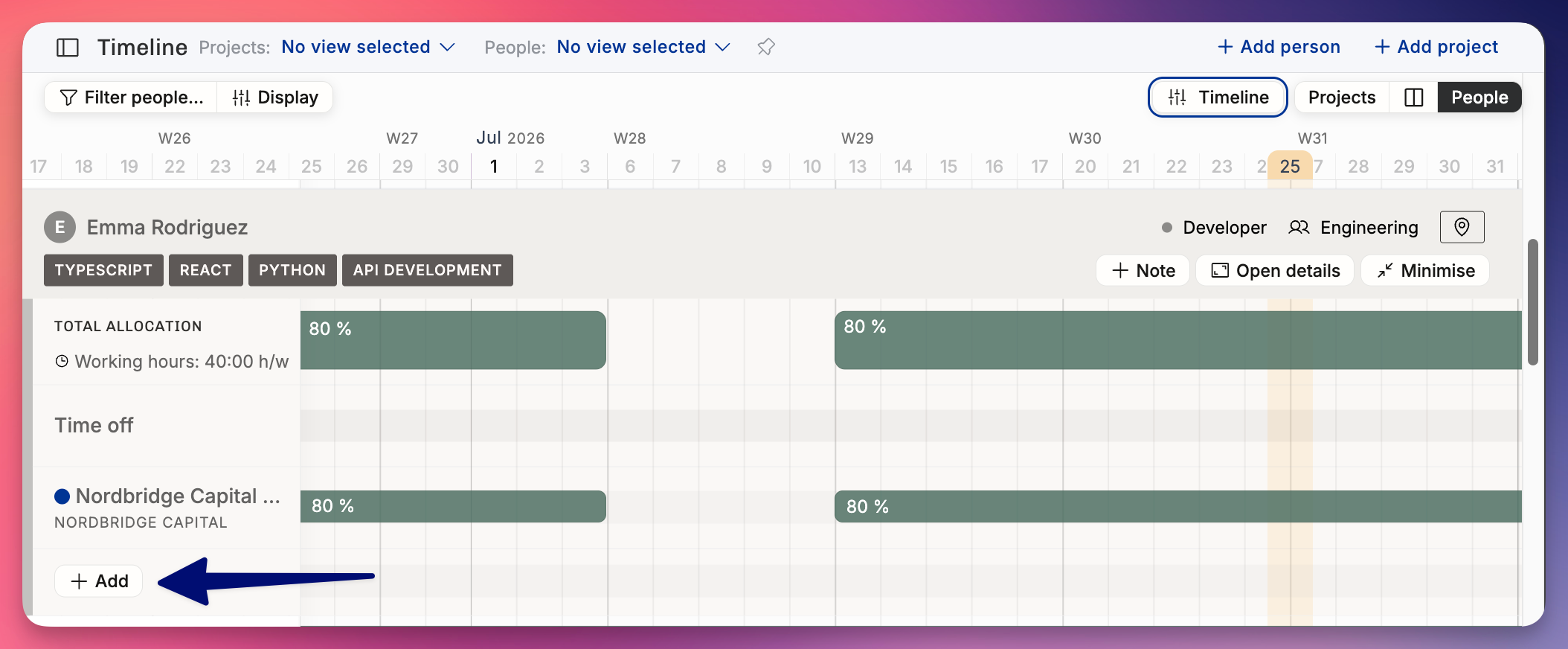
Once a person’s schedule is expanded, there are two ways to add a new allocation:
Option 1: Click “+ Add”
Click the + Add button at the bottom of the list of positions on the left hand size to create a new position for the person for a project
Select an existing project or create a new one
Fill in details in the allocation popover (see below)
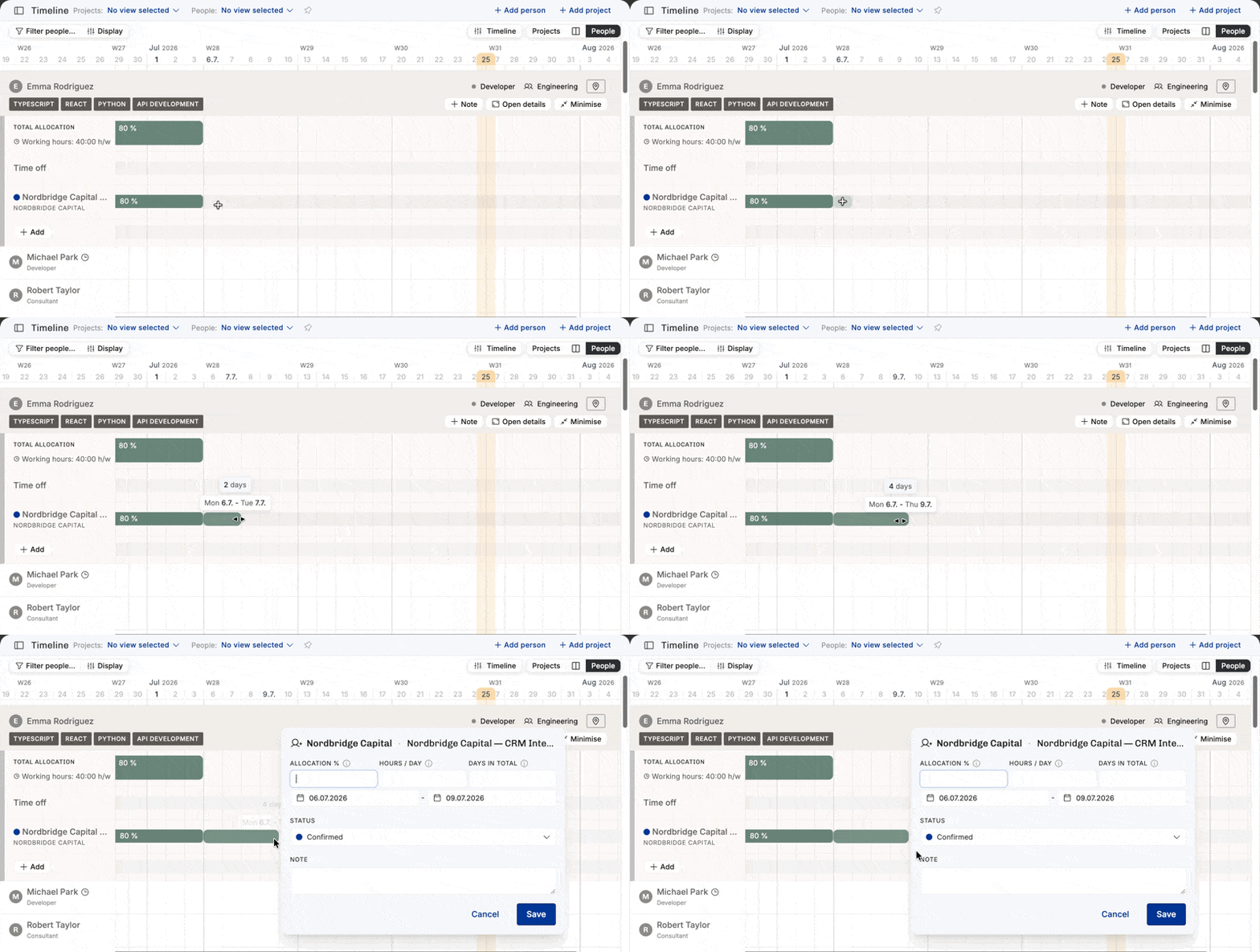
Option 2: Draw on the Timeline
Hover over a project row or the line to the right of the + Add New button
Click and drag across the dates you want to allocate
Fill in the details in the popover that opens
How to Edit Allocations
Move an allocation: drag it left or right (future allocations only)
Grab an allocation on the timeline and drag it further or to the past manually.
Locked past: You cannot move or edit past allocations to prevent accidental changes to historical data
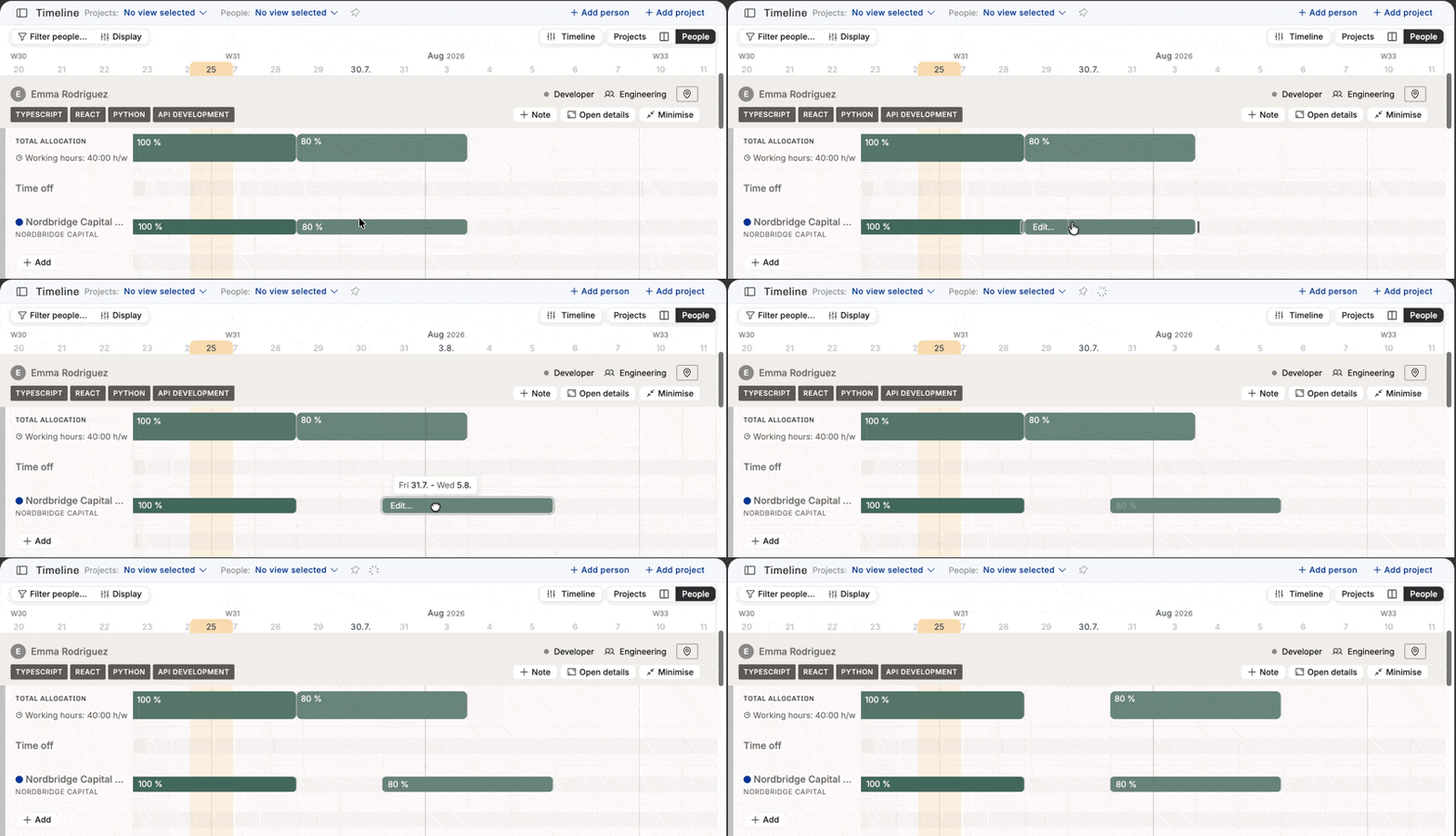
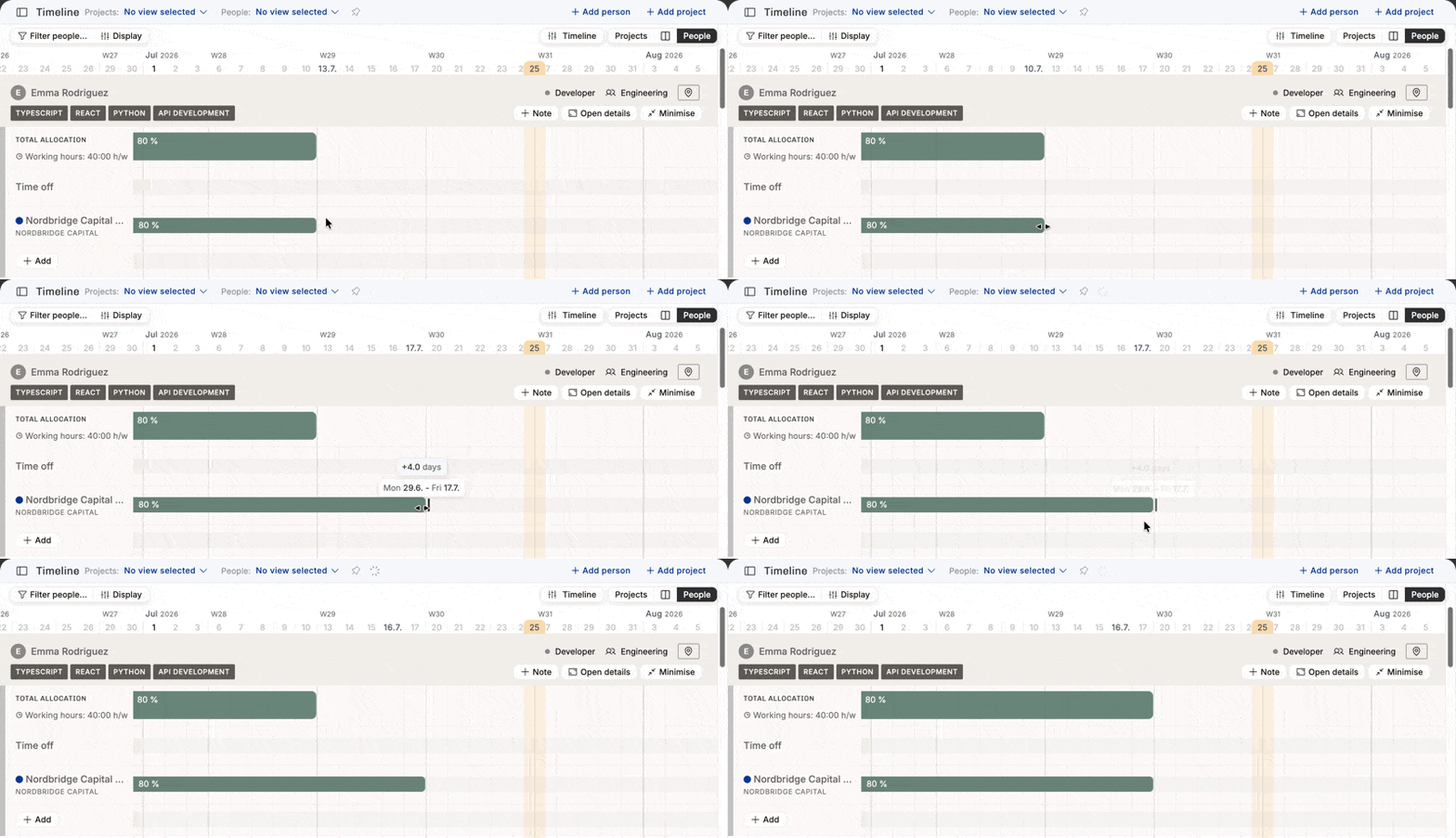
Extend or shorten: drag from the start or end handle
Grab the end or beginning of an allocation and drag the handle to extend or shorten the allocation.
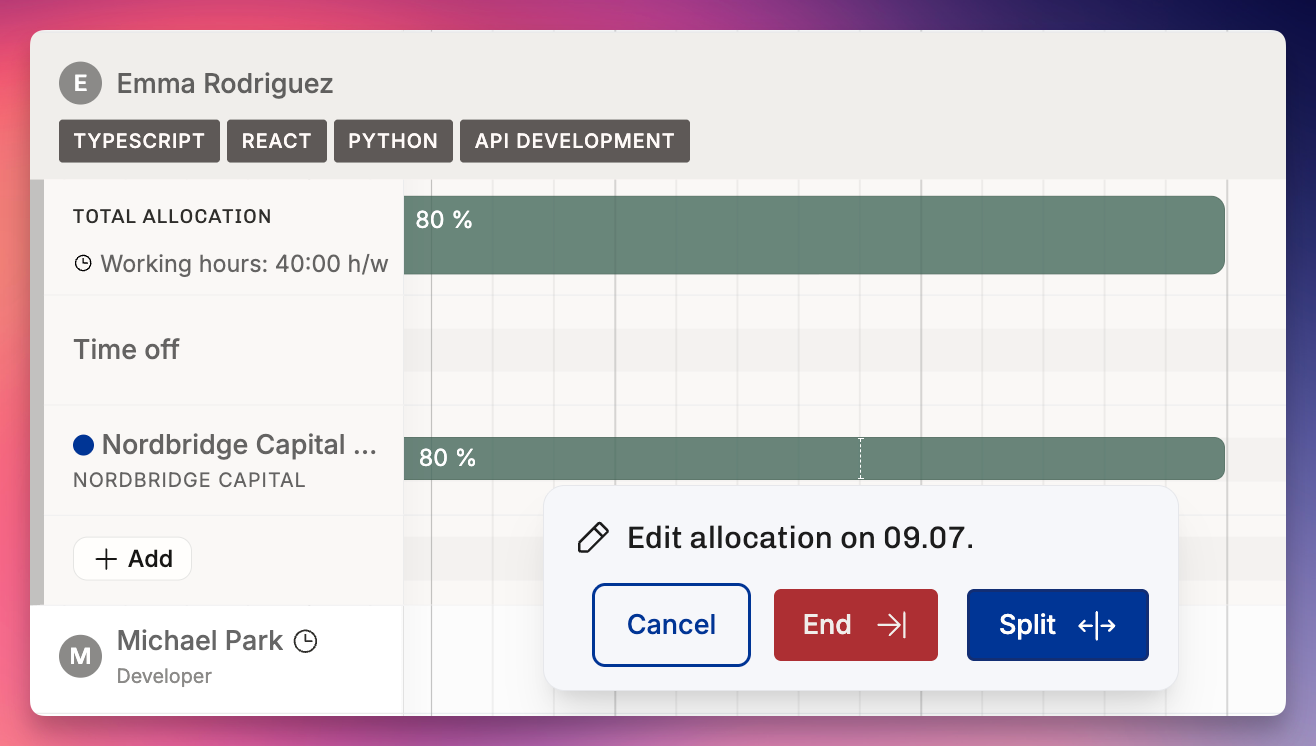
Split an allocation
If you need to split resourcing, for example on a weekly or monthly basis, or when someone’s workload changes, you can split an allocation.
Hover over the allocation bar at the point where the day changes. A subtle dashed vertical line will appear. Click to either split the allocation or end it and create a new one from that date.
Reschedule entire project on the Timeline
For tentative projects, you can move all work efforts in bulk by clicking on the date range element at the top left of the expanded project view. Choose the new start date and all work efforts will be shifted in relation to the first work effort.
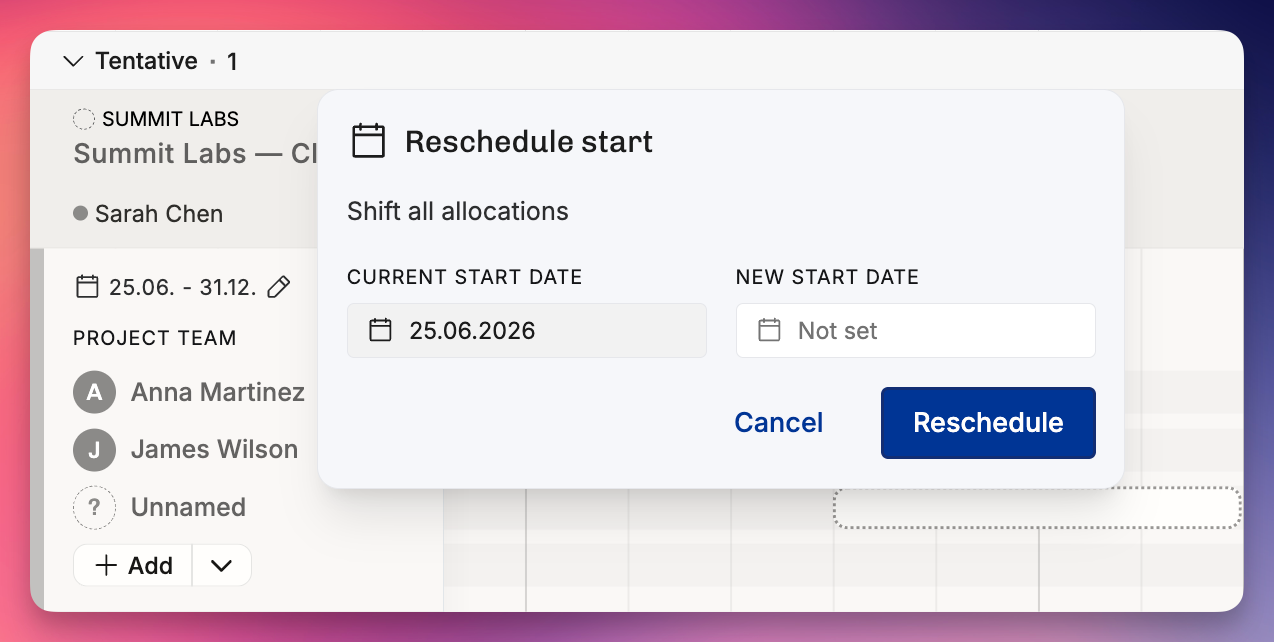
Note: the project status needs to be tentative (unconfirmed) for this to be enabled. You may unconfirm the project, reschedule, and confirm the project again. However, those operations will change the status of each and every work effort in the project.
Allocation Popover: What You Can Set
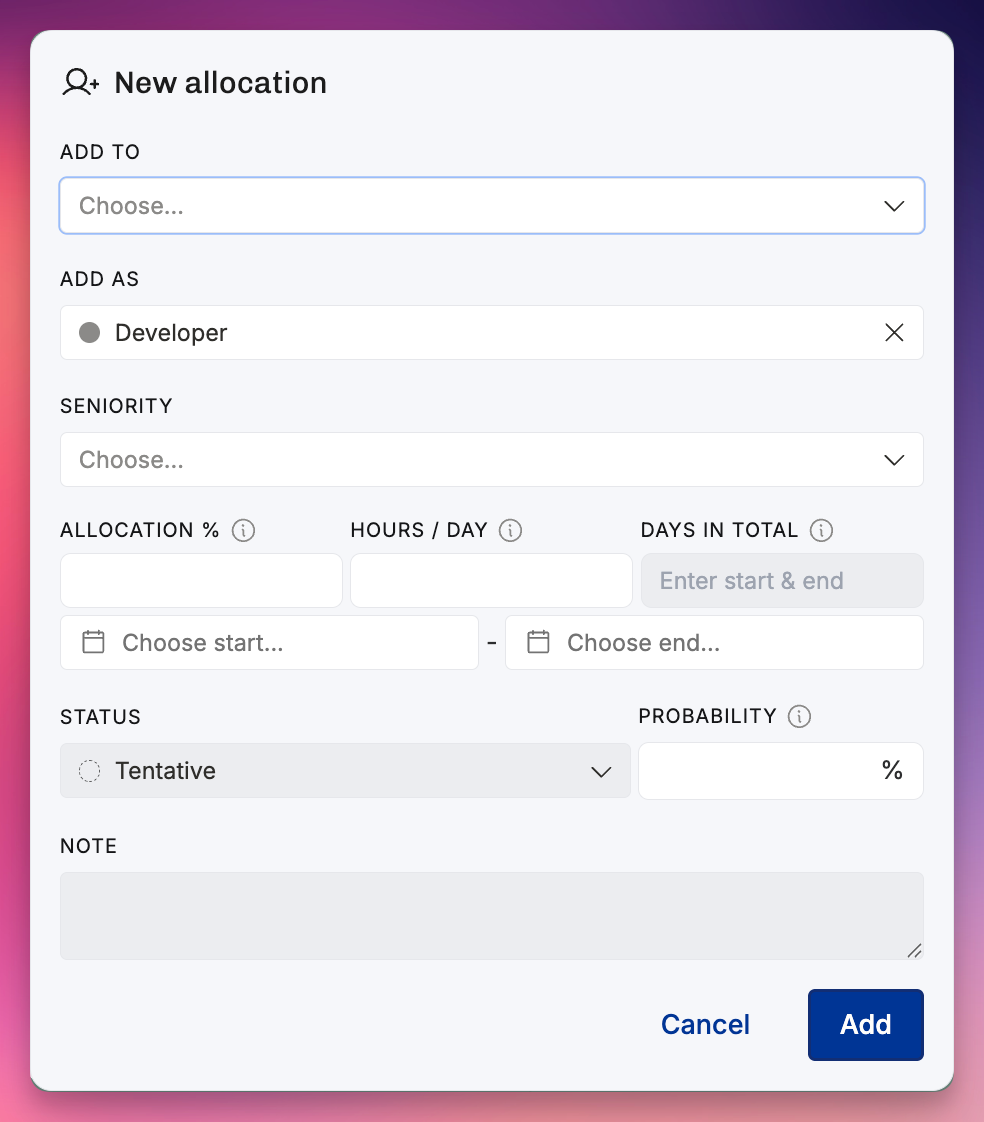
Note: Only one of Allocation %, Hours / Day, or Days in Total is required. Enter whichever makes the most sense — Operating will calculate the rest.
Popover when creating a new position
When you create a new position in a project, the popover asks for position details (role, seniority, rate) as well as the first allocation.
Popover when adding an allocation to an existing position
If the position already exists, the popover skips position details and only asks for allocation settings (dates, % or hours, status, etc.).
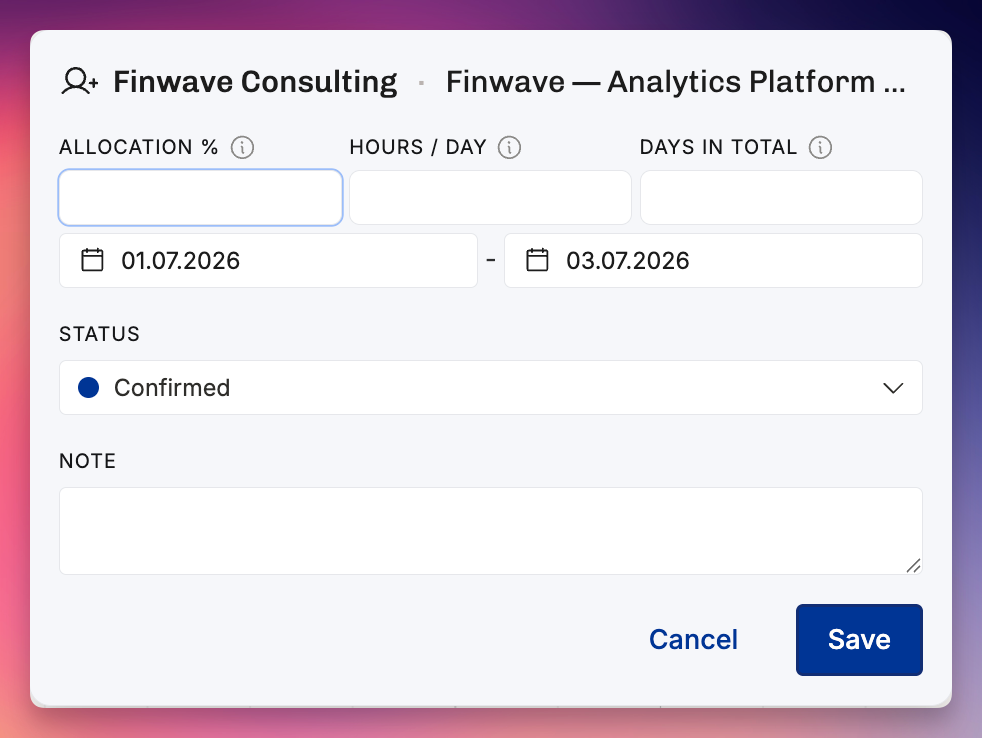
Click Save to apply the allocation.
Ending or removing a person from a project
How you remove someone depends on the situation:
1. Planned work that never happened (no history to keep):
If someone was added but never actually worked on the project — e.g. wrong role, wrong person, or the plan changed — you can delete or archive the position.
This removes the position and its allocations from the project.
Use this when there’s no meaningful history you need to keep.
2. Someone has worked on the project but is now leaving:
Do not delete the position. That would erase historical data.
Instead, end their allocation:
Drag the end handle of their last allocation to the date they stop working, or
Split the allocation at the end date (hover over the line where a day changes on the allocation bar → dotted vertical split line appears → click → choose End).
This keeps the history intact while making sure they no longer appear as allocated after their end date.
3. One person leaves and another takes over:
First, end the departing person’s allocation as above in #2.
Then create a new position for the incoming person on the project.
This way, the record shows Person A worked until date X, and Person B started from date Y.
Flexible Allocation Input
Each allocation can be defined in different ways, depending on how you plan and track work.
When creating or editing an allocation, you can define the workload using whichever input makes the most sense for the context:
Allocation % – Use when you want to allocate a share of someone’s daily/weekly availability (e.g. 25% of their time).
Hours / Day – Use when planning in average daily effort (e.g. 3 hours per day).
Days in Total – Use when allocating a fixed chunk of time (e.g. 20 days total across the timeframe).
You can use any of these inputs — Operating will automatically convert your input into the correct total allocation percentage.
This gives you flexibility to:
Allocate ongoing effort (e.g. 25% for the next 6 weeks)
Block a daily time commitment (e.g. 3 hours/day)
Reserve time for scoped deliverables (e.g. 20 days of work between June 1 and June 30)
Customizing Input Types
You can change how these input fields appear by adjusting your View options:
Go to Settings → View Options
Choose how you'd like to input time:
Hours / Day, Hours / Week, or Total Hours
Days in Total, or hide the field if not needed
This allows each team to work in the way that matches how time is scoped and sold — whether as percentage, fixed hours, or total effort over time.
Adding Time Off Allocations
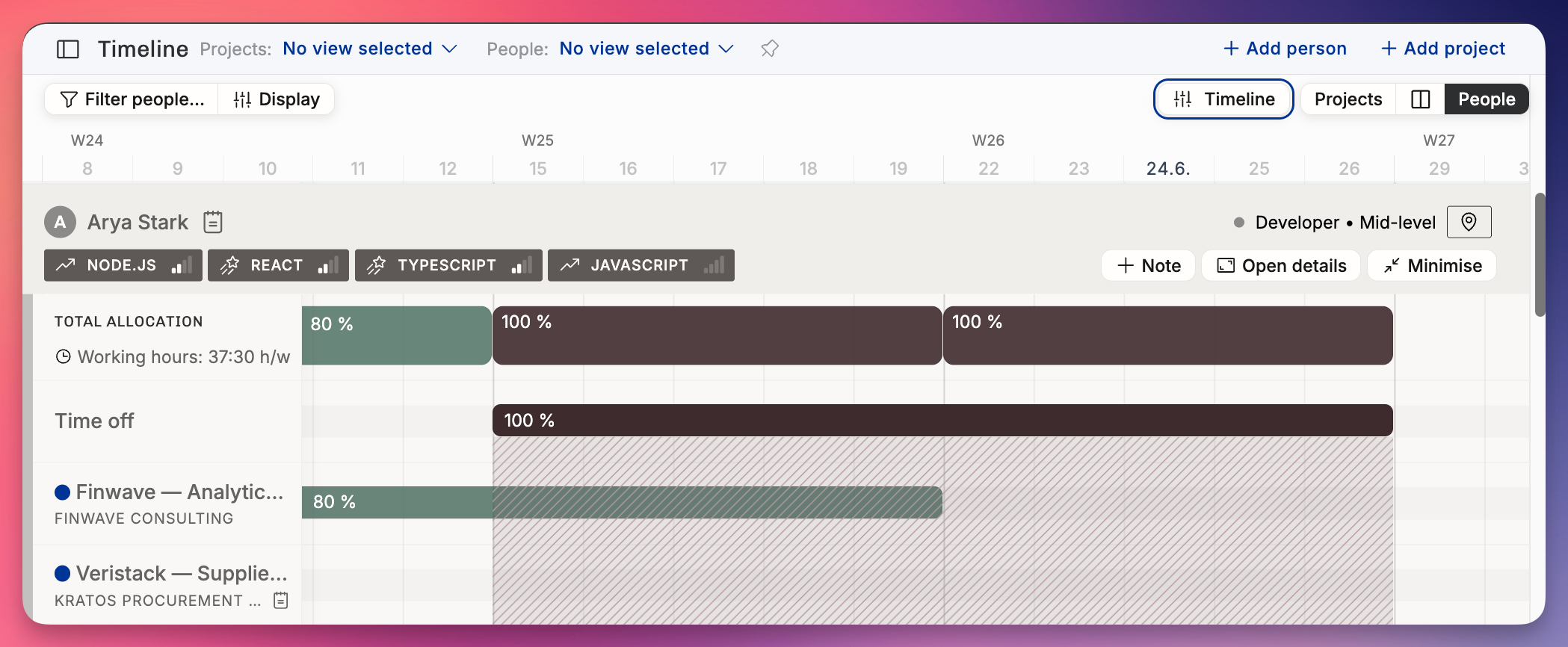
Everyone has a time off allocation row in their People Timeline. This is used to indicate when someone is unavailable for work — for example, for vacations, leave, or public holidays.
How it works:
To view your own time off allocation, click your name on the People Timeline. Your detailed schedule will expand, and the Time Off row will appear.
You can draw a time off allocation just like any other allocation: simply click and drag across the dates.
When you add a 100% time off allocation, all project allocations underneath it are automatically disregarded for capacity and forecasting. That time is considered unavailable.
Partial time off (e.g. 50%) can also be used if you're only away for part of a day or week.
Use cases:
Marking upcoming vacation days
Blocking out time for leave or personal days
Ensuring team capacity forecasts reflect actual availability
If time off is synced from your HR system
If your team has connected an HRIS platform (like HiBob) via a native integration and has chosen to import time off allocations, you won’t be able to edit time off directly in Operating. These allocations are managed in your HR system and kept in sync automatically.
Timeline only shows Monday through Friday
Operating doesn’t show weekends on the Timeline. Our capacity calculations assume that work is done Monday through Friday. It’s of course possible to also work on Saturdays and Sundays, and you can add time entries (track time) in Operating Hours for those days. See Timesheet view and time entries list view.
Workarounds for the “weekends are invisible” limitation
If you know for a fact that Steffi needs to work on the Saturday 20th on the Triforce case, add a note of it if others need to be aware of this. See:
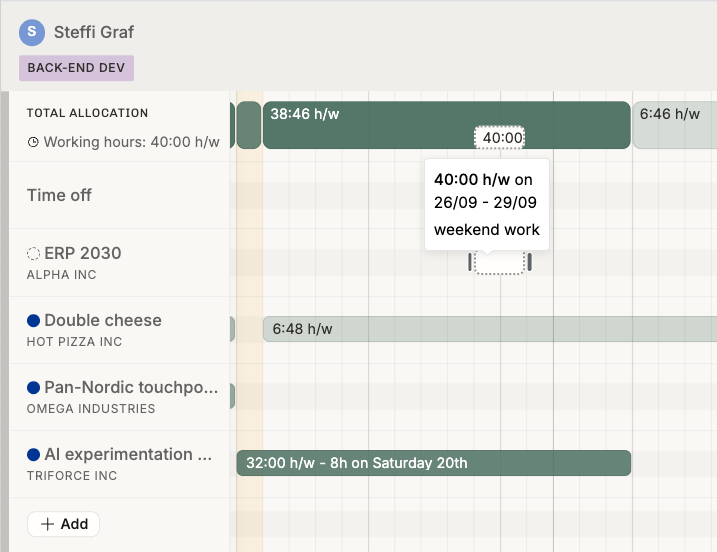
The other example in the above image is the Alpha Inc project: tentative weekend work for 27/09–28/09. It’s painted on the timeline for Friday-Monday but effectively has the same impact on capacity.
Of course this way of adding weekend work on the Timeline is not ideal, but if it’s an exception, these workarounds should get cover those situations.
Additional Notes & Tips
Timeline length & zoom in / out: Use the timeline button next to the people / projects timeline toggle on the top right of the screen the timeline view granularity.
TIP: Create a saved view with Person = Me to quickly see only your own schedule at any time.
Note: You can only edit your allocations if your admin has granted your user role a permission to do so.
Best Practices
Use tentative status for early-stage planning or forecasted assignments
Watch summary rows to identify over-allocations or under-utilization
Keep past allocations unchanged for historical data integrity