Changelog

Follow new updates and improvements to Operating.

February 23rd, 2026

Profitability reporting

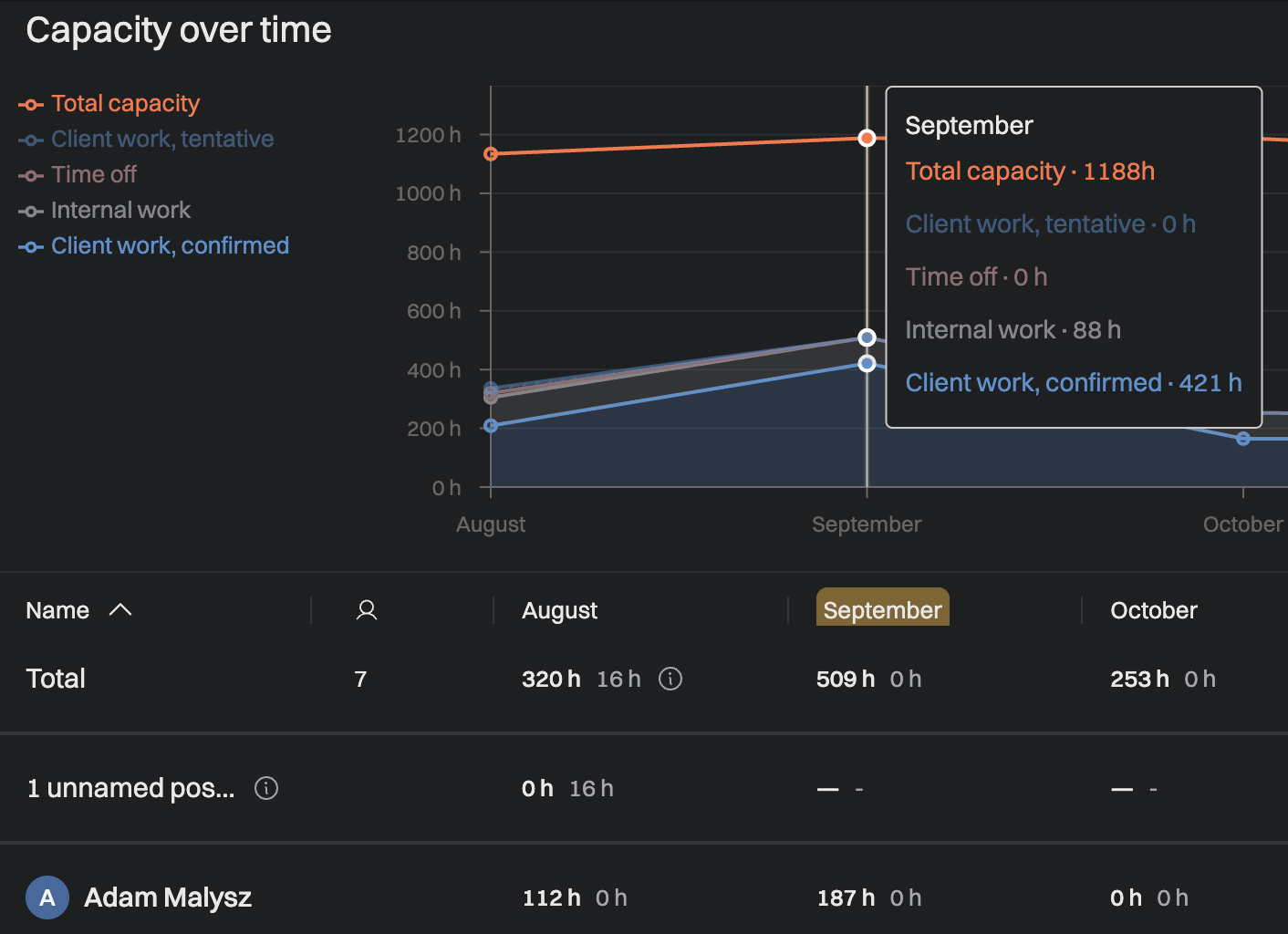
The Project Portfolio now includes a dedicated Gross Margin report, giving you a portfolio-level view of profitability across all your projects. Previously, understanding gross margin required digging into individual project details — now you can see it at a glance in the Portfolio view, grouped and filtered the same way you already analyze revenue and utilization.

This is especially useful for leadership and finance teams who need to monitor which clients, business units, or project types are delivering healthy margins and which ones need attention.

A new "Revenue per Hour" metric is now available in the Project Portfolio reports. This gives you a single, comparable performance indicator across projects, clients, and business units — regardless of whether they're time-and-materials or fixed-price. The metric works both as a backward-looking measure (using actual tracked hours and recognized revenue) and as a forward-looking one (using planned allocations and expected revenue).

  • You can also display "Planned Revenue per Hour" and "Earned Revenue per Hour" as columns directly in the Projects list.

We've added a range of profitability-related columns to list views across the app. In the Projects list, you can now display columns for actual revenue, actual costs, actual margin %, actual gross margin, total tracked hours, total planned hours, to-date planned hours, invoiced amount, and budget-spent percentage for T&M projects.

The Positions list now has many more columns to choose from: these make it possible to do quick financial health checks directly from list views without opening individual project or position detail pages.

You can now enable a view option on the Timeline that displays the gross margin percentage directly on each allocation bar. When turned on, every allocation shows its financial performance right alongside the allocation percentage — for example, "100% – GM 25.4%". This lets project managers who primarily work in the Timeline view keep profitability front and center without having to switch to the project detail page.

Grouping by Tag Category

You can now group projects and positions by an entire tag category — for example, "Staffing Process", or “Offering Area”. This means a staffing manager or director can open the Projects or Positions list, choose "Group by [Tag Category]" from the Display menu, and instantly see all items organized by their current status within that workflow.

Cmd+K launcher improved

The Cmd+K quick launcher has been significantly upgraded to make navigation faster and more discoverable. Bottom-of-list options like "Go to Settings" are now more prominently displayed so users actually notice them. You can now type "Add" or "New" to quickly create a project, person, or position; type "Permissions" to jump to permission settings; type "HiBob" to go straight to that integration; or type "help" to open the support site. When no results are found, a link to the help widget is shown. We've also added @me as a search option and you can now search projects by their unique ID.

Progress Determination for Revenue Recognition

Project managers can now formally set a project's completion % at any point in time using a new "Set Progress" dialog. You choose a date, see the current revenue and progress percentage, then specify the project's actual completion in currency or percentage. The system recognizes the budget accordingly over time and shows the recognized revenue.

This is critical for fixed-price projects where revenue recognition needs to reflect actual project progress rather than just the passage of time.

Lightweight invoicing workflow with Active Projects report

A new Active Projects report provides a simple, filterable table showing all projects with tracked hours during a selected time period — grouped by client with hours and revenue columns that distinguish between invoiced and uninvoiced amounts. You can filter by billability (billable, non-billable, or both), apply standard project filters, and choose your grouping. An export button lets you download time entries as CSV or generate a work breakdown PDF with configurable grouping and optional expense inclusion.

This is designed for teams that need a quick monthly overview of what's been worked and what needs to be billed, without going through the full invoice creation workflow.

Things that feel small but are still worthy of a mention

  • User-Selected Date Locale: In "View Options," each user can now choose their preferred locale for how dates are displayed throughout the app, independent of their browser settings.

  • The margin KPI displayed on project cards and the timeline now shows the "projected" margin by default — a blended figure that uses actuals up to today and planned figures from today forward — instead of showing "Actual margin: N/A" for projects that haven't completed yet.

  • "Project Completion %" column is now available in the Projects list for fixed-price projects. When enabled from the Display menu, it shows how far along each project is based on the progress determination / revenue recognition data.

  • Revenue Added to Reporting APIs, e.g.

    https://operating.readme.io/reference/reports-projects-actual

  • Several calculation and display issues in the project detail page's financial status section have been resolved.

  • Every tracked time entry now has an associated cost calculated automatically based on the person's cost card, site, role, seniority, and external/internal status. Costs are computed in the actual currency, the project currency, and the tenant's default currency.

  • You can now select and delete multiple time entries at once from the Time Entries list view. Previously, deleting time entries in bulk required reaching out to support — a common request, especially from trial customers cleaning up test data.

We’re building a MCP server for LLM-powered use of Operating. Would you like to test it out?

Drop us a line at support@operating.app and we’ll add you to the waitlist. It’s pretty cool to prompt for custom reports, ask who could help with a particular topic, and so on.

January 22nd, 2026

Hi Operating admins, we’re happy to report progress again. Lots of money in the letter today.

Project detail page shows status

When you look at any project’s details, you can now see profitability and projected outcomes at a glance. We moved the sections around a bit to make this clear. Status is a new section, and some of the Financials stuff is now there. The Financial setup section now holds the billing type, budgets and all that. Let’s have a look at both.

  • The KPIs on top show the crucial facts about per-hour project’s situation: how much you’re earning (based on time tracked) will you reach the budget, and how much gross profit you will make.

  • The burnup is powerful: you can look at it through many different lenses.

  • You can now toggle between the plan vs. actuals for the entire project or from the beginning until today. By default, tentative plans are excluded, but only a click away.

  • It’s amazing to also see invoicing and expenses right here.

Then, on to the next section: Financial setup – much cleaner now, stating the facts:

Money & profitability columns in Projects list

We have so many things to show for each project in the project list, we had to put them in these different sections in the Display menu. For a PM or a head of PMO, seeing this information for all the listed projects will surface issues with profitability or if some rows are missing relevant inputs. This is a huge win for data quality in Operating. We also hope that this motivates you to set up cost cards for your company – in our opinion, it’s vital to understand the gross profit of each gig at each stage of its lifecycle.

How much of the Fixed Price work has been done? Set the % to recognize revenue

Still with me? Great! Let’s go have a look at the Financial setup for a Fixed Price project:

The setup is a bit more complicated, but for a good reason: when you’re selling your services with a true fixed price contract, you know that you will end up invoicing the predetermined revenue. However, in cases that span over many months, you want to know how much revenue have you already earned.

For this, we built the revenue recognition method called “Based on time planned or tracked, weighed by hourly rates”. In our day-to-day, we call it the best RR method. In essence, it looks at the amount of allocations planned in the future (and past) – and time entries tracked in the past, and is able to attribute the revenue to the people who did the work. In the example above, everyone’s time is valued equally (at the global default rate). However, you may have your most experienced specialist whose hour might have the alternative cost of $400. In the same team, you may have juniors working at roughly $80/h. The comparative difference is used when weighing the value of their work.

Now, if you’re halfway through the project, how can you know how much of the revenue has been earned? You must indicate the progress manually. In the above screenshot you see the Budget progress UI. Setting the progress can be done as frequently as you like – some companies do this routinely at the end of each month. Here’s what setting the progress looks like:

Naturally, not all FP projects require this kind of attention. But especially work spanning over more than one financial reporting period can be managed correctly with this!

In the Projects list, those setting the FP progress manually will enjoy using columns such as these – showing at a glance what the progress is and when was it last set:

Our other rev-rec methods are Evenly by week and Evenly by month. We let you keep things simple if you don’t require absolute control.

Final heads-up: new navigation going live next week

As we wrote in the previous newsletter, it’s time to get ready for the sidebar navigation launch next week. Most likely on Monday 26th of January. If you want to get ready and have your familiar Horizon in place, get your Pinned Views in order before that.

January 13th, 2026

It’s a good sign when coming up with a succinct title for a changelog is hard. Many things here, eager to share it all. Let’s go!

Permissions preparing for the new navigation release

In Settings → Permissions, you now see more options for showing / hiding Features in Operating. New navigation has different tabs – here you control who sees them:

The new navigation is due to be launched for everyone later this month, so it’s a good idea to get familiar with it already today and as the Admin that you are, make sure your different users have access to the right places. If you leave everything as is, no one will get access to information they hadn’t seen before, so this is not a serious security concern.

We also wrote a help article about the new navigation and how the Horizon tab can be re-created using Pinned Views. The article highlights many benefits of the renewal, including the global search (with cmd/ctrl+K) and the ability to pin almost any page for easy access:

Powerful bulk editing for Time Entries

Editing – or deleting – multiple time entries at once. Shown above with the new sidebar navigation.

More clarity to the Invoicing flow: invoice preview, work breakdown…

As you're modifying the invoice, you can see a preview of what it looks like.

We’ve been blessed with great user feedback from our early adopters and the invoicing flow keeps getting better. If you’d like to learn more about how your time tracking & invoice creation could happen in Operating, reply to this email or support@operating.app and we’ll give you a tour!

Coming soon: Status summary for projects & Burnup per person

At the top, you see the Status summary with projections.

Other news

  • Added revenue to reporting APIs – get the money from the Reports endpoints

  • Manual progress % setting for Fixed Price projects (relevant when using the best revenue recognition method out there: Based on time planned or tracked, weighed by hourly rates)

  • Coming very soon: more columns for financials (profitability, among other things…)


Happy 2026 everyone!

November 27th, 2025

We've been busy shipping improvements to make Operating.app work even better for you. Here's what's new:

New sidebar navigation – still in beta, going to be the default soon

Pin Any Page

You can now pin any page to your sidebar—whether it's a person page, project detail page, or client page. Customize your shortcuts to match the way you work.

Saved Views & Pinning

Pinning a page with filters enabled now automatically creates a new saved view and adds it to your sidebar navigation. Creating and accessing your custom views has never been easier.

We heard your comments about the new navigation not making sense at first, but once people understand how powerful the pinned items are, they see why it is so powerful.

Invoicing

Custom Invoice Schedules

You can now create custom invoice schedules for fixed-price projects. Set any number of invoices with custom amounts and dates—perfect for projects with upfront payments or non-standard billing arrangements.

Credit Note Management

Credit notes now clearly show which invoice they're related to, making the whole invoicing experience much more transparent and easier to navigate.

HubSpot integration, version… 3? 4? (It keeps getting better)

Three important additions to the automatic import.

1 – Client (the client company in Operating) from any Company field in HubSpot

This is a long-awaited improvement to our HubSpot integration: you can now bring the company Record ID or any other field to Operating.

2 – Company (one of the companies you run) from any field in HubSpot

If you happen to have multiple companies, i.e. your business in the Netherlands and Denmark separated in Operating, you can now bring that piece of information with the Deal to Operating.

3 – Project’s unique ID from any field in HubSpot

Last but not least – you may now import the unique identifier you use across systems from the CRM into Operating.

Other quality-of-life improvements

Employee ID Field

Every person in your workspace now has an Employee ID field. You can edit it on the Person detail page, access it via the API, and it's automatically included in all people-related CSV exports. Operating is not a full-blown HRIS, but for smaller companies, it’s not that bad:

Gross Margin Visibility

Current gross margin is now visible for each position on the project detail page, making it easy to see profitability at a glance. Hover over the gm% number to see how it’s calculated.

Enhanced CSV Exports

Both position and project exports now include more columns. Position exports include work start/end dates, project groups, and allocation details. Project exports now include unique identifiers, project numbers, deal IDs, and budgets. Time entry exports contain employee, project, and client IDs as well as the external IDs you likely use to match things in payroll, etc.

Project Burnup: how old is this data?

The project burnup graph now displays the last refresh timestamp when you're using time tracking data from Harvest or other third-party services.

Pagination (infinite scroll) for very long lists

We’re embarrassed to admit that until today, some long lists got capped at 400 items. That’s no longer the case and if you have a pile of people, projects, or positions, you can see the numbers for the entirety and as you scroll down, we dynamically load more items.

Mark time entries invoiced – even if you don’t invoice in Operating

With the Time Entries directory, you’re able to edit multiple time entries in bulk, including the option to set them as “invoiced”. Super useful if you just track time in Operating but handle the invoice creation in another system. Note: there’s no undo. Once they’re invoiced, they’re set in stone.

Approval Flow Controls

Approval flows now include an option to disable self-approvals, ensuring proper oversight when project managers need their time tracking entries approved by someone else.

That’s it for today! You’re a legend for reading until the end.

November 13th, 2025

Utilization is a hot topic. What to include, what’s a realistic target, and so on.

If you’re used to looking at the utz% numbers in the past and they look different starting today, make sure to read until the end.

Operating has been very opinionated in the past about how the utz should be calculated, but as we’ve grown our customer base, we’ve learned that there are very different calculations that make sense in different companies.

Especially, if the utz% is somehow tied to manager or consultant compensation, you really want to see the correct numbers in the app you use every day.

Starting today, you can see what the exact formula in use is:

If you prefer, you can watch a short video on the topic →

https://www.loom.com/share/f84096b757d947f191fd0c0953dc5c64

Editing the formula in Settings changes the equation for everyone in your company. This should reduce the amount of miscommunication and confusion, when everyone is looking at the same percentages.

Try out the formula builder here. Configure it to show the figures that make most sense for your company. Let us know what you think!

PS – remember to try out the new navigation – we’re actively listening to feedback. Find the CTA right next to the Operating logo in the top bar.

November 5th, 2025

This is the first time we give Operating users a chance to opt-in to a beta feature. We’ve experimented with private beta features before, but this one is kind of massive. Instructions for activation at the end.

Jump to anything in Operating with ctrl+K (or cmd+K on a Mac)

With this global search, you can very easily jump to anything you use (frequently). Try it out.

Sidebar navigation with new structure

More room for more things on the left – we outgrew our top bar. You can pin your favorite views, and even organize them in folders.

We hope that the main menu items of Projects, People and Positions the learning curve of taking Operating into use is less steep. As a consequence of bringing these high-level concepts to the forefront, we’re reducing some complexity:

  • Horizon is no more – re-create the “tentative projects”, “available people”, and “open positions” lists as new views, and pin them to the sidebar if you prefer to use the old terminology. We may re-introduce those to everyone after the feedback we get from this public beta testing period. Let us know!

  • Directory is also going away – it’s still there now, but we hope to replace all catalog lists soon:

    • In our upcoming design, managing people, projects, clients, views or time entries, happens simply on that area in the sidebar. We’ll add lists with filters, CSV exports, adjustable columns, multi-edit, showing archived items and so on.

One really neat thing that comes from this redesign is that you can now use the same filter set in Projects (or People), and simply toggle between the List and Timeline. The information architecture changes we’re introducing enable us to do really cool things with the display options.

Try it out and tell us if we’ve misplaced something you absolutely want to keep during this rethinking of where everything should be.

Let’s get it on!

To activate the beta feature for yourself (it only affects you, and can always be turned back off), go to Settings → Beta Features. Toggle on the new navigation and save changes to experience it for yourself!

We’re listening

Don’t hesitate to reach us at support@operating.app if anything feels odd. A new feedback button is also available at the bottom left corner of the app.

November 5th, 2025

You’re now able to set invoicing schedules freely. This is exceptionally useful when selling fixed-price projects you want to invoice partially even before the work begins.

From Project detail page → scroll down to the Invoicing section, set the invoice schedule, and choose Custom.

You can then admire the upcoming and sent invoices:

Read all about Invoicing in Operating at our support site. Invoicing is part of the Full Suite plan.

September 19th, 2025

How many plus hours do I have?

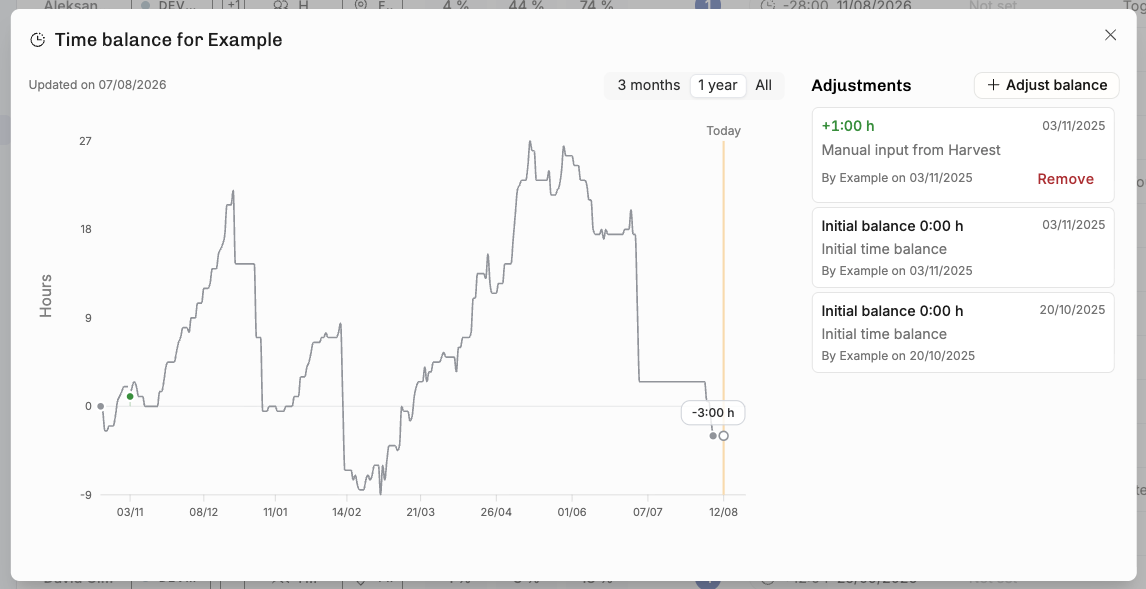
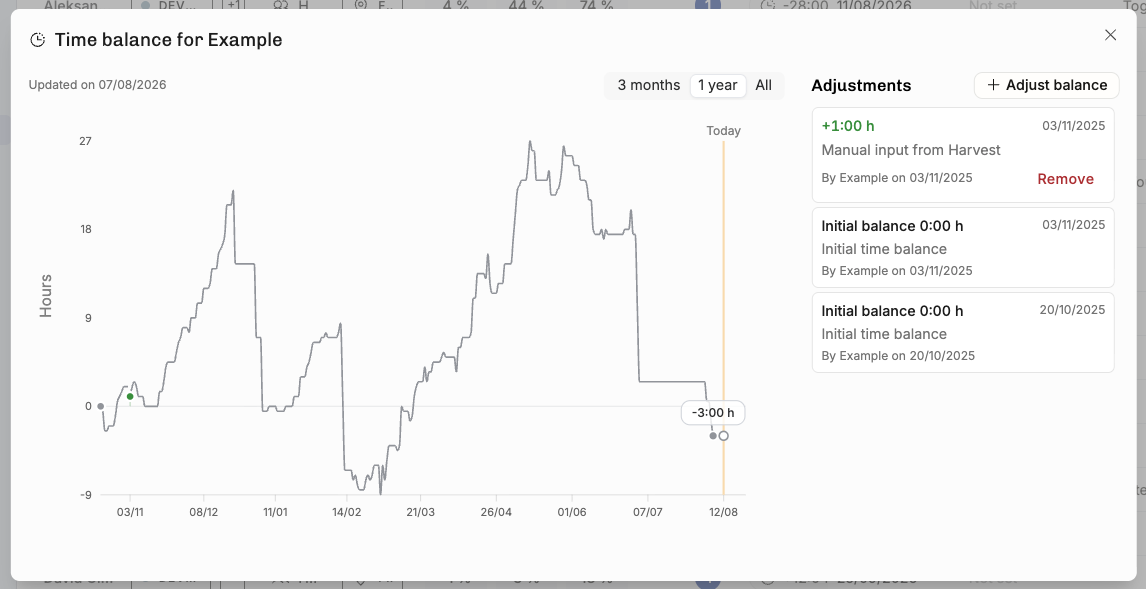
It’s common to track under/overtime with a Time Balance. For an employee, it typically allows for working at higher intensity for some time and then take well-earned time off afterwards, spending the flex balance plus hours. Operating now offers you the option to switch Time Balance on. After enabled from the Time Tracking Settings, you can:

  • see your own balance ± on top of the Hours UI

  • track time to a “flex leave” time off category to deduct from your balance

  • see everyone’s balance on the People Horizon

  • reset the balance from the same place, in case the plus hours were paid as salary

Read more on this support page.

Split budgets to follow how many % of project value has been delivered

For fixed price work, progress is rarely directly tied to the number of hours spent. Sometimes you find yourself at 30% done at the halfway point, other times it’s been smooth sailing and you could be already at 70%. In these situations, it makes sense to pause to adjust the budgets to match reality:

Split on yesterday and set the first budget to match your progress. Make changes to the rest of the budget accordingly – and allocate fewer or more hours to the remainder.

This is groundwork for the FP revenue recognition features we’re shipping next. Can’t wait to tell you more about them! As a teaser, I’m just going to mention that you can finally attribute the value of the work done to people and to past weeks and months. Your finance team will thank you.

Quick! Let’s add the team setup!

It’s now easier than before to add multiple people at once – typically, you the whole team setup early on, even before the exact allocation schedule is known.

Hit the “+ Add multiple” button to open a dialogue that remembers the Roles you frequently use. Doing this early in the staffing process lets everyone see what size the team will be and whether or not their role is going to be needed.

By the way, in the above picture, you can also see the Discovery phase being planned. Have you tried Phases yet? As a sidenote to a bytheway, try out the Find person… the next time you’re here. The suggestions are likely useful!

All of this work is part of our bigger initiative of making enterprise grade staffing more powerful. Builders of big teams, rejoice!

Export open positions, available people, etc

It’s quite common for heavy Operating users to have colleagues who don’t access the app. For them, it might be best practice to share the situation in a spreadsheet and summarise things so that they don’t get that “too much information, sir” sensation.

CSV exports also give you the opportunity to take a snapshot of your situation today – which might be useful for a deeper analysis of today vs. a month from now, for example.

And many more updates

  • Support for more HiBob time off types (they support a huge number of different policies!)

  • Paint new budgets directly on the Timeline

  • Approval flows: new permission for “approve any time entry”, useful for admins

  • More detailed financial visibility permissions

  • To be invoiced -list became clearer: this time we reduced the amount of info (!)

  • Invoice REST API → here

  • A handful of Time entry list & timesheet bugfixes. Also supported: manual sorting of rows on the timesheet:

September 19th, 2025

This time we have a lot to share, hence the exclamation points. You’re getting this email because you’re an admin in Operating.app.

Timeline improvements

The Timeline – both for Projects and People – now has new display options: you can easily set the zoom level, adjust the length up to 3 years and set the start date to your liking.

We also added the week numbers to the top bar.

Here’s a really nice new way to look at the People Timeline: show projects already in the collapsed view. Test it with your own data:

Project phases

This is what projects looked like until today.

After you hit the + Phase button and click around a little bit, you can create this:

We’re still adding more functionality around this basic Phase implementation, so the screenshots will soon be outdated, but it’s already quite handy!

We’d love to hear your feedback on the Timeline. We know there are many “paper cut” style glitches, and we plan to fix a huge number of them in the coming weeks. Let us know if you have something in mind – repetitive use of something slightly frustrating is a real pain.

Task-based and project-specific rates

As we now have more and more companies tracking time with Operating Hours, it’s become even more crucial to be able to set the rates for all work effectively and accurately.

We keep writing and revising the rate cards support page as more features are added. Here’s the executive summary for you:

  • Set task-based rates – go to project details, tasks for time tracking, click on the task to set the rate

  • Create a project-specific rate card directly from the project financials part, if none of the Shared rate cards match your project-specific terms → this way your unique pricing will not clutter the rate card lists for others

Time tracking and invoicing well under way

This is still in beta for Operating Hours users – but very exciting, so sharing here as well!

Don’t hesitate to drop us a line at support@operating.app if you’d like to hear more about the Hours + Invoicing combo. We’re hard at work migrating companies from old school tooling over to our platform.

August 22nd, 2025

In many projects and organizations, time entry approval is a huge deal. Without it, a project manager or a team lead might not know when too much or too little time has been tracked.

In Operating, locking timesheet until 22th of August means that from the consultant’s perspective, all the days including 22th are now done – unlikely to change.

  • If any time entries in the timesheet are in an approval flow scope, the Approvals tab for the people responsible for approvals see them and should have a look.

  • If the time entries don’t require approval, they get auto-approved and are ready for invoicing.

  • There’s no explicit “reject”. Instead, we give the approver or the consultant the ability to edit locked hours. Either of them can fix them using the Hours UI or from the Directory > Time entries.

This is a lightweight implementation of something that could grow extremely complex – we feel that we don’t need to go there.

The lock & approve mechanism may irritate some people, but have a look at this – the end-of-month circus of finding who has entered their hours and who’s still pending turns into a breeze:

Read more about it → https://support.operating.app/help/articles/4843224-approval-flows


Coming up next

  • Beta release – compact view of all projects in Timeline, here’s a sneak peek:

  • Unique id’s for projects and clients – automatic numbering in Operating and bring-your-own-id from an ERP or what have you.

  • Flex hours calculations for time tracking – see how much plus/minus you have.

  • Even more permission settings – we heard your feedback, and are happy to add more!


Tell your friends

Do you have friends (or enemies) working in consulting companies that struggle with complexity? Send them this link and have them evaluate whether or not their business could be simpler with Operating 😎

→ → → https://www.operating.app/simplify

Thanks! Enjoy the weekend.