HubSpot CRM
Import HubSpot deals to streamline your staffing process
Written By Mikko Karjalainen
Last updated About 5 hours ago
Overview
The HubSpot integration for Operating streamlines your resource planning by automatically importing HubSpot deals and creating for them linked projects in tentative status. This lets you start planning for the project as soon as it hits the correct stage in your HubSpot.
In addition to deals, the integration also imports companies and deal owners, keeping your data aligned across platforms. You have the option to keep syncing deal and client names from HubSpot, ensuring consistency without manual updates.
With powerful filtering options, you can control which deals are imported based on criteria like deal stage, pipeline, or custom properties—bringing in only the most relevant opportunities for your workflow.
Installation - Prerequisites
You have enough permissions in your HubSpot account to be able to install Marketplace apps
You have the Manage integrations permission for your user in Operating
Step 1: Connect to HubSpot and install the app
To start the process of installing the HubSpot integration, go to the HubSpot Integrations page in Operating and click Connect HubSpot. This takes you to your HubSpot account to choose which HubSpot account you want to link to your Operating.
Deals are imported to Operating only after you save the configuration after choosing which pipelines and stages contain deals which should be imported.
Step 2: Select which pipelines you want to sync to Operating

After you’ve connected your HubSpot account to Operating, you are able to configure how exactly deals, companies and users are imported into Operating. The integration automatically creates projects from deals which fit the criteria you define next.
The first choice is to select the pipelines from which you want to import deals.
Step 3: For each pipeline, select which stages should trigger project creation in Operating
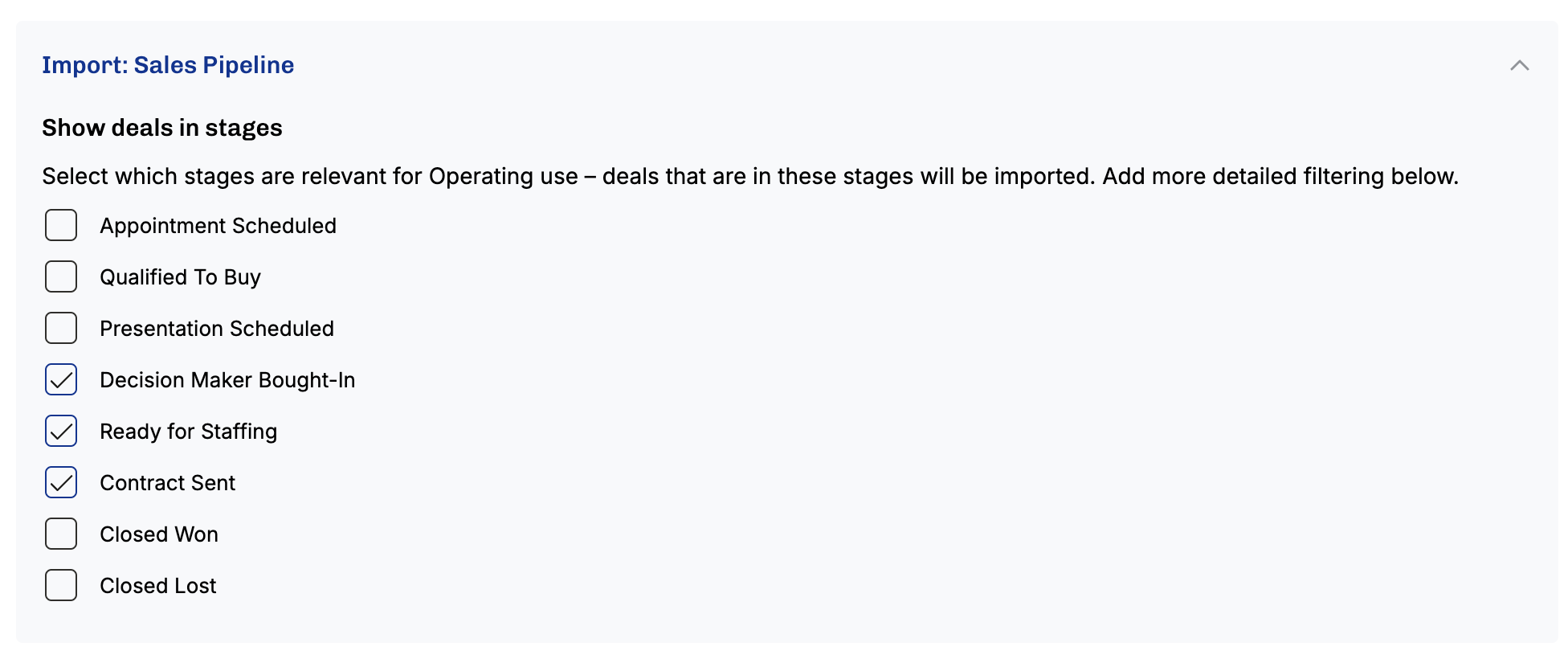
Next, select which stages are relevant for Operating. When a deal reaches one of these stages, Operating imports it and creates a project for it, unless the additional filters in the next step exclude it.
You must choose at least 1 stage to import deals
Step 4: Preview what deals would be imported and add additional filters if necessary
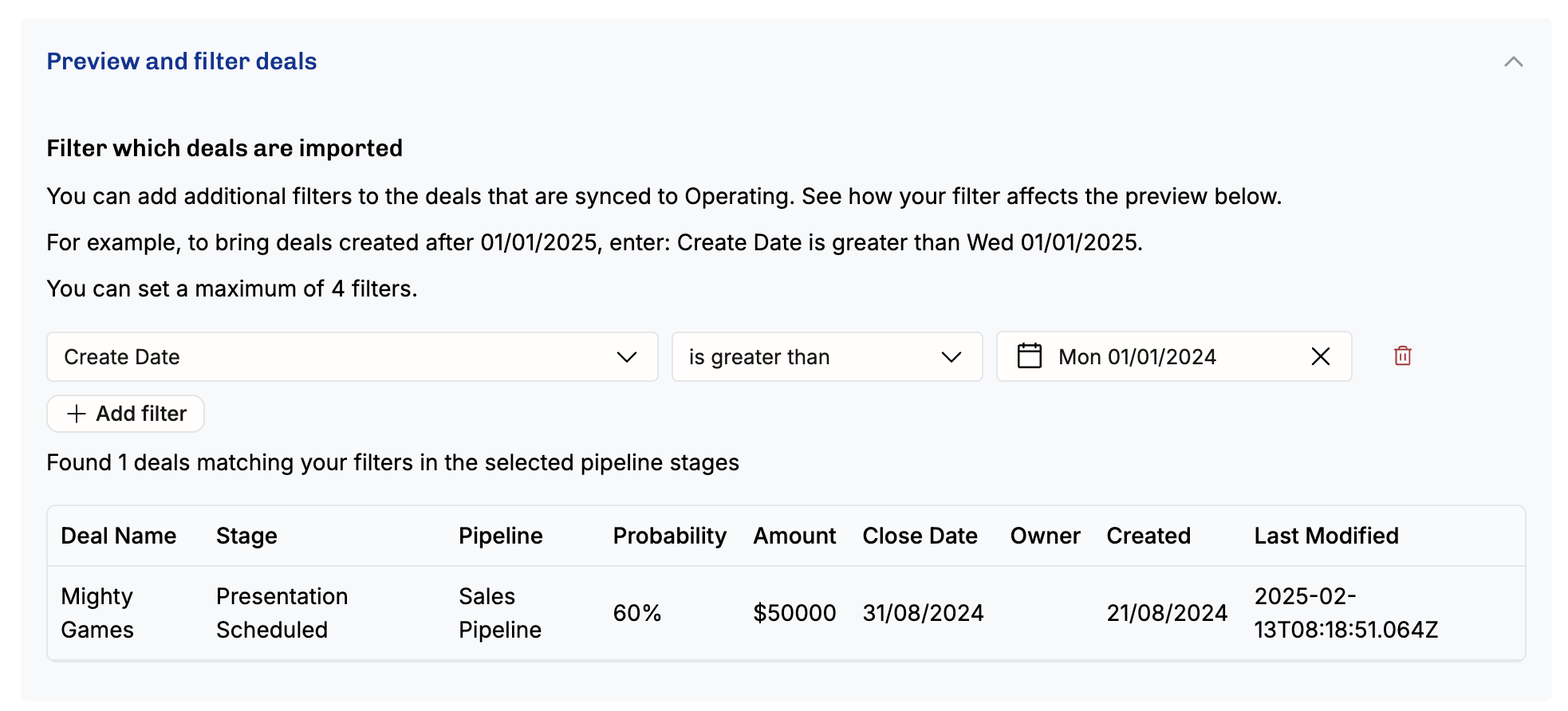
After selecting at least one stage, the preview table shows a list of deals in your HubSpot that currently fit the criteria you defined. If a large number of deals fits the criteria, the table only shows the most recently updated ones and the number above the table shows the total number of matching deals.
For example, if you choose to import Closed Won deals, it is probably a good idea to add some timeframe. Otherwise all the history of those deals will be imported.
Step 5: Map additional fields
You can map additional properties from HubSpot deals and companies directly into Operating. This reduces the need for manual data entry across multiple systems.
Your sales team can input all relevant project information in HubSpot, and the corresponding metadata will automatically be available in Operating. This ensures a smooth handover to the delivery and staffing teams, who rely on accurate and complete data to do their jobs efficiently.
In order for the additional mapping to work, you might need to create custom properties for your deal and company objects in HubSpot. You might then want to add these properties to the Add Deal form in HubSpot. Click Edit this form on the Create Deal Form in HubSpot to add your custom properties on the form.

Mapping HubSpot Company Properties to Clients in Operating
In the Company field mapping screen, you can map properties from a HubSpot Company to a Client in Operating.
Default fields like the company name are automatically mapped.
To avoid duplicate clients, we recommend mapping a unique identifier to Client unique identifier, such as the company's HubSpot Record ID or a business ID that is filled in consistently. When a company is imported, Operating links it to an existing client with the same unique identifier instead of creating a new one. Set this up before your first import.
Company/client Tags can be manually linked to custom fields in Operating. This gives you flexibility to bring in more context about the client, such as segmentation, internal notes, or regional details.

Mapping HubSpot Deal Properties to Projects in Operating
In the Deal field mapping screen, you can map properties from a HubSpot Deal to both Projects and CRM Deals in Operating. (Note that CRM deals are not editable in Operating, but are only a reference to the HubSpot deal, and can be used to group data in different views.)
These default fields are automatically mapped to the project:
Deal name, owner, description, and company.
Key CRM fields: amount, probability, and closed date.
Optional fields like project start and end date, site, billing type, groups, and tags can be configured manually to bring in more project-specific data from HubSpot into Operating.
To link deals to projects you already have in Operating, for example projects created through the API, map a unique identifier such as the deal's Record ID to Project unique identifier, and set the same value on the project.
Mapping the HubSpot Deal Amount to Operating Project Budget
You can also map a deal field — typically the deal amount — to a project Budget. Operating creates the budget in the deal's currency, creating the currency in your organization if it does not exist yet. This is what makes imported fixed-price deals arrive with a budget already in place for revenue forecasting.

Step 6: Save configuration and import deals
When you're happy with the configuration, click Save configuration and import new deals. Operating runs an initial import. After that, Operating creates a project automatically when a deal matches your criteria.
Key functionality
Importing deals as tentative projects
When a deal is created or updated in HubSpot, it’s automatically imported into Operating as a project in tentative status. This allows your team to start planning resources before a deal is fully closed, ensuring smoother transitions from sales to execution.
Sync Companies and Deal Owners
Companies associated with imported deals are also brought into Operating keeping client records aligned. The integration only imports companies from HubSpot when a deal for them is imported.
Deal owners (HubSpot users assigned to deals) are imported as Project Owners, ensuring clear visibility into account ownership within your resource planning. If the Deal Owner is not yet a person in Operating, a new person will be created upon syncing the deal.
Optional: Keep projects, clients and budgets up to date
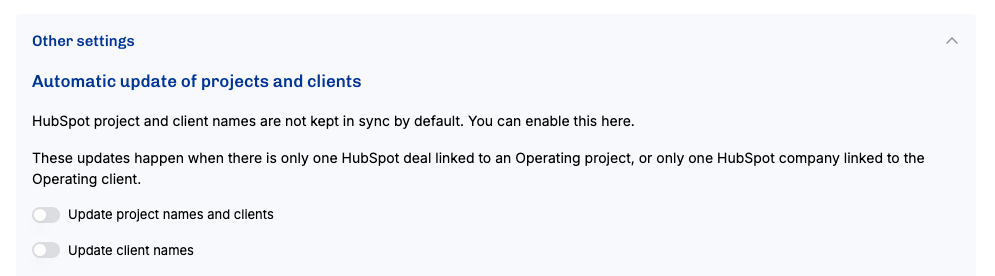
After the initial import, Operating keeps updating imported projects and clients when their deals and companies change in HubSpot. You choose what Operating updates under Other settings in the HubSpot settings:
Update project properties (excluding description and owner): on by default. A change to a mapped deal field, such as the deal name, updates the project.
Update client properties: on by default. A change to a mapped company field, such as the company name, updates the client.
Update budget properties: off by default. Turn it on so that a change to the mapped deal amount updates the project budget.
These updates apply only when one HubSpot deal is linked to the project, or one HubSpot company is linked to the client. Operating does not overwrite the project description and owner after the initial import. It fills in the owner only when the project has none.

Optional: Merge projects when deals are merged
When you merge deals in HubSpot, Operating keeps one deal and removes the others. Operating keeps a deal that has a project over one that has none, and then the primary deal. Operating then updates the kept deal with its latest data from HubSpot.
The projects of the removed deals stay as they are by default. To merge them as well, open the HubSpot settings in Operating and turn on Merge Operating projects when deals are merged in HubSpot in the Merged deals section. The switch is off until you turn it on, and you need permission to manage the integration to change it.
With the switch on, the projects of the removed deals merge into the project of the kept deal, and Operating recalculates the financials once after the merge. A project that cannot be merged, for example because of a different currency or billing type, or because it has invoices, stays in Operating without a HubSpot deal.
FAQ
Can I import standard or custom Deal fields to Projects?
Yes. In Step 5 (Map additional fields) you can map standard and custom HubSpot deal and company properties to Operating fields, such as project start and end dates, site, billing type, groups and tags. You may need to create custom properties in HubSpot first.
Why do I have duplicate clients or people in Operating after connecting HubSpot to Operating?
Clients
Operating can link HubSpot companies to clients you already have, using a unique identifier such as a business ID or VAT number. To set it up:
In the Company field mapping (Step 5), map the HubSpot company property that holds the identifier to Client unique identifier.
Make sure your existing Operating clients have the same value in their Unique identifier field, written exactly the same way in both systems (for example
1234567-8).
When a HubSpot company is imported, Operating looks for a client with the same unique identifier. If it finds one, it links the company to that client instead of creating a new one.
A new client is created when:
the unique identifier field isn't mapped,
the HubSpot company has no value in the mapped property, or
no Operating client has a matching value.
Set up the mapping before your first import. Companies imported before that have already become new clients. You can safely merge these with your existing clients in Operating.
People
HubSpot users aren't matched to existing people in Operating. When a HubSpot user is needed, for example as a deal owner, Operating creates a new person for them. If that person already exists in Operating, you can safely merge the two.
Was this helpful?
Still need help? Ask the team