How cost capping works
Cost capping stops unpaid overtime from being counted as cost. When someone tracks more time than their contracted daily, weekly, or monthly working hours, the extra hours record no cost, so a project's profitability is not penalized when people work over. This article explains the two Site settings that control it, what the cap is measured against, and which figures and columns change.
Written By Mikko Karjalainen
Last updated 17 days ago
An hour of unpaid overtime is free work and it costs you nothing extra. Cost capping makes your numbers say that: it limits the cost recorded against a Person's time entries to their contracted working hours over a day, week, or month, so tracked cost never exceeds what you actually pay them, and a Project isn't penalized when people work over.
You turn it on per Site, and it changes tracked cost and therefore gross profit and margin. This article is for admins configuring cost capping.
Before you begin
Cost tracking has to be enabled for your organization. The cost capping settings only appear when it is.
You need permission to manage Sites to change the settings, and the cost permissions to see the figures they affect. See Permission sets in Operating in Operating.
Cost capping is a standard setting, available to every organization that has costs enabled.
What cost capping does
The cost of a time entry is always the cost rate multiplied by hours. Cost capping changes which hours are used: instead of every tracked hour, cost is calculated from the entry's capped time.
The cap is the Person's contracted working time for the period — their salary-equivalent hours.
If they track more than that, the work above the cap records no cost.
If they track the same or less, nothing changes: capped time equals tracked time.
Only tracked costs are capped. Planned cost is never affected.
Where to turn it on
Cost capping is set per Site, so different Sites can cap differently — or not at all.
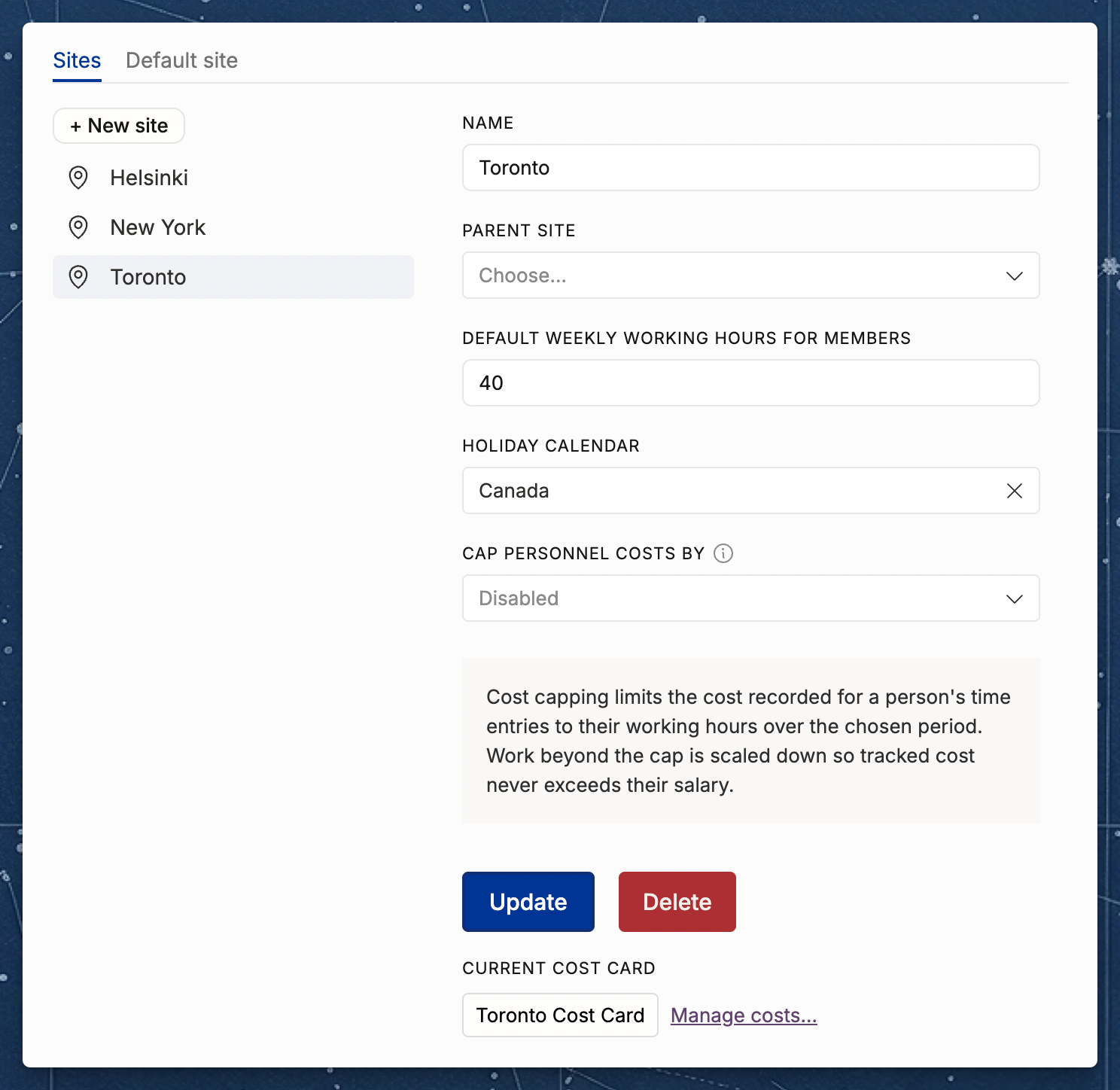
Go to Settings → Organization → Sites.
Open the Site you want to change.
Below the holiday calendar, set Cap personnel costs by.
Choose a Cost capping policy. This field appears once you've picked a period.
Save.
There's also a short Cost capping explainer under Settings → Time tracking → Time entry options, with a shortcut through to Sites settings — useful if you're looking at time-tracking settings and wondering where capping lives.
When you change either setting, Operating recalculates the capped time on existing entries for that Site's members in the background, so past periods reflect the new setting too. Setting the period back to Disabled restores full tracked cost.
The two settings
Cap personnel costs by — the period the cap is measured over:
Disabled — the default. No capping; cost uses every tracked hour.
Daily working hours — each day is capped on its own.
Weekly working hours — the whole week shares one cap, so a long Tuesday can be offset by a short Thursday.
Monthly working hours — the whole month shares one cap.
Cost capping policy — how the cap is shared out when someone tracks more than it:
Neutral — the default. All work in the period is capped proportionally: every entry is scaled down by the same factor.
Billable work first — billable entries keep their cost first, and non-billable work is deferred toward zero with whatever cap is left. If billable work alone exceeds the cap, it's scaled down proportionally and non-billable work drops to zero.
What the cap is measured against
The cap comes from the Person's own working time, not a fixed number:
Their individual working hours if they have them, otherwise the Site's default weekly working hours. See How to set individual and part-time working hours.
Public holidays and time off do not shrink the cap — a salaried Person is paid on those days. Their time-off entries simply fill the cap alongside real work, so a full week of vacation keeps its full cost.
Weekends fall outside contracted time. Under Daily working hours, an entry on a Saturday has a cap of zero and records no cost. Under Weekly or Monthly capping, weekend work counts against the same period cap as the rest of the work.
When a Person changes Site
Each time entry is capped with the settings of the Site the Person had on the date of the entry. When a Person moves to another Site in the middle of a week or month, the days before the move and the days from the move onward are capped separately:
Each part has its own cap, made of the contracted working time of its own days. If Maria moves on 15 January and both Sites cap monthly, 1–14 January is one cap and 15–31 January is another. Hours she tracks in the first half of the month can use only the contracted time of those two weeks.
Each part uses its own Site's period and policy. If the new Site caps weekly with Billable work first, that applies from the move date, and the days before keep the old Site's settings.
On days at a Site with capping disabled, cost uses every tracked hour.
To change a Person's Site from a date, see "Site changes over time" in Sites.
A worked example
Maria is salaried at a Site with a 37.5-hour week. Her cost rate is 50 €/h, so the week costs you 37.5 × 50 = 1,875 €. The Site is set to cap by Weekly working hours.
In one week she tracks 45 hours:
30 hours on a client Project, billable at 100 €/h
15 hours on an internal Project, non-billable
Without capping
Client Project cost: 30 × 50 = 1,500 €
Internal Project cost: 15 × 50 = 750 €
Total: 2,250 € — 375 € more than she was actually paid.
With capping, Neutral
Everything in the week is scaled by the same factor, 37.5 ÷ 45 = 0.833:
Client Project: 30 hours → 25 capped hours → 1,250 €
Internal Project: 15 hours → 12.5 capped hours → 625 €
Total: 1,875 € — exactly her contracted week.
The client Project's revenue doesn't move: 30 billable hours × 100 €/h = 3,000 €. So its gross profit rises from 1,500 € to 1,750 €, and its margin from 50% to 58%. The overtime no longer eats into the Project's profitability.
With capping, Billable work first
Billable work fills the cap before anything else:
Client Project keeps all 30 hours → 1,500 €
Internal Project gets what's left of the cap, 37.5 − 30 = 7.5 of its 15 hours → 375 €
Total: 1,875 € again.
The total is the same under both policies — what changes is who carries the reduction. With Billable work first, the client Project keeps its true cost and margin (still 50%), and the internal Project absorbs the whole thing. Choose Neutral if you want overtime spread evenly across everything someone worked on; choose Billable work first if client work should always show its full cost.
Where you see capped figures
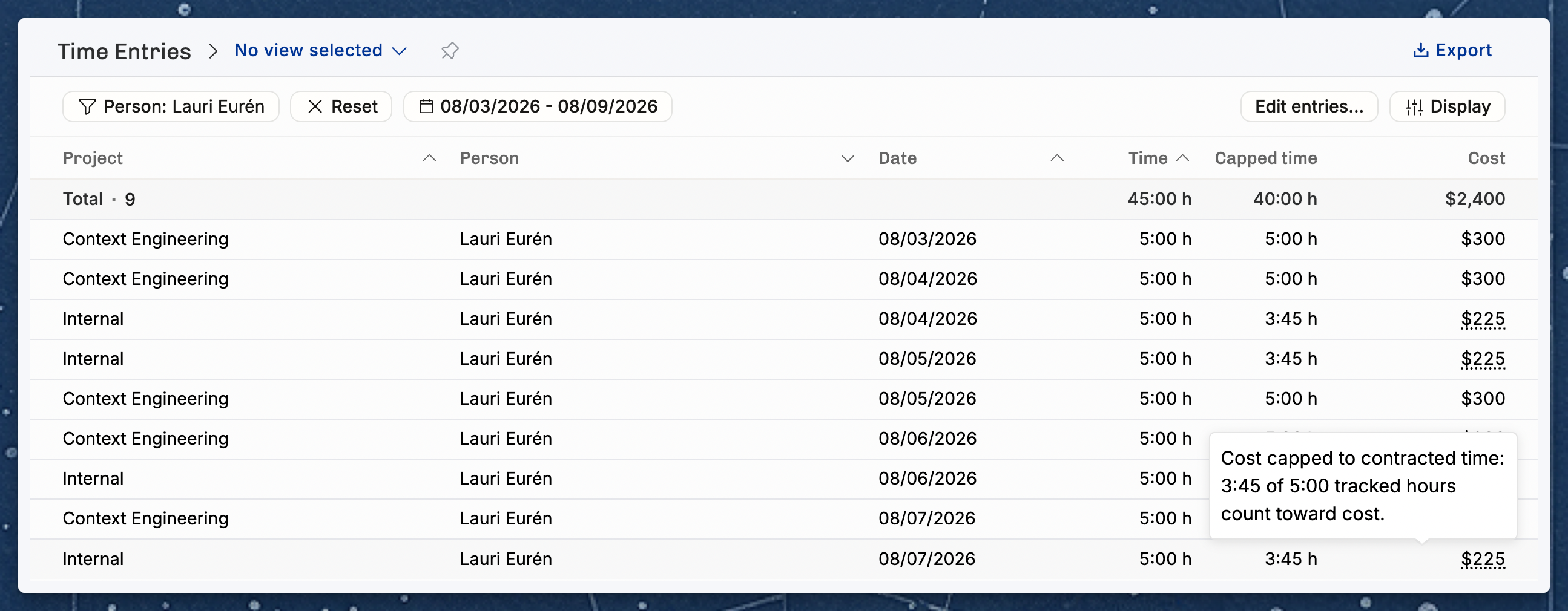
Capped time column. In a time entry list, add the Capped time column from the view options. It sits next to Time and Rounded time. It's off by default, and it only appears when at least one Site has capping turned on.
Cost column. When an entry's cost was reduced, its Cost figure is underlined with a dotted line. Hover it to see how many of the tracked hours counted toward cost.
CSV exports. Time entry exports include capped hours and capped seconds alongside tracked and rounded time, so you can reconcile outside Operating.
Everywhere cost appears. Because cost is always cost rate × capped time, capped cost is what flows into project financials, gross profit and margin, planned vs. actuals, per-position profitability, and the reports built on them. See How are revenue, cost, gross profit, and margin calculated?
Cost-to-cost revenue recognition. On fixed-price Projects recognizing revenue from actual cost against planned cost, recognized revenue follows capped cost too — capping the cost changes the recognized share.
What cost capping doesn't change
Revenue and invoicing. Billable hours, rates, and invoices use tracked time (or rounded time, if rounding is on). A capped entry still bills in full.
Planned cost. Only tracked costs are capped, so your plan and your actuals stay comparable on the same basis.
Hours reporting. Utilization and time balance still count every hour someone tracked. Overtime is still visible as overtime — it just doesn't cost anything.
Rounding. Rounding and capping are separate. See Rounding time entries — rounding changes the hours used for billing and reporting; capping changes only the hours used for cost.
Related articles
Was this helpful?
Still need help? Ask the team