Sites
Introduction to the organizational structure
Written By Matti Parviainen
Last updated 8 days ago
Video - 2 minutes - Organizational settings, overview
Sites
This is the top level of organizational structure. Sites represent the locations your people work in.
For departments, teams and business units, see Groups. For labels on Projects and Clients, see Project and client tags.
Video - 1 minute - Organizational settings: Sites
From the Site, Operating knows how many hours per week all Site members work – unless there are individual exceptions, see How to set individual and part-time working hours . That’s where you also decide which Holiday calendars (public holidays) is used.
If you only have one office in one location, you’ll be fine with the default Site – make sure the working hours and holiday calendars are in place and you’re done.
Each Site can also cap personnel costs at its people's working hours — see How cost capping works.
Each Site can also have a default rate card for new projects. Edit the Site in Settings > Organization > Sites and choose a Default rate card. When a project is created on that Site, manually or from a CRM deal, Operating picks its rate card like this:
If the Site has a default rate card, the project gets that card.
If the Site has none, the project gets the organization's default rate card from Settings > Projects.
The card is added only when its currency matches the project's currency. If the Site's card does not match, the project gets no rate card, and the organization default is not used instead. A Site uses only its own card and does not take one from its parent Site. For the other rules, see How to set up rate cards.
The list offers organization rate cards only, not project-specific ones, and the field is shown only to users who can see revenue, when financials are enabled. If the rate card is deleted later, the Site's default is cleared.
Site changes over time
People move between offices, and a move affects their working hours, public holidays, rates and costs. To keep past numbers as they were and show the future as it will be, Operating keeps a dated history of each Person's Site. Every Person has exactly one Site on every date. A Project's Site is a single setting and has no history.
Change a Person's Site
Open the Person's detail page and go to the Employment tab. Clicking the Site on the Overview tab takes you there too.
In the Site section, click Move to a new site.
Choose the new Site and set the Effective from date. The date can be in the past or in the future.
Click Change site.
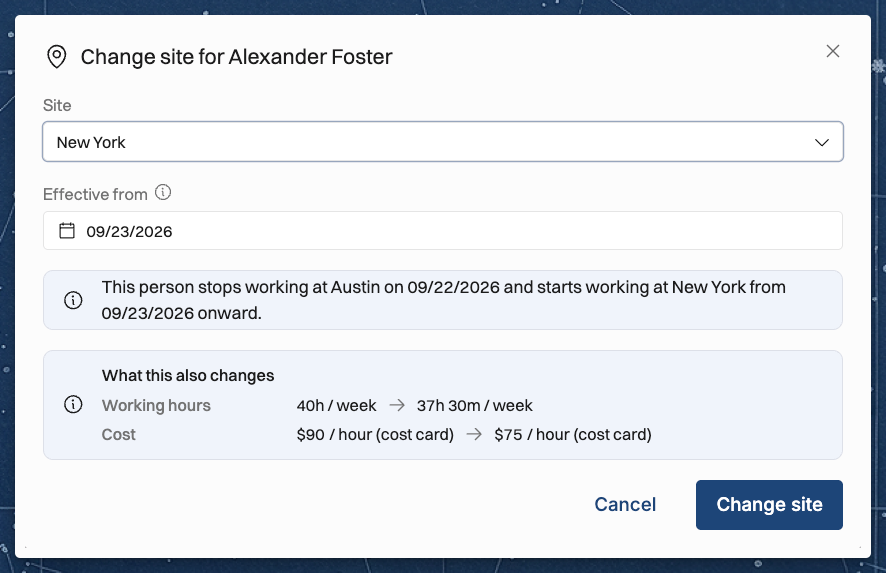
The previous Site ends the day before the date you picked. Before you save, the dialog tells you when the Person stops working at the old Site and starts at the new one. A What this also changes box shows the working hours, cost and cost capping before and after the move. Cost shows only if you have permission to see costs.
If you pick a date inside an earlier period, the new Site runs from that date up to the next site change already in the history, and later site changes stay in place.
The site history
The Site section lists the Person's current Site and any upcoming ones, marked Upcoming. Click Show history to see past Sites, marked Past. Each entry shows its dates, its holiday calendar and its weekly working time.
To fix a mistake, open the menu (…) on an entry:
Edit... lets you correct the Site or the date it started. The first entry in the history has no start date to move.
Delete... removes the site change, and the neighbouring site change takes over its dates, so every date still has a Site. You can edit those dates after the delete. Delete is not offered for the only Site in the history.
When you change the history, Operating recalculates the Person's planned and tracked figures for the dates affected.
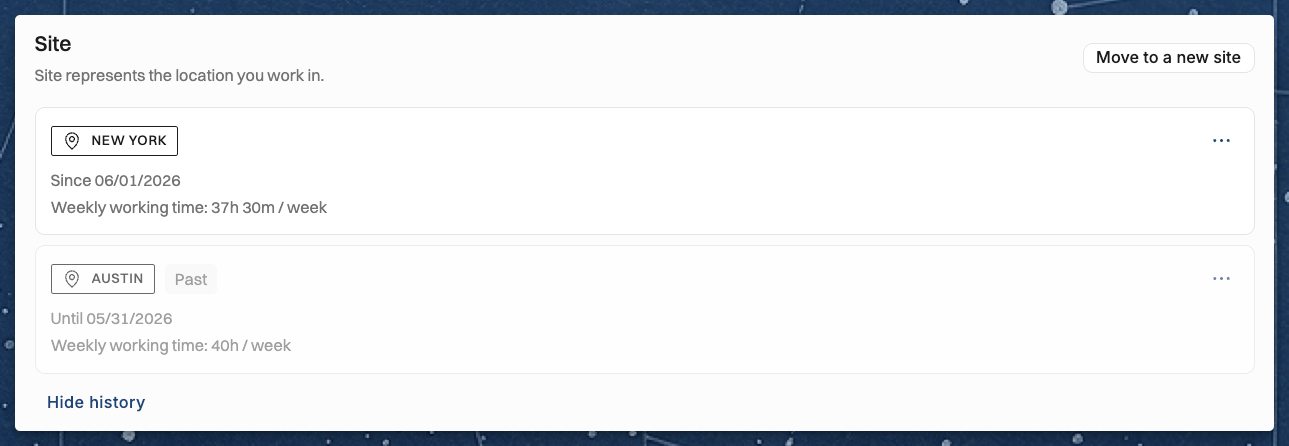
What follows the Site
For each day, Operating uses the Site the Person had on that day:
Working hours. The Site's default weekly working hours apply, unless the Person has individual working hours. See How to set individual and part-time working hours.
Public holidays. The holiday calendar of the Site applies. See Holiday calendars (public holidays).
Cost rates. The cost card of the Site applies. See How does Operating decide the cost rate?
Rates. When a Position has no Site of its own, the Rate card looks up the rate with the Person's Site on that day. See How does Operating decide which rate to use?
Cost capping. The Site's cost capping settings apply, and a move in the middle of a capping period splits the cap. See How cost capping works.
Filtering by Site
On the People list, the Site filter matches the Site each Person has today. The Site column, sorting, grouping and the CSV export also use today's Site.
In views that cover a date range, such as the Timeline, the Site filter matches everyone who was at that Site at any point in the range.
In time entry lists, the Person Site filter matches the Site the Person had on the date of each entry. The Site filter matches the location saved on the time entry itself. See Location information for time tracking.
Sites that come from HiBob
If you import Sites from HiBob, HiBob decides the Site of each Person linked to it. Their Site section shows "Sites are managed in HiBob, and can not be edited in Operating." and has no edit actions. Operating imports the work history of each linked Person from HiBob and turns it into dated Site changes, so past moves keep the dates they have in HiBob. Each sync replaces the Person's whole Site history with the history from HiBob. If HiBob does not share work history with Operating, Operating uses only the current HiBob Site and starts it from the day of the sync. See HiBob HR.
A Site that came from HiBob shows a HiBob icon in the Person's site history, with the tooltip "Imported from HiBob". If Operating has a link to the Person's HiBob profile, clicking the icon opens it.
[Screenshot needed: the Site section on a Person's Employment tab, showing the HiBob icon and its tooltip on a site entry]
Was this helpful?
Still need help? Ask the team