Xero accounting
Connect a Xero organisation to an Operating company, so your invoices and credit notes go to Xero and their status and payments come back.
Written By Mikko Karjalainen
Last updated About 20 hours ago
What the Xero integration does
The Xero integration connects one Operating company to one Xero organisation. Operating sends your invoices and credit notes to Xero, and Xero sends back their status and the payments recorded against them.
Invoices in Xero refer to Xero's own tax rates, items and contacts. So the integration also brings those records into Operating and links each one to its counterpart in Operating.
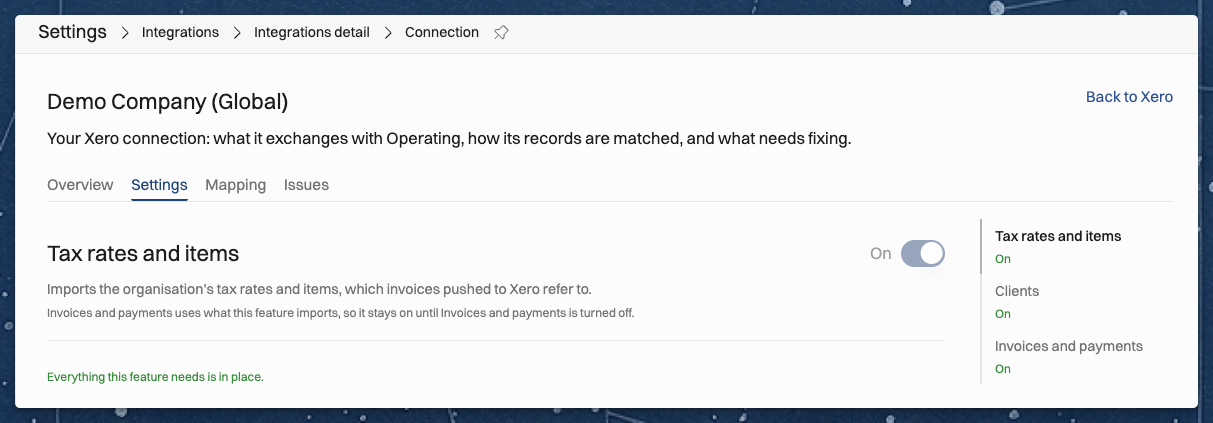
The integration has three features. You turn each one on separately on the connection's Settings tab:
Tax rates and items: imports the organisation's tax rates and items, which invoices pushed to Xero refer to.
Clients: imports the organisation's contacts as clients, and creates in Xero the clients an invoice pushed to it needs.
Invoices and payments: creates Operating's invoices and credit notes in Xero, and brings back their status and their payments. It needs the other two features to be on.
What syncs, and in which direction
Xero keeps the linked tax rates, items and clients up to date in Operating. Edit their details in Xero, because the next import replaces a change made to them in Operating.
Operating imports tax rates, items and contacts when you turn a feature on, and then every day. It reads the status and payments of each invoice that is not settled yet as soon as Xero reports a change, and every 6 hours.
Before you start
In Operating, you need:
The Manage integrations permission to connect Xero, change its settings and map records. See Permission sets in Operating.
The right to edit the invoice (the Manage invoices permission) to save an invoice to Xero.
An invoicing currency on the company you connect. Without it, the Invoices and payments feature shows "Set the company's invoicing currency in Operating."
In Xero, you need:
A Xero user with access to the organisation. You sign in to Xero as this user and allow Operating's access.
Every currency you invoice in added to the organisation. Xero refuses an invoice in a currency the organisation has not added.
A sales account on each item you invoice. A line goes to the item's sales account in Xero.
How to connect Xero
Go to Settings > Integrations and open Xero. The page lists each of your Operating companies.
Next to the company, click Connect an account.
In the dialog, choose the features to use. Every feature is ticked to start, and Xero is asked only for the access the ticked features need.
Click Connect to Xero, sign in to Xero, and allow Operating's access.
If your Xero user has more than one organisation, Operating shows Choose the account to connect. Click the organisation for this company.
Operating opens the connection's Settings tab. Nothing is imported until you turn on a feature.
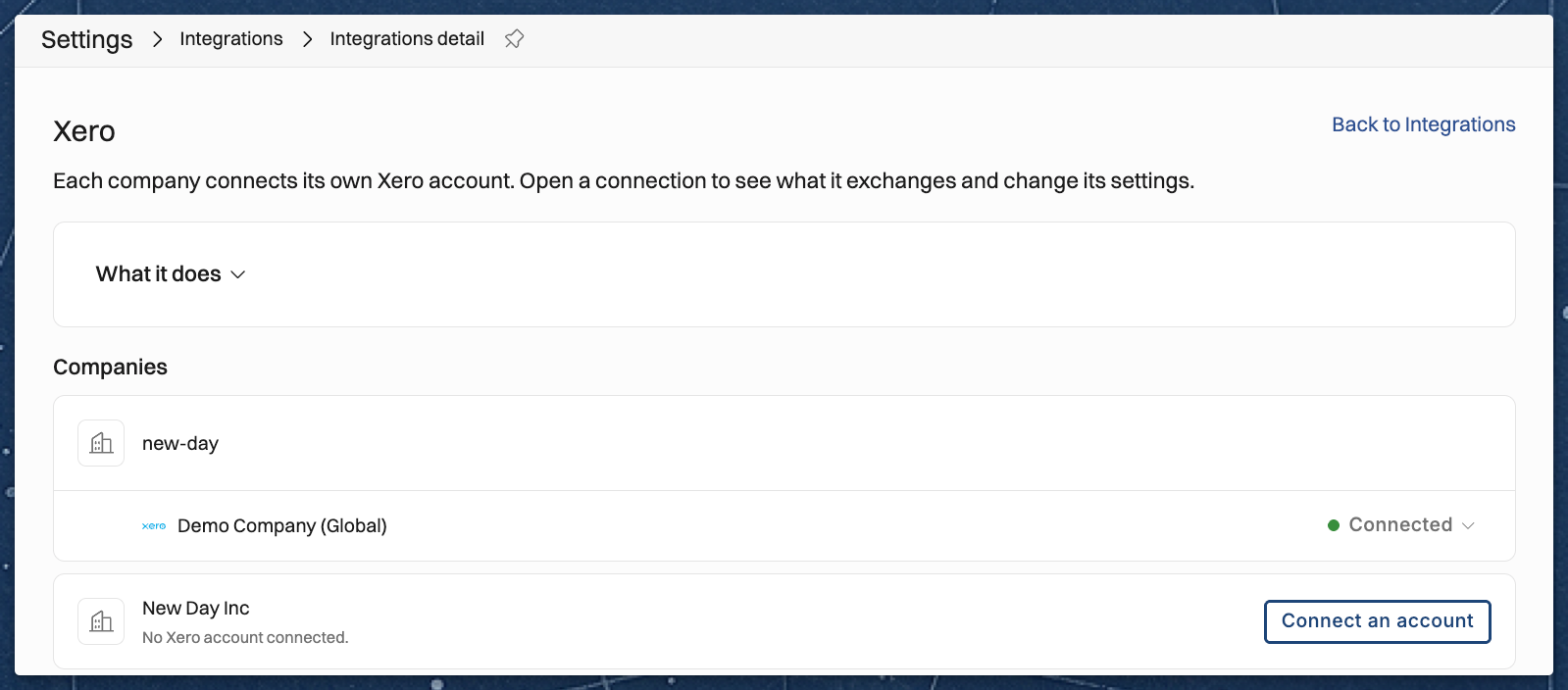
You can connect each Xero organisation to one Operating company. To invoice from several companies, connect a separate organisation for each.
How to set up the features
Turn the features on in two rounds, because Invoices and payments can be turned on only after its tax rates and items are mapped.
On the Settings tab, turn on Tax rates and items and Clients.
Check each feature's settings. The settings are listed below.
Click Save changes. Operating imports the tax rates, items and contacts.
Map the imported records on the Mapping tab, as the next section says.
On the Settings tab, turn on Invoices and payments, check its settings, and click Save changes.
A feature that cannot be turned on yet says why, and its readiness checks list what blocks it. For example: "3 billable items still need to be mapped."
How to map tax rates, items and clients
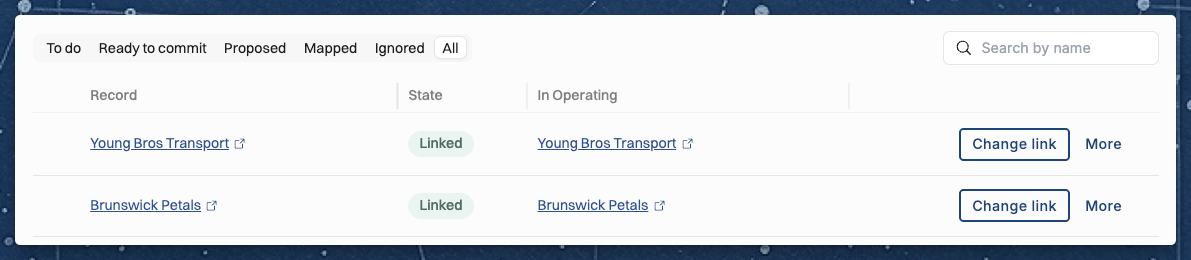
The Mapping tab links each record imported from Xero to a record in Operating. It has a tab for each record type, such as Tax rates, Billable items and Clients, with the number of records still unmapped.
On the Mapping tab, open Tax rates.
For each record under To do, do one of these:
Click Accept to link it to the record Operating proposes.
Click Link to existing and choose the Operating record.
Click More and choose Create a new tax rate, or Ignore.
Click Commit decided tax rate mappings. Nothing changes in Operating until you commit.
Do the same on Billable items and Clients.
To decide on many records at once, select them and click Create new, Accept proposals or Ignore.
Operating proposes links where it finds a match, such as a client with the same VAT ID, invoicing email or name. Once no client is left unmapped, Operating creates a client for each new Xero contact, unless it matches a client Operating already has.
Map your existing clients before you send the first invoice. When Operating saves a client to Xero, it looks for a contact with the client's VAT ID. A client without a VAT ID gets a new contact, and Xero refuses it when another contact has the same name.
Settings
Each feature's settings are on the Settings tab, under the feature. Click Save changes to save them.
What is imported:
Items to import: Items Xero sells, the default, or Every item, which adds the items you only purchase.
Contacts to import: Every contact but suppliers, the default, or Every contact.
A contact with an address Operating cannot store: an address in Operating needs a street line, a postal code, a city and a country. Choose Import the client without that address, the default, or Leave the client out until the address is fixed in Xero.
Records archived in Xero:
A tax rate archived in Xero: Archive it, the default, or Keep it active.
A client archived in Xero: Archive it, the default, or Keep it active.
How invoices are sent:
Push invoices as, Tax decided by and Sales account: these show their values and cannot be changed. Invoices go to Xero as drafts, and each line carries the tax rate mapped in Operating.
Without a sales account: what happens when a line's item has no sales account in Xero. Push as a draft, the default, or Wait for a sales account.
Invoice numbers come from: Operating, the default, or Xero. You can change it only until the first invoice is saved to Xero.
Link invoices back to Operating: on by default. The invoice in Xero links to its page in Operating, shown in Xero as Go to Operating.
Xero reference from: Xero has one reference field. Choose The invoice's reference, the default, or The purchase order number.
Status and payments from Xero:
An invoice approved in Xero: Mark it sent in Operating, the default, so its payments follow. Or Leave it for Operating to mark sent.
A document deleted in Xero: Void it, the default, or Keep it.
Overpayments and prepayments: Leave them out, the default, or Record them as payments of the invoice they are applied to.
Credit note refunds: Leave them out, the default, or Record them as payments of the credit note.
How to send an invoice to Xero
Create the invoice in Operating as usual. See How to create and send an invoice.
Open the invoice.
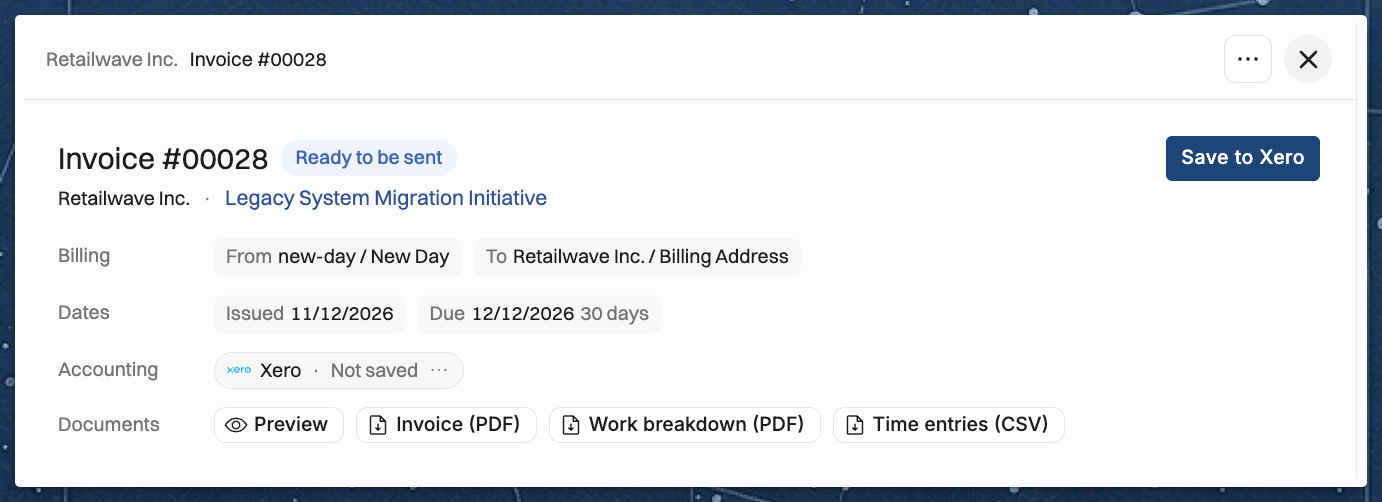
Click Save to Xero. It is the invoice's main action until the invoice is in Xero.
Open the invoice in Xero and approve it there.
When the save succeeds, Operating shows "Saved to Xero." The Accounting row of the invoice then shows Xero · Synced with the invoice's number in Xero. Click it to open the invoice in Xero.
When Operating saves an invoice:
Client: if the client is not in Xero yet, Operating saves the client first.
Lines: each line goes with its item, its amount before tax and its mapped tax rate. A line without a tax rate goes as tax exempt.
Status: the invoice arrives in Xero as a draft. Approving it in Xero posts it.
Number: the invoice keeps Operating's number, unless your settings let Xero number it.
If you edit the invoice after you save it, the page shows "Changes not in Xero yet." Click Update in Xero to send the change. Xero does not let a paid, credited or voided invoice change. Then Operating keeps the invoice as Xero booked it and shows "Xero kept it as booked, as it no longer lets it change."
To send a credit note, issue it in Operating, open it, and click Save to Xero. Operating saves the invoice it credits first, if that invoice is not in Xero yet. The credit note arrives in Xero as a draft, so approve it in Xero and allocate it to the invoice there.
How status and payments come back
Xero is where the invoice is approved and paid, and Operating follows:
Approved in Xero: Operating marks the invoice sent, with the default setting.
Paid in Xero: Operating adds each payment to the invoice, and marks the invoice paid once Xero reads it paid. The invoice's Activity shows Payment received with the amount.
Voided in Xero: Operating marks the invoice voided.
Deleted in Xero: Operating voids the invoice, with the default setting. Operating can void only an invoice that is sent, so a deleted draft of an unsent invoice shows as an issue until you mark it sent or keep it.
To read an invoice's status and payments right away, open the Accounting row's menu and click Refresh from Xero.
How to disconnect Xero
Go to Settings > Integrations and open Xero.
Next to the organisation, click its status, Connected, and choose Disconnect….
Click Disconnect Xero to confirm.
You can also disconnect from the connection's Overview tab, under Danger zone.
Disconnecting stops every import, push and scheduled run, and Operating gives up its access to the organisation. Mappings and settings are kept, so connecting the same organisation again continues where it stopped.
Common errors and how to fix them
When a save or an import fails, the invoice's or the client's page shows the message. The connection's Issues tab lists every failed record with what fixes it. After you fix the cause, click Retry on the issue, or Retry saving to Xero on the invoice.
These are the messages you are most likely to see:
"Xero did not grant the access this needs. Reconnect Xero." The features you use need access you did not allow when you connected. Reconnect from the Xero page and allow the access.
"The Xero organisation disconnected Operating or was deactivated. Reconnect Xero." Operating was removed from the organisation's connected apps in Xero. Click Reconnect on the connection.
"This account is already connected for another company." The organisation is connected to another Operating company. Disconnect it there first, or connect another organisation.
"The Xero organisation has not added this invoice's currency. Add it in Xero's currency settings, then retry." Add the currency in Xero, then retry.
"A line's item has no sales account in Xero. Set one on the item in Xero, then retry." Set the sales account on the item in Xero, or set Without a sales account to Push as a draft.
"Xero no longer has an item a line uses. Import items again and map it, then retry." On the Overview tab, click Run now next to Import billable items. Then map the item on the Mapping tab and retry.
"Another contact in Xero already has this name. Rename one of them, then retry." The client already has a contact in Xero. Link the client to that contact on the Mapping tab, then retry.
"More than one contact in Xero has this client's tax number, so Operating cannot tell which is this client. Map the client to one of them, then retry." Link the client to the right contact on the Mapping tab.
"Another document in Xero already has this number. Change one of the numbers, then retry." Change the number in Operating or in Xero.
"The date falls before Xero's lock date. Change the date, or the lock date in Xero, then retry." Change the invoice date, or the lock date in Xero.
"Xero no longer lets this document change, as it is paid, credited or voided there." Make the change in Xero, or issue a credit note in Operating.
Related articles
Was this helpful?
Still need help? Ask the team