Project milestones
Mark key dates on a Project, follow their status, and mark them as completed when the work is delivered.
Written By Mikko Karjalainen
Last updated 2 days ago
A milestone is a key date on a Project, such as a deliverable, a workshop or a client sign-off. Each milestone has a Name and a Target date, and it can have a Description. When the work is done, you mark the milestone as completed, and it gets a Completion date.
On a fixed-price Project, a milestone can also carry money: it can recognize revenue when it is completed, and it can decide when the client is invoiced. See Milestone-based revenue recognition and invoicing.
Milestone statuses
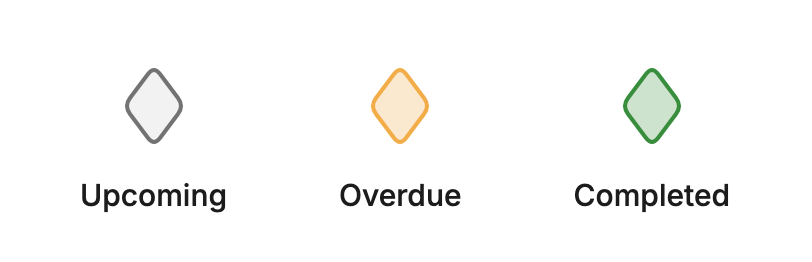
Each milestone has one of three statuses. On the timeline, its diamond shows the status:
Upcoming — the target date has not passed yet. The diamond is grey.
Overdue — the target date has passed, and the milestone has no completion date. The diamond is yellow.
Completed — the milestone has a completion date. The diamond is green.
An open milestone stands on its target date. A completed milestone stands on its completion date, which can be earlier or later than the target date.
Where milestones show
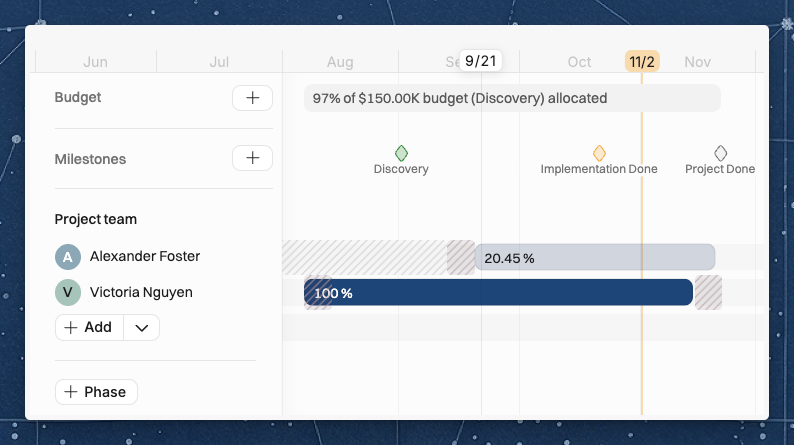
The Project's Timeline tab. A Milestones band sits above the rows once the Project has at least one milestone.
The Projects timeline. When you expand a Project's row, the same Milestones band shows above its rows.
The Project's Overview tab. In the Timeline section, a row of diamonds sits above the allocation strip. Hover over a diamond to see the milestone's name, date and status. Milestones on the same day stack.
The Invoicing tab. On a Project that invoices on milestones, each planned invoice is named after its milestone.
The Budget dialog. On a Project that recognizes revenue by milestones, a Budget lists the milestones that carry an amount on it.
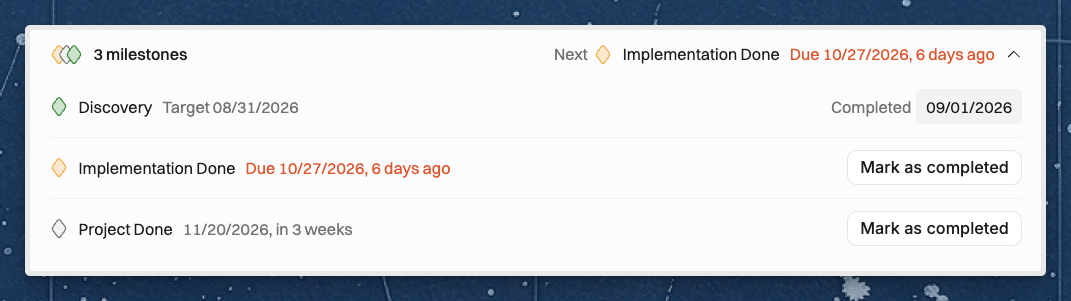
The milestone list on the Overview tab
Under the Timeline strip on the Overview tab, a Project with one milestone shows it as a row. A Project with several shows [number] milestones, followed by Next and the next open milestone, or by All completed. Click it to expand the full list.
Each row shows the milestone's date:
An upcoming milestone shows its target date and how far away it is.
An overdue milestone shows Due with its target date and how long ago that was.
A completed milestone shows Target with its target date.
The Overview shows milestones only when the Project has allocations. Without allocations, the section shows No plan yet.
Add a milestone
Open the Project and go to the Timeline tab.
Click + Milestone in the toolbar.
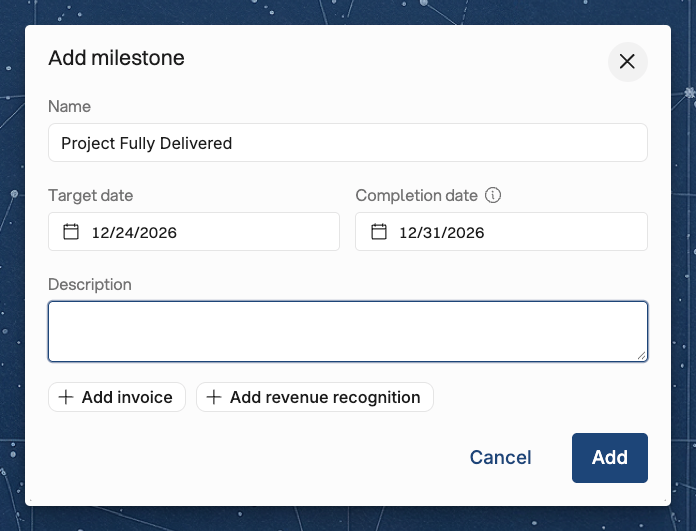
Enter a Name and pick a Target date. Add a Description if you want.
Click Add.
You can also add a milestone in these ways:
On the Milestones band heading, click + (Add milestone).
Click an empty spot on the Milestones band. The dialog opens with that day as the target date.
On the Projects timeline, expand the Project's row and click + Milestone in the row's header.
In a Budget's Milestones section, click Add milestone. This section is on Projects that recognize revenue by milestones.
You can't add milestones to the Time off project.
Edit a milestone
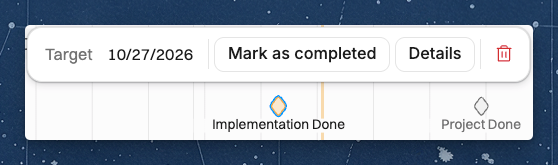
Click a milestone's diamond on the timeline. A toolbar opens with these actions:
Target with the target date — change the target date.
Mark as completed — or Completed with the completion date, once the milestone is completed.
Details — open the Edit milestone dialog.
Delete milestone.
On the Overview tab, click a milestone's row to open the Edit milestone dialog. Change the fields and click Save.
Complete a milestone
Click Mark as completed, in the timeline toolbar or on the milestone's row on the Overview tab.
Set the Completion date. It starts at today's date.
Click Mark as completed.
You can also set the Completion date in the Edit milestone dialog.
Mark a milestone as not completed
Clear the milestone's completion date, either in the toolbar, on its Overview row or in the Edit milestone dialog.
If the milestone has recognized revenue, Operating asks you to confirm: "[name]" will no longer be completed, and the revenue it recognized is removed. Click Mark as not completed to go ahead.
A milestone that is on an invoice keeps its completion date. Its date control is locked, and hovering over it shows Completion date, kept as invoiced.
Move a milestone
Drag the milestone's diamond along the timeline, or change its target date in the toolbar or the dialog.
If the milestone carries an amount and the new date falls in another Budget, the Move milestone dialog asks you to confirm: This moves the milestone from budget [A] to budget [B].
Operating does not move a milestone that carries an amount in these cases:
You can't edit its amounts. "[name] is connected to a budget, and moving it to another date range needs permission to edit its amounts."
No Budget covers the new date. "[name] is connected to a budget, so its target date has to stay inside one. No budget covers [date]."
A completed milestone that is on an invoice can't be dragged.
Delete a milestone
Click Delete milestone in the timeline toolbar, or Delete in the Edit milestone dialog.
Confirm in the Delete milestone dialog.
A milestone that is on an invoice can't be deleted.
Completed and cancelled Projects
When a Project is completed or cancelled, its milestones are read-only in Operating. You can't add, edit, complete or delete them. The buttons are off, and when you hover over one, the reason says that the Project's plan is read-only.
Who can do what
See milestones. Anyone who can see the Project sees its milestones. A milestone's revenue recognizable amount, invoice amount and Budget show only to people who can see revenue on the Project.
Add, edit, complete, move and delete milestones. This needs the Manage projects permission for the Project.
Set a milestone's amounts. To set the revenue recognizable amount or the invoice amount, or to turn Create invoice on or off, you also need Manage rates, budgets, and planned expenses. You need it too to move a milestone's amounts to another Budget or phase.
See the amounts without editing them. People who can see revenue but can't edit it see the revenue recognizable amount and the invoice amount as text in the dialog, and can't change them.
View-only access. People who can see the Project but can't manage it see the diamonds and the Overview list, but they can't open the toolbar or the dialog.
See Permission sets in Operating for the permissions.
Related articles
Was this helpful?
Still need help? Ask the team