Milestone-based revenue recognition and invoicing
Recognize a fixed-price Project's revenue when its milestones are completed, and invoice the client on milestones.
Written By Mikko Karjalainen
Last updated 2 days ago
A fixed-price Project can tie its money to its milestones. There are two settings (for revenue recognition and invoicing), and you can use them together or one at a time:
When a milestone is completed — a revenue recognition method. Each milestone's value is recognized on the day the milestone is completed.
On milestones — an invoicing schedule. Each milestone you pick sets an invoice date, and its invoice becomes ready to create when the milestone is completed.
This article explains both, the amounts a milestone carries, and the rules that keep those amounts inside the Budget.
Revenue recognition when a milestone is completed
What it is
With this method, the Budget is earned in steps, one milestone at a time. In Operating's words: "When a milestone is completed recognizes each milestone's value on the day it is completed, and holds it on the milestone. Time entries earn no revenue of their own, and budget amount not yet assigned to a milestone is not recognized."
Use it when the contract pays for deliverables, and the revenue should follow what the client has accepted rather than the hours worked.
Choose the method
Set the Project's billing type to Fixed-price.
As the Revenue recognition method, pick When a milestone is completed.
Save.
Give a milestone a value
Open the milestone's dialog. See Project milestones for the ways to open it.
Click Add revenue recognition.
Enter the Revenue recognizable amount — the revenue recognized when this milestone is completed.
Click Save.
The box shows which Budget the amount sits on: Recognized on budget with the Budget's name and dates. Once the milestone is completed, it also shows the Recognized revenue.
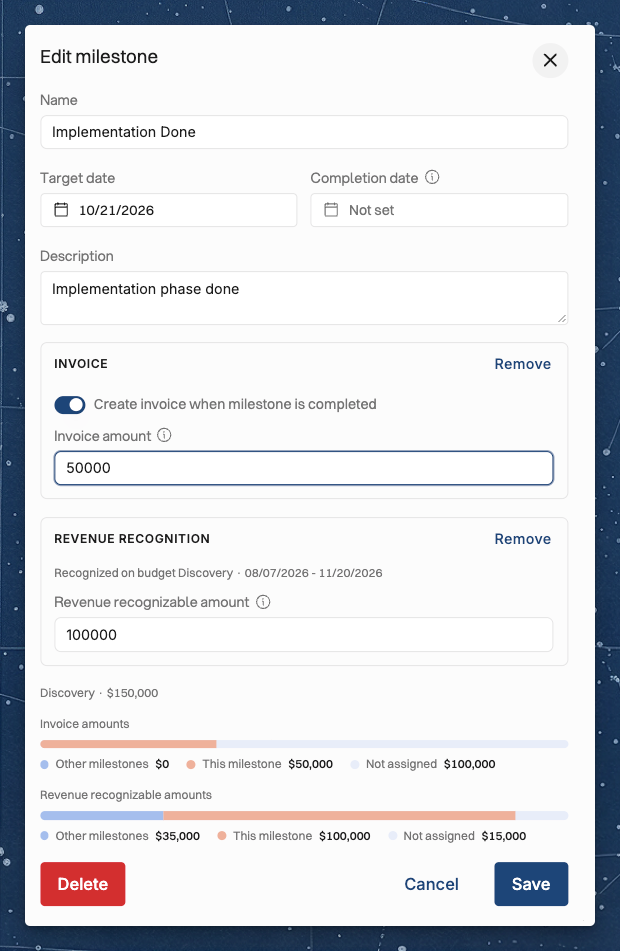
A few rules apply to the amount:
A Budget must cover the target date. The amount goes on the Budget whose dates cover the milestone's target date. You don't pick the Budget. If no Budget covers the date, the dialog says: No budget covers the target date. Move the date into a budget, or add one, to give this milestone an invoice amount or a revenue recognizable amount.
The amounts fit the Budget. The revenue recognizable amounts of a Budget's milestones can't add up to more than the Budget. A bar in the dialog shows the Budget's share for Other milestones, This milestone and Not assigned, or Over by when the total is too high.
The amount is in the Budget's currency.
The phase. When more than one phase could carry the amount, pick one under Phase.
A date in another Budget. If you change the target date to a date in another Budget, the dialog tells you that the milestone moves from one Budget to the other.
When you also give the milestone an invoice amount, the revenue recognizable amount copies it as you type, until you change the revenue recognizable amount yourself.
Use the Budget dialog
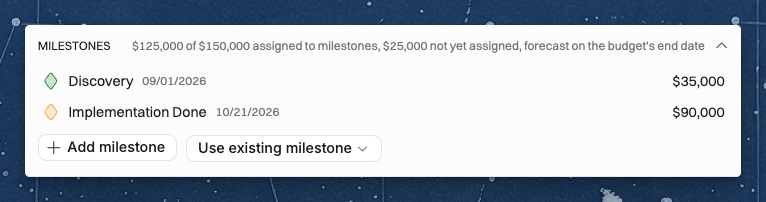
On a Project that recognizes revenue by milestones, each Budget's dialog has a Milestones section. It lists the milestones on that Budget, and a caption shows how much of the Budget is assigned to milestones and how much is not yet assigned. From there you can:
Click Add milestone to add a milestone with a value on this Budget.
Click Use existing milestone to give an existing milestone a value on this Budget. A milestone you can't pick shows the reason, for example Its target date is outside this budget.
What is recognized, and when
On completion. When you complete a milestone that has a revenue recognizable amount, that amount is recognized on the completion date, on the milestone's Budget.
Nothing between milestones. No revenue builds up while the work goes on. Time entries show their time value and cost, but they earn no revenue of their own.
Billable expenses first. Billable expenses in the period that a milestone closes are paid from the milestone's value, up to that value. The rest of the value stays on the milestone.
Unassigned Budget stays unrecognized. Budget amount that no milestone claims is not recognized, even after the Budget's end date. The other fixed-price methods count an ended Budget as fully earned. This method counts only completed milestones.
Marking a milestone as not completed removes the revenue it recognized.
On a Budget, each completed milestone shows as a progress entry, From milestone with the milestone's name. In the Budget dialog, the progress headings read Latest completed milestone and Completed milestones.
You can't set budget progress by hand on this method. Operating explains: "Revenue is recognized by milestones here. Mark a milestone as completed instead of setting progress." A progress entry that comes from a milestone changes only through the milestone: "This progress comes from a completed milestone. Change the milestone instead."
Where you see it
Revenue Recognition tab. The tab shows Total recognized and Total budget. Its help reads: "Each milestone carries a value. When a milestone is completed, its value is recognized on the completion date and held on the milestone."
Revenue drill-down. A Budget still waiting for a milestone shows Awaiting milestone. Time entries show Recognized at milestone level.
Time entries. The revenue tooltip reads: "Revenue is recognized at milestone level. Time entries show time value and cost, and earn no revenue of their own."
Status tab. The Earned revenue tooltip explains that each milestone's value is recognized when it is completed.
Planned and forecast revenue
Plan. Each open milestone's value is planned on its target date. Budget amount that no milestone claims is planned on the Budget's end date.
Allocations and planned expenses plan no revenue. They keep their time value and cost on the Budget that covers their date.
Forecast. After the forecast cutoff date, the forecast uses that plan as it is. Your organization's Fixed-price forecast method setting does not apply to this method.
The Budget dialog's Milestones section shows the split: how much is assigned to milestones, and how much is not yet assigned and forecast on the Budget's end date.
Switch to or from the Milestone-based revenue recognition method
Switching to milestones. Manual budget progress entries are removed, and the completed milestones' values are recognized from their completion dates.
Switching away. The milestones lose their revenue recognizable amounts. Switching back does not bring them back. Before you save, the dialog says how many milestones lose their amounts.
Who can switch away. "Only someone who can edit revenue can move this project off milestones, because its milestones lose their revenue recognizable amounts."
Leaving fixed-price. The milestones also lose their invoice amounts.
A phase moved back to the Project's Budgets. Its milestones lose their values. The phase form tells you before you save.
Invoicing on milestones
What it is
On milestones is an invoicing schedule. You pick the milestones that should be invoiced by turning on Create invoice for each one. Each of those milestones sets an invoice date.
When the milestone is completed, its invoice becomes ready on the Invoicing page, in the list of Projects to be invoiced. You then create the invoice there, the same way as any other invoice — see How to create and send an invoice.
On a fixed-price Project, each milestone can also carry an Invoice amount: what the client is invoiced for it.
Set up the schedule
Open the Project and go to the Invoicing tab.
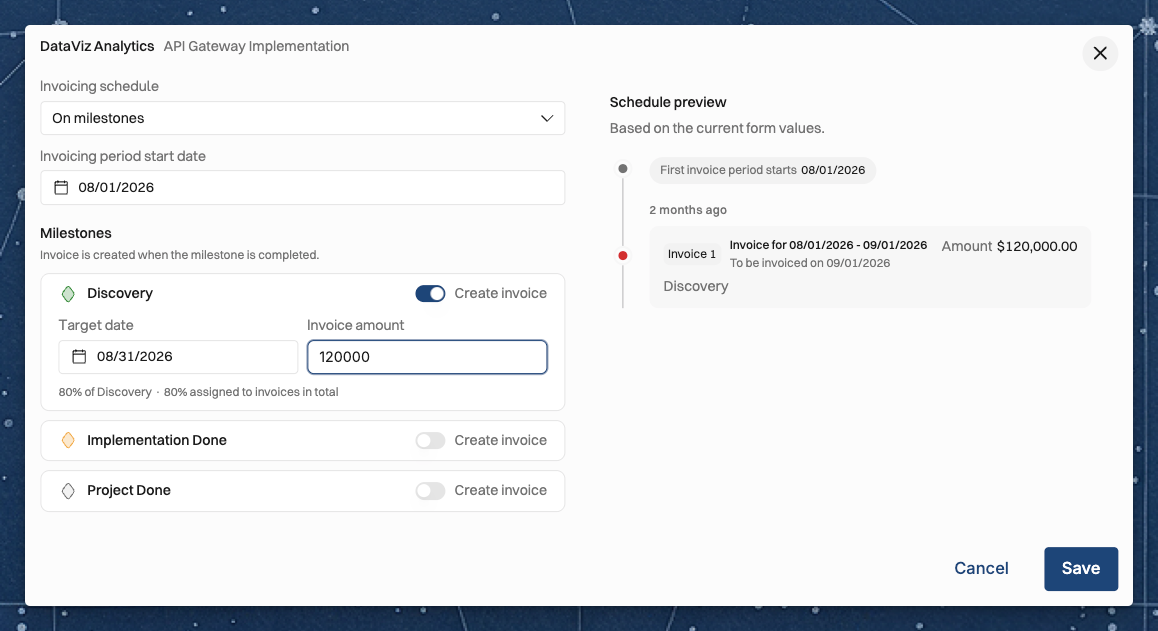
Open Edit invoicing schedule.
Choose On milestones as the schedule type.
Set the Invoicing period start date.
Under Milestones, turn on Create invoice for each milestone you want to invoice.
On a fixed-price Project, enter each milestone's Invoice amount. The caption under it shows the amount's share of the Budget, and how much of the Budget is assigned to invoices in total.
Save.
Good to know:
If the Project has no milestones, the list says: This project has no milestones yet. Add them on the project's timeline.
A milestone with no Budget on its target date can't take an invoice amount. Its tooltip reads No overlapping budget for the target date.
Turning off Create invoice clears the milestone's invoice amount.
Switching to On milestones removes the Project's custom invoice dates. The dialog tells you how many before you save.
Your organization's default schedule can't be On milestones.
You can also set this up from the milestone's own dialog. Click Add invoice, then turn on Create invoice when milestone is completed and enter the Invoice amount. The invoice amounts of a Budget's milestones can't add up to more than the Budget.
Invoice dates and periods
Only milestones with Create invoice turned on set invoice dates.
The invoice date is the milestone's completion date. Until the milestone is completed, the target date stands in.
The invoice period runs from the day after the date of the previous milestone that has Create invoice turned on, to this milestone's date. The first period starts on the invoicing period start date.
Early completion. When a milestone is completed early, the work after its completion date goes on the next invoice.
Two rules keep the dates in order:
"The invoicing period can't start after the first invoice milestone"
"An invoice milestone can't be dated before the project's invoicing period starts"
When the invoice is ready
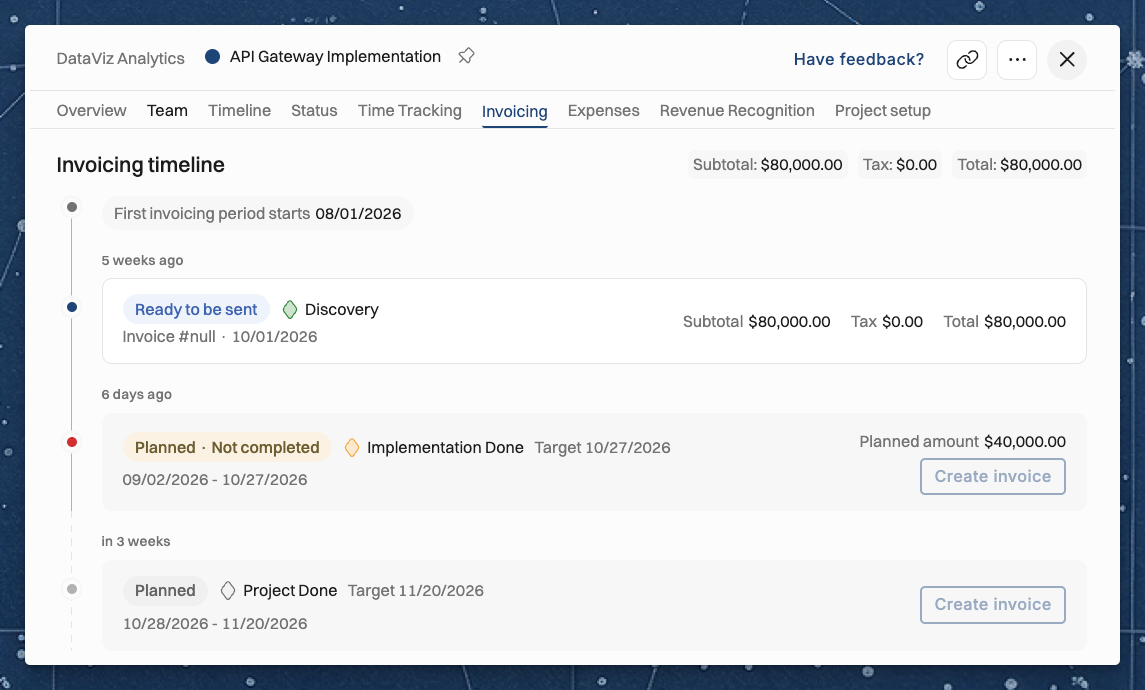
On the Project's Invoicing tab, each planned invoice is named after its milestone and marked Planned. Once the target date has passed without a completion, it reads Planned · Not completed. It shows Target with the target date until the milestone is completed, and To be invoiced on with the date after that.
On the Invoicing page, the Project's status follows the milestone:
Upcoming — the milestone is not completed, and its target date has not passed.
Milestone not completed — the target date has passed, but nobody has marked the milestone as completed. "Mark it as completed to invoice it."
Ready for invoicing — the milestone is completed, early or late. If the invoice includes hours, Not submitted or Approval pending can show first, until the time is submitted and approved.
Once a milestone is completed, its invoice takes all the work not yet invoiced up to its date.
You can't create an invoice for a milestone that is not completed: "The milestone has not been completed yet".
What the invoice bills
Fixed-price. The invoice bills one line for each completed milestone that has an invoice amount and is not on an invoice yet. Each line is named after its milestone. The fixed-price Budget adds no other lines.
Other billing types on the same Project. A phase with another billing type, such as time and materials, adds its usual lines for the period.
After you create the invoice, the Project's Invoicing tab names the invoice after the milestones it bills.
What an invoiced milestone keeps
Once a milestone is on an invoice, it counts as invoiced:
It keeps its invoice amount, phase and completion date. "This milestone is on an invoice, so its invoice amount, phase and completion date stay as invoiced"
You can still change its name and target date.
It can't be deleted.
It can't go on another invoice.
Change the schedule away from On milestones
You can change a Project's invoicing schedule from On milestones to another schedule type in Edit invoicing schedule. The milestones stay on the Project, but they no longer set invoice dates, and:
Their invoice amounts are cleared. Before you save, the dialog tells you how many milestones lose their invoice amount.
You can't make the change while a milestone is on an invoice. Operating says: "A milestone of this project is on an invoice, so its invoice amount cannot be cleared".
The invoice amounts are also cleared when the Project, or one of its phases, changes from fixed-price to another billing type.
Budgets with milestone amounts
A milestone's amounts come out of a Budget: the one whose dates cover the milestone's target date. So once milestones carry amounts on a Budget, Operating blocks any change to that Budget that would leave those amounts without room or without dates:
Lowering the amount. The Budget amount can't go below the total of its milestones' revenue recognizable amounts, or below the total of their invoice amounts. It must also stay above what its completed milestones have already recognized.
Changing the dates. You can't change the Budget's dates so that a milestone with an amount falls outside them. Move the milestone first.
Deleting or splitting. You can't delete or split the Budget while milestones carry amounts on it. First move those milestones to another Budget's dates, or clear their amounts.
For example, a Budget of 30,000 with two milestones of 10,000 each can't be lowered below 20,000.
Phases
A milestone belongs to the Project. Its amounts sit on a phase only when that phase has its own billing type (phases with their own billing types are coming soon). A phase that uses the Project's Budgets shares the Project's method and schedule. The Project has one invoicing schedule for all its phases.
If a milestone won't save
When Operating refuses to save a milestone's amounts, the message tells you which rule the milestone breaks, and what to change:
"A milestone has a revenue recognizable amount only when its phase or project recognizes revenue by milestones" — the Project, or the milestone's phase, uses another revenue recognition method. Switch it to When a milestone is completed, or clear the amount.
"A milestone has an invoice amount only when its project invoices on milestones and its phase or project is fixed-price" — set the Project's invoicing schedule to On milestones, and check that the Project or the phase is fixed-price. Otherwise, clear the amount.
"No budget covers the target date" — move the target date into a Budget's dates, or add a Budget that covers it.
"The revenue recognizable amount must be in the budget's currency" or "The invoice amount must be in the budget's currency" — enter the amount in the currency of the Budget.
"The revenue recognizable amounts of this budget's milestones would exceed the budget amount" or "The invoice amounts of this budget's milestones would exceed the budget amount" — together, the Budget's milestones would take more than the Budget holds. Lower a milestone's amount, or raise the Budget amount.
Who can do what
A milestone can carry two amounts: its Revenue recognizable amount and its Invoice amount.
To set or change either amount, or to turn Create invoice on or off, you need two permissions on the Project: Manage projects and Manage rates, budgets, and planned expenses.
If you can see revenue on the Project but can't edit it, the milestone dialog shows both amounts as text, and you can't change them.
If you can't see revenue on the Project, the milestone's amounts and its Budget are hidden from you.
See Permission sets in Operating.
Related articles
Was this helpful?
Still need help? Ask the team