Set up the Operating app for ChatGPT and Codex
For admins: make the official Operating app available to everyone in your ChatGPT workspace, in ChatGPT and Codex.
Written By Mikko Karjalainen
Last updated About 20 hours ago
This guide is for admins. If your admin has already set up the app, see Use Operating in ChatGPT and Codex.
Overview
Operating has an official app in the ChatGPT app directory. It connects ChatGPT to your Operating data, so you can ask about availability, budgets and utilization, and make changes such as staffing a project or logging time, without leaving the chat.
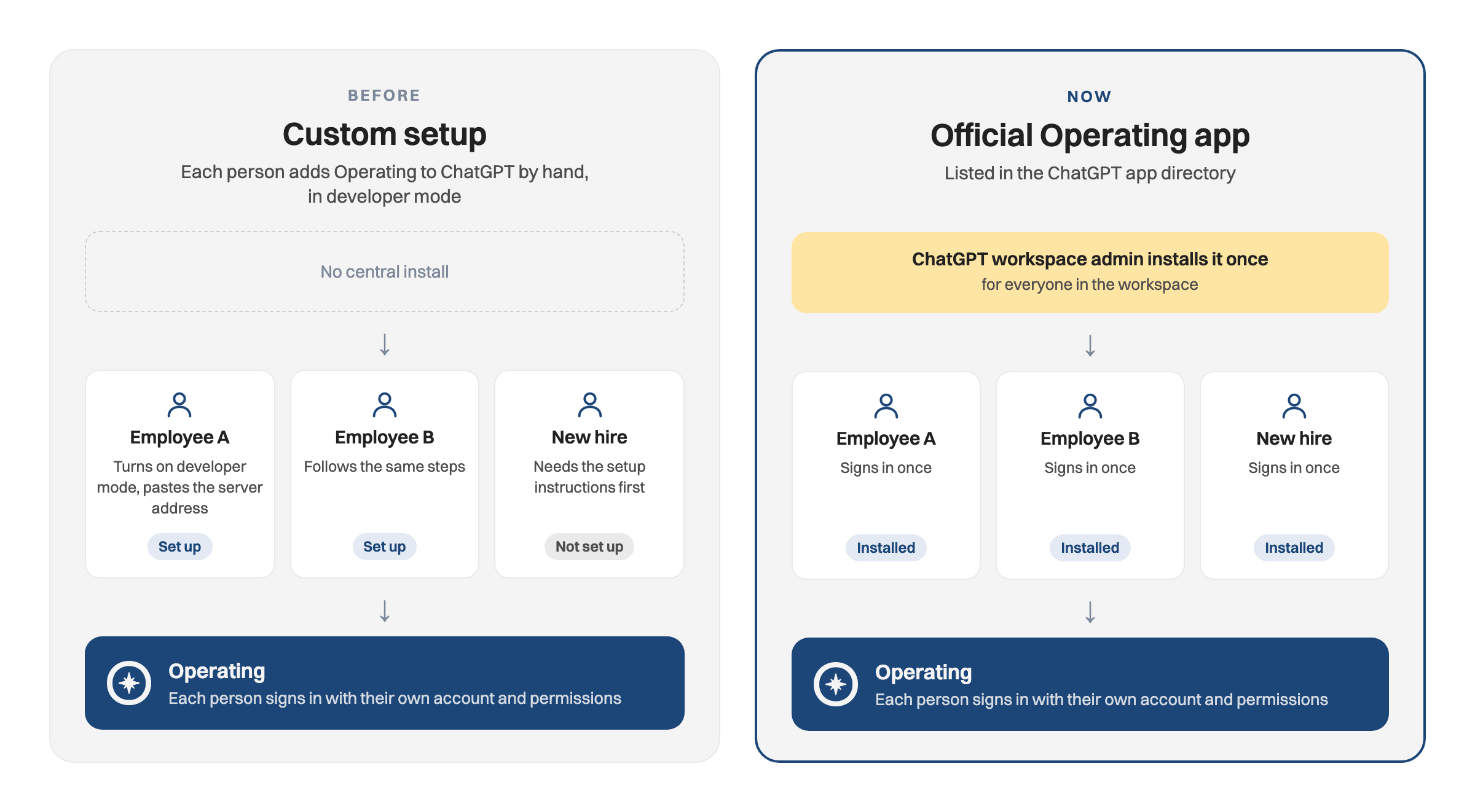
Because the app is listed in ChatGPT, a ChatGPT workspace admin can install it once for the whole workspace. Everyone in the workspace then has Operating in ChatGPT, including colleagues who join later, and nobody has to set up a custom app by hand.
What you can do with it
Resource planning: see availability and utilization, create and move allocations, and staff people on projects.
Project creation: add projects with their team, rates and budgets from a statement of work, a planning file or a proposal.
Time tracking: log time and review time entries by person, project or task.
Project financials: review and update budgets, planned expenses and actual spend, and compare planned and actual revenue.
Invoicing: look up invoices and their line items.
People and project data: update skills from project history and keep project details current.
For the full list of tools, see AI chat (LLM) via MCP.
Before you begin
An admin in Operating has turned on the MCP server under Settings → MCP Server settings → Enable MCP Server.
Each person signs in with their own Operating account. The app shows and changes only what that person's permission set allows, and each person can turn single tools off on their My MCP Setup page.
Step 1: Install the app for your workspace
A ChatGPT workspace admin can set the Operating app to Installed for workspace in the ChatGPT Admin Console, under Plugins. OpenAI explains the options in Admin controls, security, and compliance for plugins and apps. On ChatGPT Enterprise and Edu, new apps are off by default, so an admin has to turn the app on before anyone can use it.
If you use ChatGPT on your own, find Operating in the ChatGPT app directory and add it.
Step 2: Connect your Operating account
Open the Operating app in ChatGPT and sign in with your Operating account when asked. Each person does this once. Note that you have to be logged into Operating when you do this. If you have access to more than one Operating tenant, tell ChatGPT in the chat which one to use.
Codex
ChatGPT and Codex use the same plugin catalog, so the Operating app is also available in Codex. Each person signs in with their own Operating account, in the same way as in ChatGPT.
Codex in the ChatGPT desktop app: open the Plugins tab, find Operating and install it. Then start a new chat.
Codex CLI: run
codex, type/pluginsand install Operating. Then start a new session.
The Codex IDE extension does not support plugins. In the IDE extension, or if you prefer to skip the plugin, add the Operating MCP server directly from the command line and sign in:
codex mcp add operating --url https://mcp.operating.app/mcp
codex mcp login operating
In the IDE extension you can also add a Streamable HTTP server with the URL above and select Authenticate. The Codex CLI, the IDE extension and the ChatGPT desktop app share this setting, so you add the server once. OpenAI explains both routes in Plugins and Model Context Protocol.
Already using Operating in ChatGPT?
If you set up Operating as a custom app in developer mode, it keeps working, because both apps connect to the same Operating server. To move to the official app, add it and sign in once. Then remove the old custom app so that Operating doesn't show up twice.
Was this helpful?
Still need help? Ask the team