HiBob HR
Connecting with the HRIS
Written By Matti Parviainen
Last updated 3 months ago
Overview
When you connect HiBob and Operating, Operating will fetch and store the following information:
Employees
The easiest way to control which people show in Operating is limiting the scope with the HiBob settings – more below.
Full name
Employment start date, employment end date
Start time, end time, approval status
Optionally, you can choose to import your site and organisation structure:
Sites in HiBob → Sites in Operating
Department in HiBob → Groups in Operating
Custom fields used for groups in HiBob → Groups in Operating
The permission system in HiBob takes care of the scope of information shared. That’s fantastic!
In addition to this, HiBob sends us some basic information about your employees. These include, e.g.:
Profile picture, Department, Site, Title, Manager
Important: Using Custom First & Last Name Fields
By default, Operating reads the following HiBob fields:
root.firstNameroot.surname
These are combined automatically into the Name field in Operating.
If your organization uses custom fields for first name and/or last name instead of HiBob’s default fields, you have two options.
Option 1: Switch to HiBob’s Default Name Fields (Recommended if possible)
Using the default HiBob first and last name fields simplifies the integration and avoids extra configuration.
However, there may be a valid internal reason for using custom fields (for example reporting logic or legacy workflows). If you’re unsure, check internally before making changes.
If you decide to switch:
Update the data in HiBob to use the default fields.
Proceed with the normal Operating import process.
Option 2: Continue Using Custom Name Fields
If you need to keep using custom first and last name fields, we can support this with a small configuration update on our side.
Please follow these steps carefully:
Step 1: Connect HiBob in Operating
Go to:
Operating → Settings → Integrations → HiBob
Add the service user credentials and token
Click Connect
Do not begin the import yet.
Stop here and contact us once the connection is established. Please provide us with the custom field names for both first and last names like:
root.custom.field_1712216261136
Step 2: We Update the Field Mapping
After you notify us:
We will configure your tenant so your custom HiBob name fields are mapped correctly to Operating’s database.
We’ll confirm when this is done.
No action is required from your side during this step.
Setup step by step
In order to get this done, you will need HiBob Integrations permissions. You probably want your HiBob admin to follow what you do.
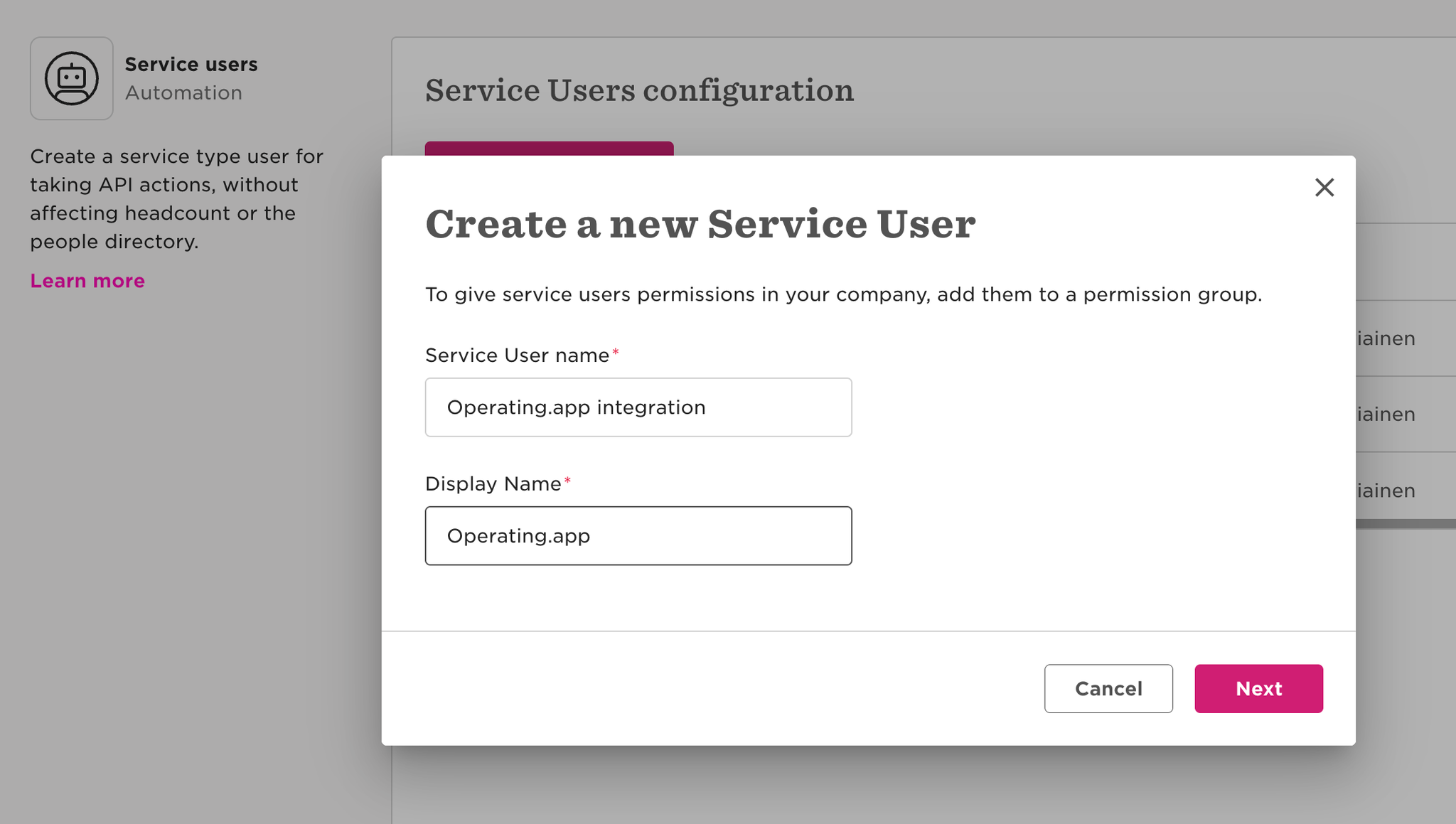
Create service user in HiBob
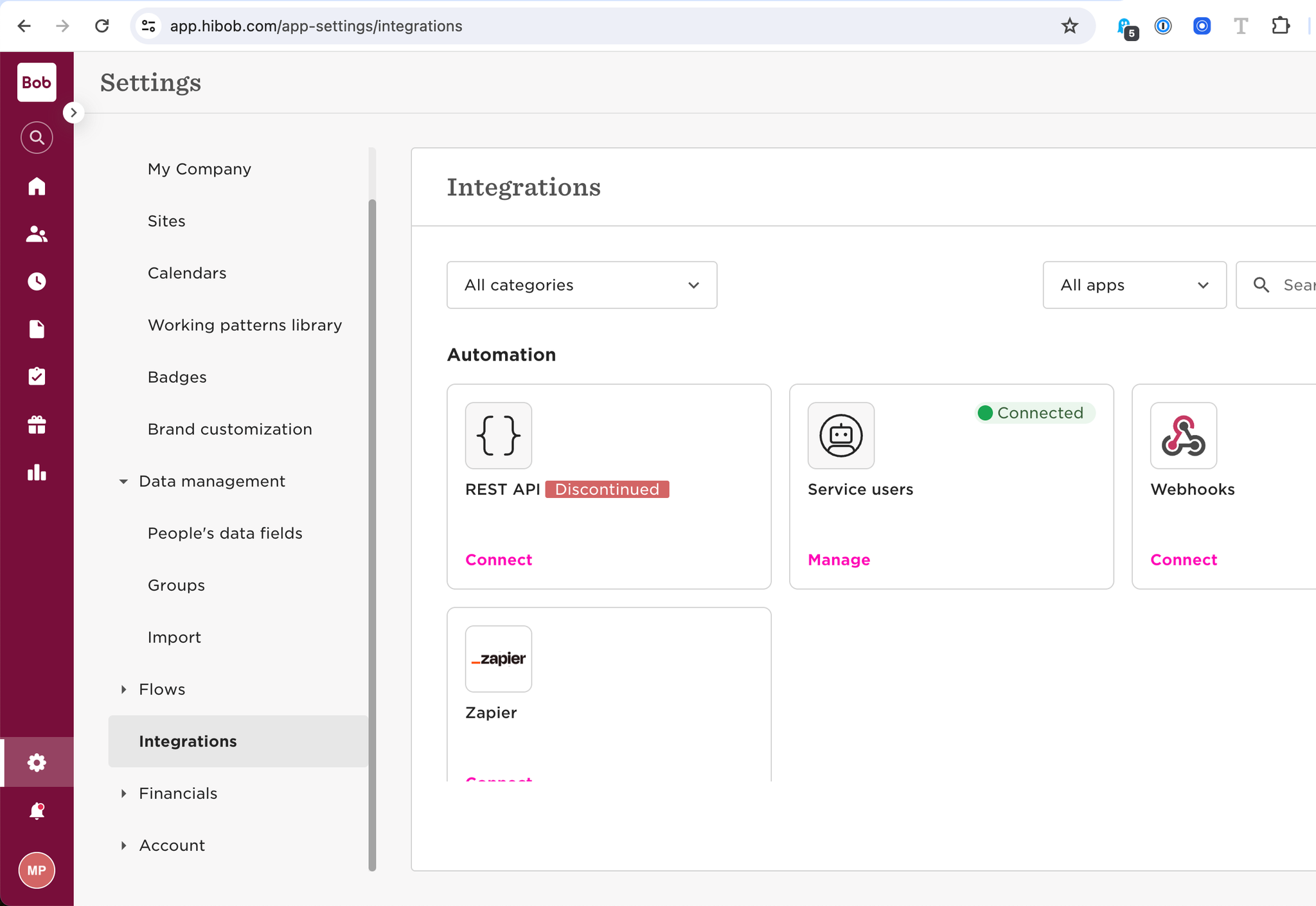
System Settings → Integrations → Service users
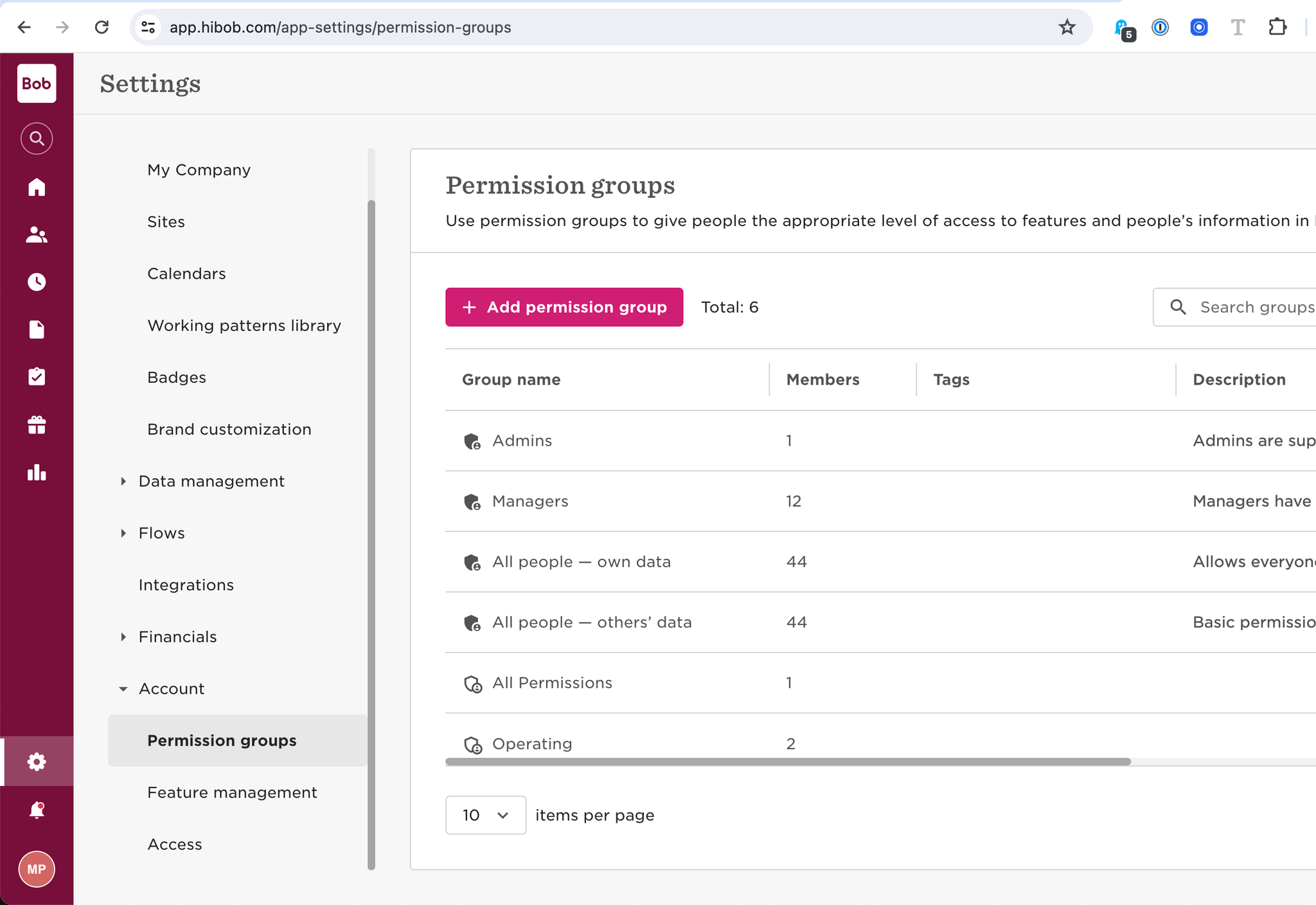
Create permission group in HiBob
Select people by condition → Choose which employee groups are relevant for your Operating use. Make sure that future members of your organisation will get added according to the condition.
Assign appropriate permissions to the permission group
Access to all employees
People’s data Permissions:
People
View selected employees About sections
View selected employees Basic info sections
View selected employees Employment sections
View selected employees Lifecycle sections
View selected employees Work sections
Required for “reports to” and groups import
Time off
View, approve or decline requests that are pending approval of others
See who's out because of a private policy
See who's out today
Features permissions:
Time off
See company’s time off settings
Required to handle different time off policy types
Add the service user to the permission group
After this, you’re done with the HiBob end of things. Move over to Operating → Settings → Integrations → HiBob.
Add service user & token in Operating
Choose whether or not you want to import Sites & Groups from HiBob
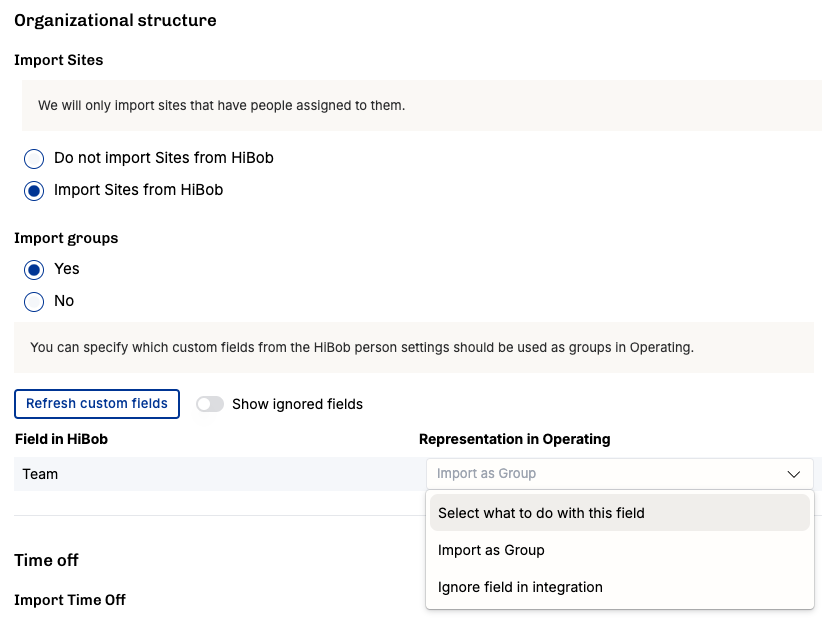
If you decide to import Groups from HiBob, you can pick and choose which custom fields will be used to create groups. In our experience, you don’t want to bring all of the information to Operating.
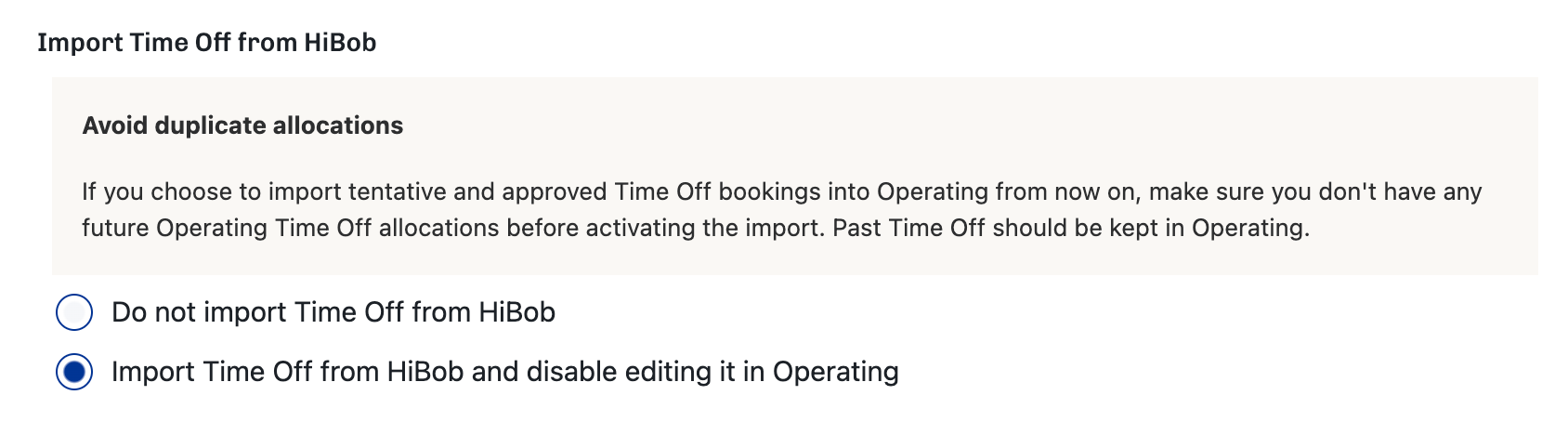
Choose whether or not to import Time Off to Operating
Refresh data
You can turn on automatic data refresh in settings → integrations → HiBoB → Automatic Refresh
The data will then refresh every 5 minutes
Which data fields are imported from HiBob
People
Sites
Sites are imported from Hibob with their ids, names and working patterns as average weekly working hours
Groups
Any named list fields can be imported as groups to Operating. These are configured during the integration setup.
Time off
Open time off requests are imported as tentative allocations, and approved requests are imported as confirmed allocations and time entries.
Common HiBob ↔ Operating issues
Problem: time off doesn’t show up correctly for some people in Operating
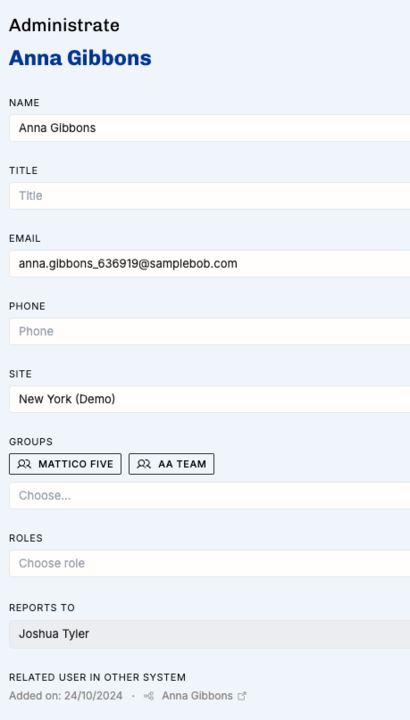
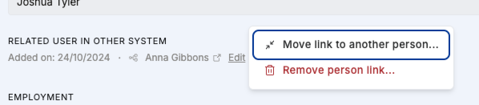
Solution: make sure the person in HiBob is pointing to the right Person in Operating.
Open the Person detail page (click the person's name anywhere in the app) and check the Links section on the Overview tab — the connected HiBob user appears there as a pill.
Problem: some people don’t appear in Operating even if they’ve been added in HiBob
Solution: make sure that the permission group in HiBob includes new joiners (so that the conditions match new people as well). See step Select people by condition above.