How to create a freeform invoice or credit note
Create an invoice or a credit note with your own line items for one Project, outside its invoicing schedule.
Written By Mikko Karjalainen
Last updated 10 days ago
A freeform invoice is an invoice you build yourself for one Project, outside the Project's invoicing schedule. Use it for a one-off charge, a fixed fee or an adjustment. You can add the Project's uninvoiced time entries and expenses, and you add your own line items.
A freeform credit note is a credit note that isn't tied to one invoice. To credit a specific invoice, use Issue credit note... on that invoice instead. See How to create and send an invoice.
Before you start
Permission. You need permission to create invoices. Without it, the Invoicing page has no New freeform invoice button.
A Project that takes invoices. The Project must be in a confirmed status that has Invoices on. It also needs a client, a currency and a billing type.
Create a freeform invoice
Open Invoicing from the sidebar.
Click New freeform invoice at the top of the page.
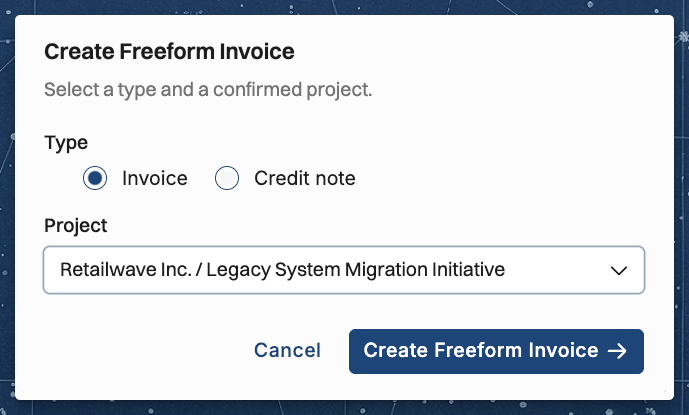
Under Type, keep Invoice.
In Project, pick the Project. The client of the invoice is the Project's client.
Click Create Freeform Invoice.
Select the time entries and expenses you want to bill, if any. Nothing is selected at first. Click Next.
Under Line items, click Add line item for each charge. Fill in the Item, the Description, the Units, the Rate / Unit and the Tax rate.
Check the invoice details, such as Billed to, Issue date, Payment term and Purchase order number.
Click Save freeform invoice.
The freeform invoice takes its number from the company's invoice numbering, the same as any other invoice. See How to set up invoice numbering.
The saved invoice is Ready to send. Send it the same way as any other invoice.
A freeform invoice adds no fixed-price Budget lines and no retainer fee lines. To bill such an amount on it, add it as a line item of your own.
Create a freeform credit note
Open Invoicing from the sidebar.
Click New freeform invoice at the top of the page.
Under Type, choose Credit note.
In Project, pick the Project.
Click Create Credit Note. Operating opens the line items directly.
Type the Credit note number. A freeform credit note takes no number from the company's sequence.
Click Add line item for each credit, and enter its Rate / Unit as a negative amount.
Click Save freeform credit note.
Messages
Operating shows these messages in the popover when the Project you pick can't take a freeform invoice or credit note. The message names a credit note when Credit note is the type.
Cannot create invoice: Project has no client Give the Project a client, then try again.
Cannot create invoice: No currency set Set the Project's currency.
Cannot create invoice: No billing type set Set the Project's billing type on its Project setup tab.
Operating shows these messages when it can't save a freeform credit note:
Enter a credit note number. The Credit note number is empty. Type a number.
Credit note line items must have negative amounts A line item has a positive Rate / Unit. Enter it as a negative amount.
Using the current value might prevent you from creating a credit note for an invoice with this number. Using a different number is recommended. The number you typed looks like the number Operating gives a credit note for one of your invoices. Choose a different number.
How it counts in invoiced revenue
A freeform invoice counts toward the Project's invoiced revenue, and a freeform credit note lowers it. Neither one changes the Project's earned revenue. See Why don't earned, recognized and invoiced revenue match?
Related articles
Was this helpful?
Still need help? Ask the team