How to turn project features on or off
Choose which optional project features your organization uses by default, and turn a feature on or off for one Project.
Written By Mikko Karjalainen
Last updated 11 days ago
Some Project features are optional. Your organization chooses a default for each one, and each Project can turn a feature on or off for itself. When a button such as Add milestone or a section such as Targets is missing, the feature is usually off for that Project.
The optional features
Each feature below adds something to a Project. When the feature is off for the Project, that part is not shown.
Phases. Break a Project into stages, such as design and build, and staff and track each stage on its own. When Phases are off, the Project's timeline has no + Phase button. See How to set up project phases.
Multiple billing types. Give a phase its own billing type and Budgets, for example a fixed-price phase in a time-and-materials Project. This feature needs Phases on as well. When it is off, the phase form has no Use the project's billing type and budgets switch.
Milestones. Add key dates and deliverables to a Project. When Milestones are off, the Project has no Add milestone button, and the When a milestone is completed revenue recognition method and the On milestones invoicing schedule are not offered. See Project milestones.
Expense budgets. Split a Budget into lines for each expense category. When the feature is off, the Budget dialog has no expense budget lines.
Planned expenses. Add expenses before they happen, so they show in planned costs and the forecast. When the feature is off, the Project's Expenses tab has no planned expenses.
Targets. Set goals on a Budget, such as hours, cost or margin. Targets don't affect invoicing or revenue. When Targets are off, the Budget dialog has no Targets section. See How to set targets on a Budget.
Externally invoiced budgets. Mark a fixed-price Budget as invoiced outside Operating. When the feature is off, the Budget dialog has no Externally invoiced switch.
Plan by task. Plan an allocation against a specific task. When the feature is off, you can't pick a task for an allocation.
Choose the default for your organization
You need the Manage company-wide settings permission to change these defaults.
Open Settings, then Projects, then Features.
Under Enabled features, pick a setting for each feature.
Click Save changes.
Each feature has one of these settings:
Enabled by default. Every Project has the feature, unless the Project turns it off.
Can be enabled per project. No Project has the feature until someone turns it on for that Project.
Disabled for all projects. No Project can turn the feature on.
Next to each feature, a badge shows how many Projects use it, or Not used. Click the badge to see the Projects.
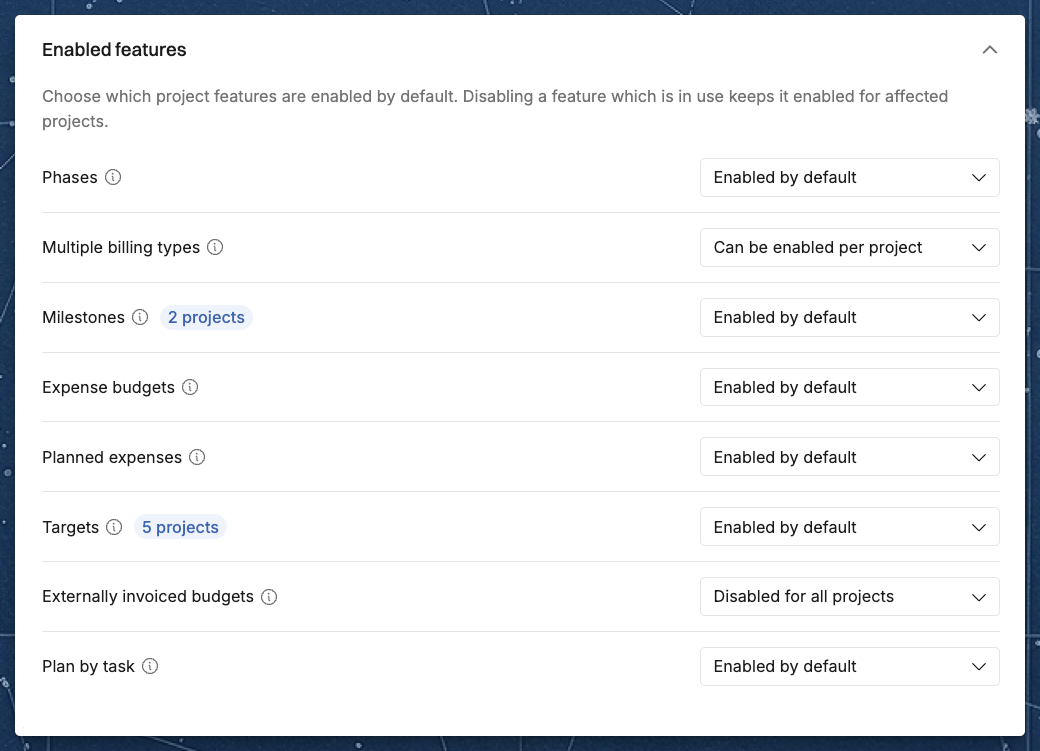
A feature that Projects already use stays on for those Projects when you change its default. When you save such a change, Operating opens Settings in use and lists the features that stay enabled for the projects that already use them. Click Save to confirm.
Turn a feature on or off for one Project
You need the Manage projects permission for the Project.
Open the Project and go to the Project setup tab.
Open the Advanced features section.
Pick a setting for the feature: Enabled, Disabled, or Organization default. The organization default shows in brackets whether the feature is enabled or disabled for your organization.
Operating saves the change as soon as you pick it.
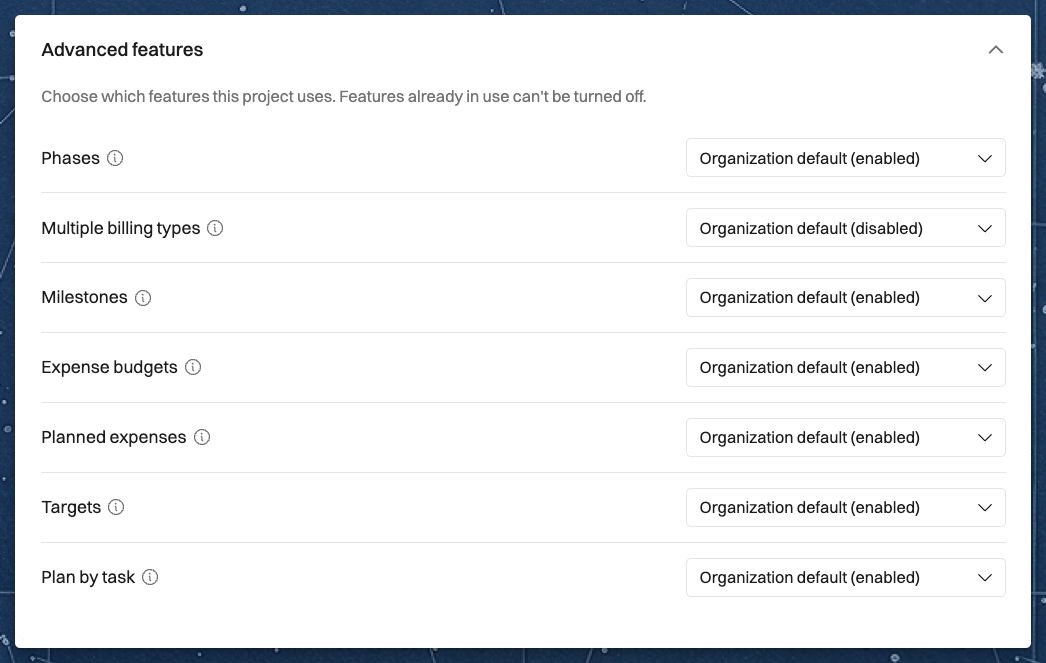
Some features are not always listed under Advanced features:
Disabled for all projects. A feature your organization has disabled for all projects is not listed, unless the Project already has it on.
Externally invoiced budgets. This feature is listed only on a Project that has a fixed-price billing type or a fixed-price phase.
When a setting can't be changed
The menu under Advanced features turns some settings off. Hover over a setting to see why:
In use, so can't be turned off. The Project already uses the feature, and the feature shows an In use badge. For example, the Project has milestones or a Budget with targets. To turn the feature off, first remove what uses it.
Your organization has disabled this feature for all projects. Ask someone with the Manage company-wide settings permission to change the feature in Settings, Projects, Features.
When something tries to add an item for a feature that is off, Operating refuses it with a message such as Milestones are turned off for this project. Turn the feature on for the Project, then try again.
Related articles
Was this helpful?
Still need help? Ask the team