How retainers work in Operating
What a retainer is, how its periods, fee, included hours and overage work, and how it earns revenue and is invoiced.
Written By Mikko Karjalainen
Last updated About 23 hours ago
A retainer is a billing type for ongoing work that the client pays for with a fixed fee per period, for example each month. Operating has five billing types: time-and-materials, capped time-and-materials, fixed-price, retainer and non-billable. This article explains how a retainer earns revenue, how its periods work and how they are invoiced. To set one up, see How to set up a retainer project.
What a retainer is
On a retainer, the client pays the same fee for every period, and you earn that fee in full for the period whether or not anyone tracks time. The fee can cover a set number of hours each period. Billable hours past those included hours bill as overage, at the project's rates, on top of the fee.
A retainer is a billing type of its own, so it is not a fixed-price project with a recognition method. It compares with the other billing types like this:
Time-and-materials earns revenue from each tracked hour at its billing rate. On a retainer, the fee is the revenue, and hours earn revenue of their own only when they go past the included hours.
Fixed-price spreads one agreed budget across the project with a revenue recognition method that you choose. A retainer has no method to choose: the billing type decides how the fee is earned.
Capped time-and-materials bills hours up to a cap, and work past the cap earns nothing. On a retainer, the fee is the least the client pays for a period, and work past the included hours still bills as overage. A client who approves "at most 100 hours over six months" is on capped time-and-materials, not on a retainer.
Retainer periods
You set up the retainer once: the fee, the period length and the first and last period. Operating then generates one budget for each period. Each of these budgets is a retainer period, with its own dates, fee, included hours and expense budgets.
Period lengths. A retainer runs weekly, biweekly, monthly or quarterly. Monthly and quarterly periods follow the calendar months and quarters. Weekly and biweekly periods run from Monday to Sunday.
Names. Operating names each period after the calendar period it covers. The same name shows in the budget lists, on the project timeline and on the Status tab. When a period's dates move, its name follows them, unless someone typed a name of their own.
Month: October 2026
Quarter: Q4 2026
Week: Week 42 2026
Biweekly (covers two weeks): Week 42–43 2026
Other dates: a period whose dates are not a whole calendar month, quarter, week or two weeks is named after its first and last day, for example 5 Oct 2026 - 4 Nov 2026.
Independent fees. Each period starts with its own fee and its own included hours. What one period invoices does not change the fee of another period.
When the terms change partway through, for example a higher fee from June, you can apply the new terms from one period on. The earlier periods keep the terms they had, and the Setup tab keeps a history of each configuration.
You can also change one period alone, for example to give one month a different fee. That period then shows as Modified, and the other periods keep the retainer's values. For the steps, see How to set up a retainer project.
Included hours and overage
The included hours are the number of billable hours that the fee covers in each period. They decide when work starts to bill as overage:
Hours within the included hours earn no revenue of their own, because the fee covers them. They still count toward the period's hours and cost.
Hours past the included hours are overage. Overage bills at the project's rates, on top of the fee, the same way as on a time-and-materials project.
No included hours. When the retainer has no included hours, the fee covers every hour and no work is ever overage.
Overage that is not invoiced. You can set a retainer so that it does not invoice overage. Hours past the included hours then still count and show as overage, but they earn no revenue and do not go on an invoice.
Operating counts a period's billable hours in date order. The time entry that goes past the included hours is split, so only its hours past the limit are overage. People track time to the project as usual, and Operating does the split.
Billable expenses
Billable expenses on a retainer are billed and earned in full, on top of the fee. They never use up the fee or the included hours.
A retainer can also have expense budgets, which repeat on every period. An expense budget plans how much of the fee goes to a category of costs, such as travel. Billable expenses are still billed on top of the fee.
How a retainer earns revenue
A period's earned revenue is its fee, plus any overage, plus its billable expenses.
The fee is spread evenly across the period's weekdays. A monthly fee earns a little each weekday of the month, and a quarterly fee spreads across the three months of the quarter.
Overage earns revenue on the time entries past the included hours, at their billing rates.
Billable expenses earn their full amount.
The fee stays on the period's budget, so Operating does not attribute it to time entries. A time entry on a retainer earns revenue only for its overage hours. On the Revenue Recognition tab, the fee shows as Retainer fee in the unattributed revenue.
There is no revenue recognition method to choose, and you do not set budget progress. For how retainers fit with the other billing types, see How revenue recognition works in Operating.
Forecasting
Every future period forecasts its full fee, even when nobody is allocated to the project yet. On top of the fee, Operating forecasts:
Overage from confirmed allocations that go past a period's included hours.
Planned billable expenses at their planned amount.
Before the forecast cut-off date, actuals replace the forecast. When planned work goes past the included hours, the Status tab says how much overage is forecast on top of the fees. See Understanding revenue forecasting in Operating.
How a retainer period is invoiced
A period's fee goes on the invoice whose invoice period contains the period's last day. The invoice gets one line per period, named after the period, for example Fee October 2026, with the fee as its amount.
Overage and billable expenses from a period go on the same invoice as the period's fee. On a quarterly retainer, work from July goes on the invoice for September.
A period that is still running keeps its hours and expenses off the invoice until the period ends. The invoice review tells you which hours and expenses wait for a later invoice.
A period that no invoice billed stays owed, and the next invoice includes its fee.
In the invoice review, Operating also tells you how many of the selected hours the fee covers and how many bill as overage. See How to create and send an invoice.
Where you see a retainer
The project Overview
The Project setup section shows the retainer's fee and how many periods are left, for example Retainer: €9,000 / month · 4 of 19 periods left. When every period has ended, it shows the count with all ended. A retainer project with no retainer set up shows No retainer schedule.
When you can see the project's revenue and all its time entries, the Overview's Status section shows the retainer:
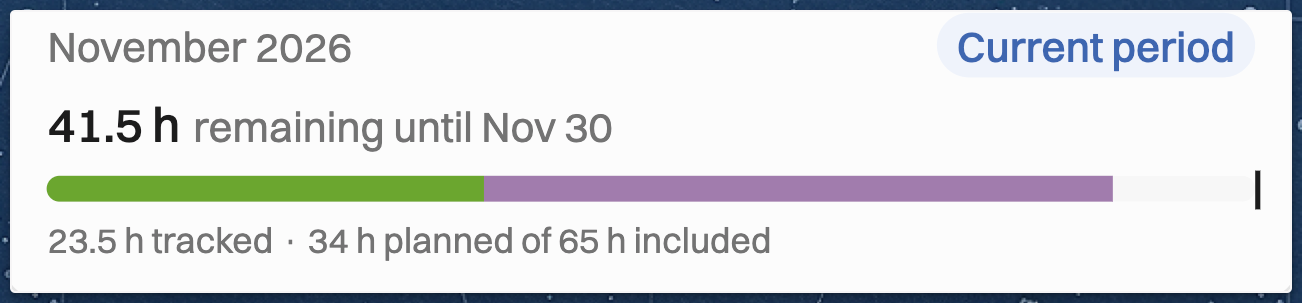
The current period's hours, against the included hours, with a badge that reads Current period. When no period is running, the section shows the next period (Next period), or the last one (Last period) after every period has ended.
Margin and Effective hourly rate, each with a small chart over up to six periods. Margin shows only to people who can see costs.
What a period shows
Each period shows its name and a bar for tracked hours, planned hours and overage. It measures the period's hours against its hours target, or against its included hours when it has no hours target.
An ended period shows how many hours went over or under the included hours, and how many of the included hours were used.
The current period shows how many hours remain until the period ends, or how far over the period is so far, with the hours tracked and planned.
A future period shows how much of the included hours is planned.
The Status tab
A retainer project has its own Status tab, built around the periods.
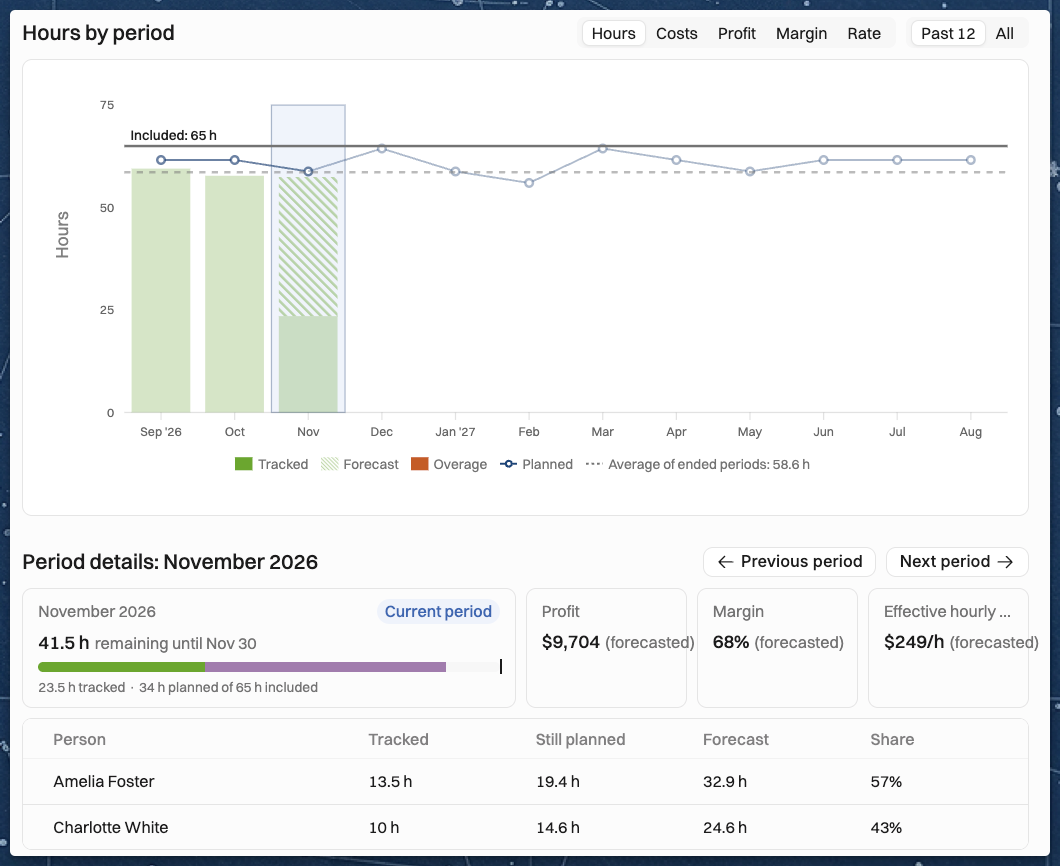
Summary. Revenue to date, Profit to date, Margin to date and Effective hourly rate to date cover the periods that have ended. The period that is running counts once it ends. Profit to date and Margin to date show only to people who can see costs.
Chart. A chart shows each period's hours, costs, profit, margin or effective hourly rate. You can show the past 12 periods or all of them. When periods have a target, the chart shows it as a dotted line.
Target filter. When periods have targets for a role, seniority, person or task, the Hours and Costs views list them after Total. Select one to see the chart for that target. Each entry says in how many periods the work stayed within or went over its target.
Period details. You can step through the periods one at a time. Each period shows its hours and bar as described above, its margin and effective hourly rate, and how many hours each person tracked, still has planned and is forecast to work. When the period has targets, a Target progress table lists each target with its Actual, Progress and Status. See How budget targets work.
The Status tab's revenue, profit, margin and effective hourly rate to date cover the fee and leave overage out, so a retainer with overage shows lower figures than it earned.
A person who can see only their own time entries on the project sees the Status tab with their own hours alone.
When the project has milestones, the Status tab also shows a Milestones section. It shows how well the project keeps its milestones' target dates. A retainer project with milestones but no periods shows only that section. See Project milestones.
The project timeline
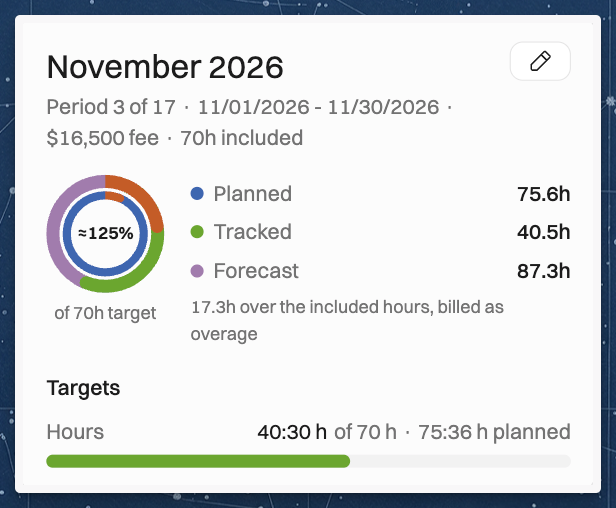
On the project timeline, the project's budget row is headed Retainer, and each period is a bar. The bar shows how much of the period's limit its forecast uses. The forecast is the tracked work plus the planned work, so 32h of 40h means 32 hours against a limit of 40 hours.
The limit comes from the first of these that the period has:
A cost target: the work's cost against the target cost.
An hours target: the hours against the target hours.
An effective hourly rate target: the hours against the hours that the fee pays for at that rate.
A margin target: the work's cost against the most cost that keeps that margin on the fee.
Included hours: the hours against the included hours.
The fee: the work's value at the project's rates against the fee.
For targets, see How budget targets work. A stripe marks a period whose forecast goes past its target or its included hours. A mark shows a period that was changed by hand.
Hover over or click a bar to see the period's fee, included hours, planned and tracked hours, and an Edit period button.
The card also has a ring for how much of the limit the period's work uses. Under the ring, a caption names the limit, for example of 40h included, of 60h target or of €7,200 cost target. A period measured against its fee has no caption.
For an effective hourly rate target or a margin target, a help icon next to the caption says how Operating worked out the limit, for example The most cost that keeps a 20% margin on the €9,000 fee.
When a period's work goes past its included hours, the card adds a note:
Overage that is invoiced: for example 4h over the included hours, billed as overage.
Overage that is not invoiced: for example 4h over the included hours, not invoiced. The note shows in the warning colour, because those hours earn no revenue.
Was this helpful?
Still need help? Ask the team